EasyManua.ls Logo

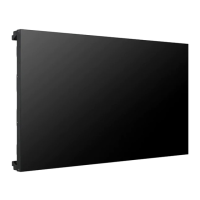
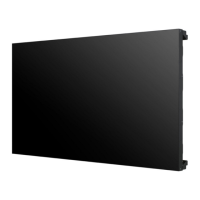
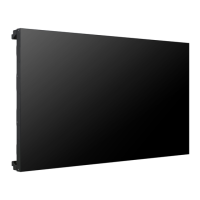
LG 55LV75A - User Manual

LG 55LV75A
85 pages
Print Icon
To Next Page IconTo Next Page
Loading...
www.lg.com
OWNER’S MANUAL
MONITOR SIGNAGE
55LV75A
55LV77A
Please read this manual carefully before operating your set and retain it
for future reference.
MONITOR SIGNAGE MODELS

Table of Contents

Other manuals for LG 55LV75A

Questions and Answers

  • C
    Casey WilliamsSep 23, 2025
    What to do if my LG 55LV75A displays no image?
    • C
      Cody GilesSep 23, 2025
      If your LG Digital Signage isn't displaying an image, ensure the power cord is properly connected to the outlet. Also, try adjusting the brightness and contrast settings. Check the signal cable and access the input menu to verify the input signal. If the signal from the PC (video card) is out of the vertical or horizontal frequency range of the product, adjust the frequency range by referring to the Specifications.
  • A
    Amy FranklinAug 23, 2025
    What to do if the LG Monitor screen is very dark?
    • W
      wallacekimberlyAug 23, 2025
      If your LG Monitor's screen is extremely dark, try adjusting the brightness and contrast settings. If the issue persists, the backlight may require repair.
  • T
    Tina NortonAug 25, 2025
    Why is there no sound from my LG Monitor?
    • S
      Shane PattonAug 25, 2025
      Ensure the audio cable is connected properly to get sound from your LG Monitor.
  • J
    Jose MathisAug 27, 2025
    How to check if the power cord is connected to my LG Monitor?
    • S
      Savannah MeyerAug 27, 2025
      Ensure the power cord is properly connected to the outlet to supply power to your LG Monitor.
  • B
    Brian JensenAug 27, 2025
    Why is the screen color unstable on my LG Monitor?
    • J
      Jamie LawsonAug 27, 2025
      Unstable or mono-colored screen issues on your LG Monitor can often be resolved by checking the connection status of the signal cable. If the problem continues, try re-inserting the PC video card.
  • T
    Tammy LongSep 18, 2025
    Why do black spots appear on my LG Monitor screen?
    • L
      Leah SmithSep 18, 2025
      The appearance of several pixels (red, green, white, or black color) on the screen of your LG Monitor may be due to the unique characteristics of the LCD panel and is not a malfunction.
  • R
    Richard DawsonSep 15, 2025
    How to remove thin lines on the LG Monitor background screen?
    • W
      wholmesSep 15, 2025
      To remove thin lines on the background screen of your LG Monitor, press the 'AUTO' button on the remote control to automatically select an optimal screen status. If adjustment is not satisfactory, select [PICTURE] - [Screen] - [Size] in the OSD menu.
  • L
    Lori GraySep 16, 2025
    Why does an after-image appear on my LG Monitor when it's turned off?
    • S
      Steven RyanSep 17, 2025
      If an after-image appears when your LG Monitor is turned off, it may be due to using a fixed image for an extended period, which can damage pixels. Use the screen-saver function to prevent this.
  • G
    Gary ParkerSep 6, 2025
    How to fix LG 55LV75A when no image is displayed?
    • M
      meaganterrySep 6, 2025
      If your LG Digital Signage displays no image, ensure the power cord is properly connected to the outlet. Also, check the signal cable and access the input menu to verify the input signal. Try adjusting the brightness and contrast settings. If the PC signal is out of range, adjust the frequency range by referring to the specifications.
  • W
    whitejohnSep 3, 2025
    Why did my LG Monitor power suddenly turn off?
    • G
      George MaciasSep 4, 2025
      Your LG Monitor might have turned off suddenly because the sleep timer is set, the power control settings are enabled, or there was a power interruption. Check these settings to ensure the monitor functions correctly.

Summary

Assembling and Preparing

Panel Protection Storage Method

Correct and incorrect methods for storing the panel to prevent damage.

Wall Mounting

Details on mounting the monitor to a wall using VESA standards.

Securing Monitor to Wall

Provides instructions and safety warnings for securing the monitor to a wall.

Joining Sets for Tiling

Guides on connecting multiple monitors for tiled displays.

Remote Control

Detailed Button Functions

Explains specific functions of various remote control buttons.

Using the Monitor Set

PC Connection

Instructions for connecting and using the monitor with a PC.

RGB Connection

Details on connecting the PC using an analog RGB signal cable.

Display Port Connection

Instructions for connecting the PC via a Display Port cable.

Image Option Customization

How to adjust settings like Backlight, Contrast, Brightness, and Sharpness.

PC Display Options

How to adjust PC-specific display settings like Resolution and Auto Config.

Entertainment Features

Wired Network Connection

Instructions for setting up a wired network connection for the display.

USB Storage Connection

Guide to connecting USB flash drives and external hard drives for media playback.

Browsing Media Files

How to navigate and view files (movies, photos, music) from a USB device.

Viewing Movies

Step-by-step guide to playing video files from a USB device.

Viewing Photos

Guide to browsing and viewing image files from a USB storage device.

Listening to Music

Steps to play music files from a USB device and control playback.

Picture-in-Picture;Picture-by-Picture

How to display videos or photos in PIP or PBP mode.

Customizing Settings

Picture Settings

Detailed explanation of picture settings like Aspect Ratio, Energy Saving, and Picture Mode.

Network Settings

Configuration options for network settings, player name, and status.

Making Connections

DVI Connection

Details on connecting external devices using DVI cables.

HDMI Connection

Details on connecting external devices using HDMI cables for audio and video.

Connecting to a USB Device

Guide for connecting USB storage devices for multimedia playback.

Daisy Chain Monitors Setup

Instructions for connecting multiple monitors in a daisy-chain configuration.

Troubleshooting

No Image Display Problems

Troubleshooting steps for issues where no image is shown on the screen.

Abnormal Screen Image

Common solutions for abnormal screen display issues like wrong position or lines.

Controlling Multiple Products

Command Reference List

Comprehensive list of commands, their codes, and data parameters.

LG 55LV75A Specifications

General IconGeneral
Screen Size55 inches
Brightness500 cd/m²
Contrast Ratio1, 200:1
Dynamic Contrast Ratio500, 000:1
Viewing Angle178° / 178°
Panel TypeIPS
Life Time50, 000 hours
Operating Hours24/7
OrientationPortrait & Landscape
External ControlRS232C, RJ45
Operating Temperature0°C to 40°C
Resolution1920 x 1080
InputsHDMI, DVI, Component
OutputsAudio Out
Operating SystemNo
Power Consumption150W

Related product manuals