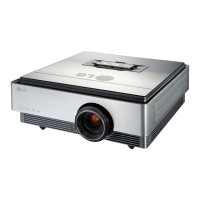
Function
21
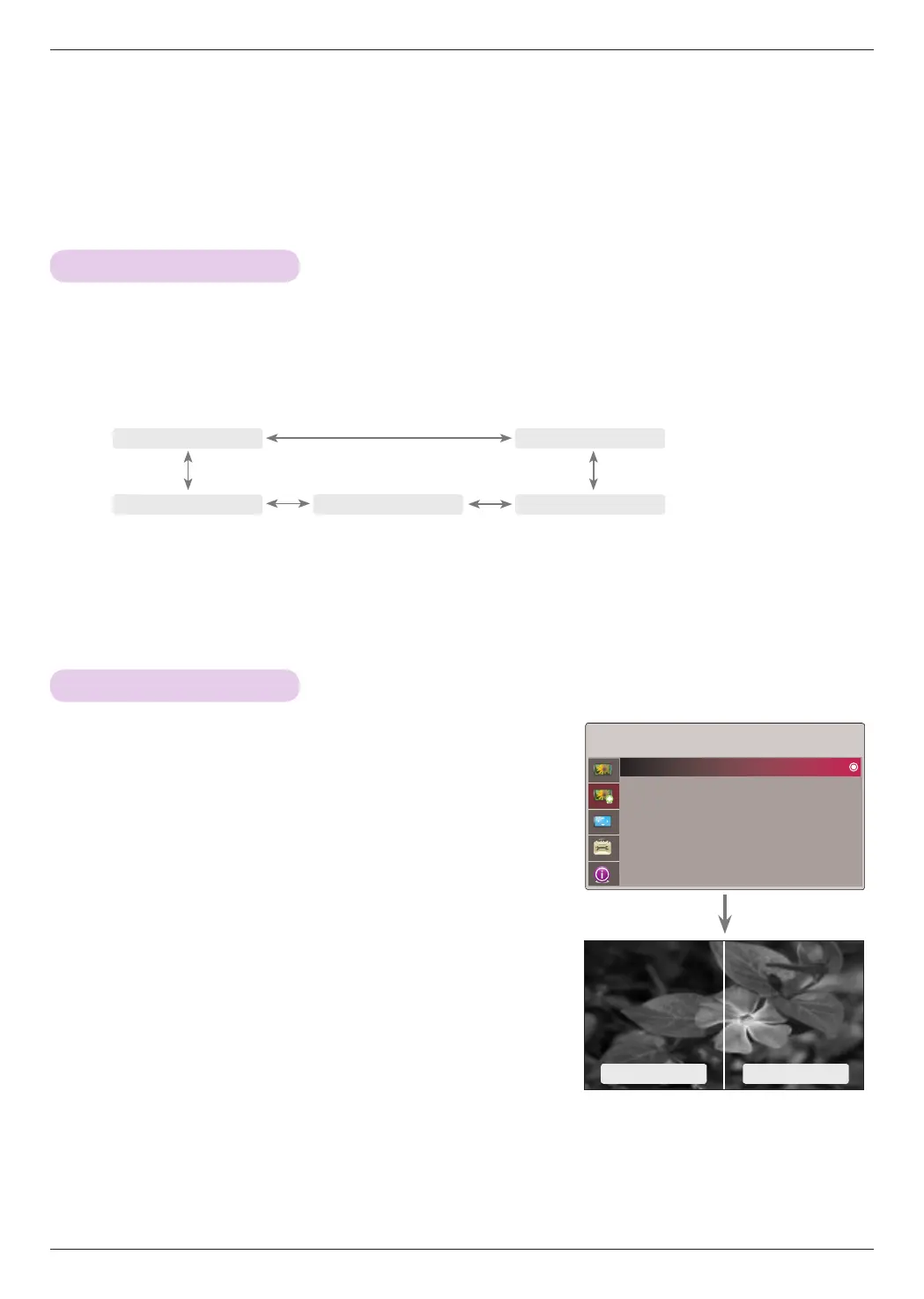
Auto Iris Function
TruMotion Demo Function
ADV. PICTURE Menu Options
1. Press the A.IRIS button on the remote control.
2. Press the <, > button to adjust the screen condition as you want.
* This function adjusts the brightness of the entire image depending on inputted image to provide optimum image quality.
• Each press of the <, > button changes the screen as shown below.
• Manual : You can adjust from 0 to 32 on Advanced Control of ADV. PICTURE.
• You can use this function through the MENU button.
• To exit the menu display, press the EXIT button.
ꔗ
Manual
ꔃ
ꔗ
Auto Iris3
ꔃ
ꔗ
Auto Iris1
ꔃ
ꔗ
Off
ꔃ ꔗ
Auto Iris2
ꔃ
1. Press the MENU button. Then, move to ADV. PICTURE with the
∧, ∨, <, > buttons and press the ꔉOK button.
2. Move to a sub-item with the > button. Then, use the ∧, ∨ buttons
to move to TruMotion Demo and press the ꔉOK button.
• Press the MENU or EXIT button to exit the menu screen.
TruMotion on TruMotion off
ADV. PICTURE
TruMotion Demo
Advanced Control
Adv. Picture Reset
ꔂMove ꔉOK


 To Next Page