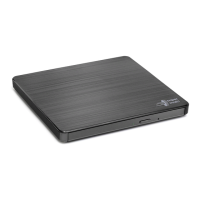
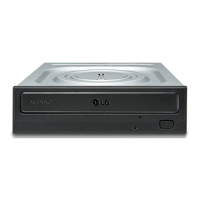
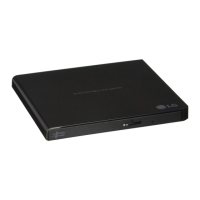
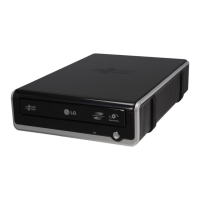
This document is an owner's manual for an LG Slim Super Multi DVD Writer, model GTBON. It provides comprehensive information on the device's functions, usage, and maintenance.
Function Description
The LG Slim Super Multi DVD Writer is an internal optical drive designed to read and write to both CD and DVD media. It supports a wide range of disc formats, making it a versatile component for various computing needs. The drive is compatible with CD-R/RW, DVD-R/-R DL/-RW/+R/+R DL/+RW, and DVD-RAM for both reading and writing. Additionally, it can read CD Family and DVD-ROM discs. A notable feature is its support for M-Disc (DVD+R SL) for both reading and writing, which is designed for long-term data archival.
The drive incorporates an "Active OPC (Running OPC)" or "Optimum Power Controller" feature. This technology continuously monitors the signal level during recording and adjusts the laser power to compensate for dirty discs, ensuring a consistent and reliable signal for optimal write quality. This helps to maintain data integrity and extend the life of recorded media. The drive also includes improved Buffer Under-Run Error handling through a Preventive function, which helps to prevent errors during the writing process, especially during high-speed operations.
Usage Features
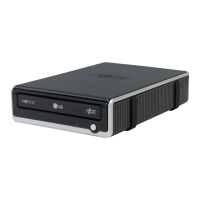
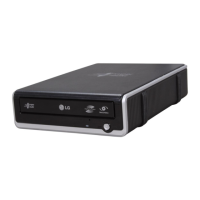
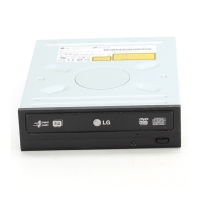
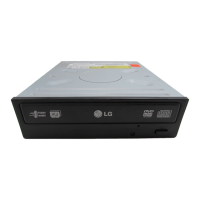
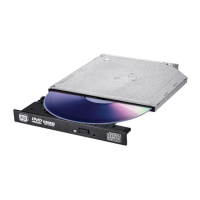
The manual details the operation of the drive, focusing on ease of use and proper handling. The front panel of the drive features an emergency eject hole, an indicator light, a disc tray, and an eject button.
Inserting a Disc:
To insert a disc, the user presses the eject button to open the disc tray. The disc should be placed in the center of the tray with the label side facing up, then pushed onto the hub until it is secure. The tray is then closed manually.
Removing a Disc:
Removing a disc involves pressing the eject button to eject the tray, removing the disc, and then pushing the tray back until it closes completely. The manual notes that during certain drive activities, the tray may not open even if the eject button is pressed, indicating that the drive is actively engaged in a task.
Emergency Eject:
In situations where the eject button is disabled by software or due to a power failure, an emergency eject procedure is provided. This involves turning off the computer, inserting a small diameter rod (like a straightened paper clip) into the emergency eject hole, and pushing firmly. This action partially ejects the disc tray, allowing the user to pull it out manually. A crucial warning is given not to insert the rod deeper than 50 mm (1.9 inches) to prevent damage to the drive.
Usage Guidelines:
The manual emphasizes several guidelines for proper usage to ensure the longevity and performance of the drive and discs:
- Avoid pressing down on the disc tray while it is opening or closing.
- Do not place any objects on the disc tray.
- Never use damaged, broken, scratched, or deformed discs, as these can harm the drive or lead to data errors.
- Keep the disc tray closed when the drive is not in use to prevent dust accumulation and accidental damage.
The manual also addresses the phenomenon of vibration and noise during high-speed operations. It explains that high-speed drives spin discs at very high rotational speeds. If a disc has printing on only half of its surface or has a slight imbalance, this imbalance is greatly magnified at high speeds, leading to vibrations or a fan-like noise. This is described as an inherent characteristic of high-speed technology and not an indication of a problem with the drive.
Maintenance Features
The manual provides clear instructions for cleaning media and advises against cleaning the drive itself.
Cleaning Media:
If a disc accumulates dust or fingerprints, it should be wiped with a soft cloth. The cleaning motion should be from the center of the disc outwards to the edge.
Caution: Users are explicitly warned not to use benzene, paint thinner, record cleaner, solvent, or static repellent on discs, as these chemicals can damage the disc surface.
Cleaning the Drive:
The manual states that cleaning the inside of the drive is not recommended. This suggests that the drive is designed to be largely maintenance-free in terms of internal cleaning, and attempting to clean it internally could cause damage or void warranties.
Troubleshooting
A dedicated troubleshooting section helps users diagnose and resolve common issues. This section is structured with symptoms and corresponding solutions.
Common Symptoms and Solutions:
- Drive not recognized by the system: The solution involves turning off the system, removing the drive, and re-inserting it.
- Cannot read or play disc: Solutions include cleaning dirty discs with a non-abrasive cloth (from center to outside), avoiding scratched or warped discs, ensuring the disc is inserted label-side up, and verifying that necessary software applications are correctly installed.
- Certain types of discs do not play: The manual directs users to check the Specifications section to confirm that the disc format is supported by the drive.
- Disc activity but no sound when playing an audio CD: This issue can often be resolved by setting the CD player application (e.g., Windows Media Player) to "Digital" playback mode.
- Drive not writing or reading at maximum speed: Solutions include ensuring the disc is clean and free of scratches. It also explains that media from different manufacturers or purchased at different times may record at different speeds, and the drive will adjust to achieve the highest write quality.
- Cannot eject disc: Solutions include checking if the system is powered up, referring to the emergency eject instructions, and attempting to issue an eject command from within the operating system if possible.
- Cannot write to disc (for drives with write capability): Solutions cover checking disc orientation (label up), understanding that CD-R, DVD+R, and DVD-R discs cannot be re-written, verifying disc type compatibility with the Specifications section, ensuring sufficient free space on the writable disc, and trying again with screen savers or other applications turned off if they were running during the write attempt.
Overall, the manual provides essential information for the safe and effective use of the LG Slim Super Multi DVD Writer, covering installation, operation, troubleshooting, and basic maintenance.


 To Next Page
 General