Overview of Playback
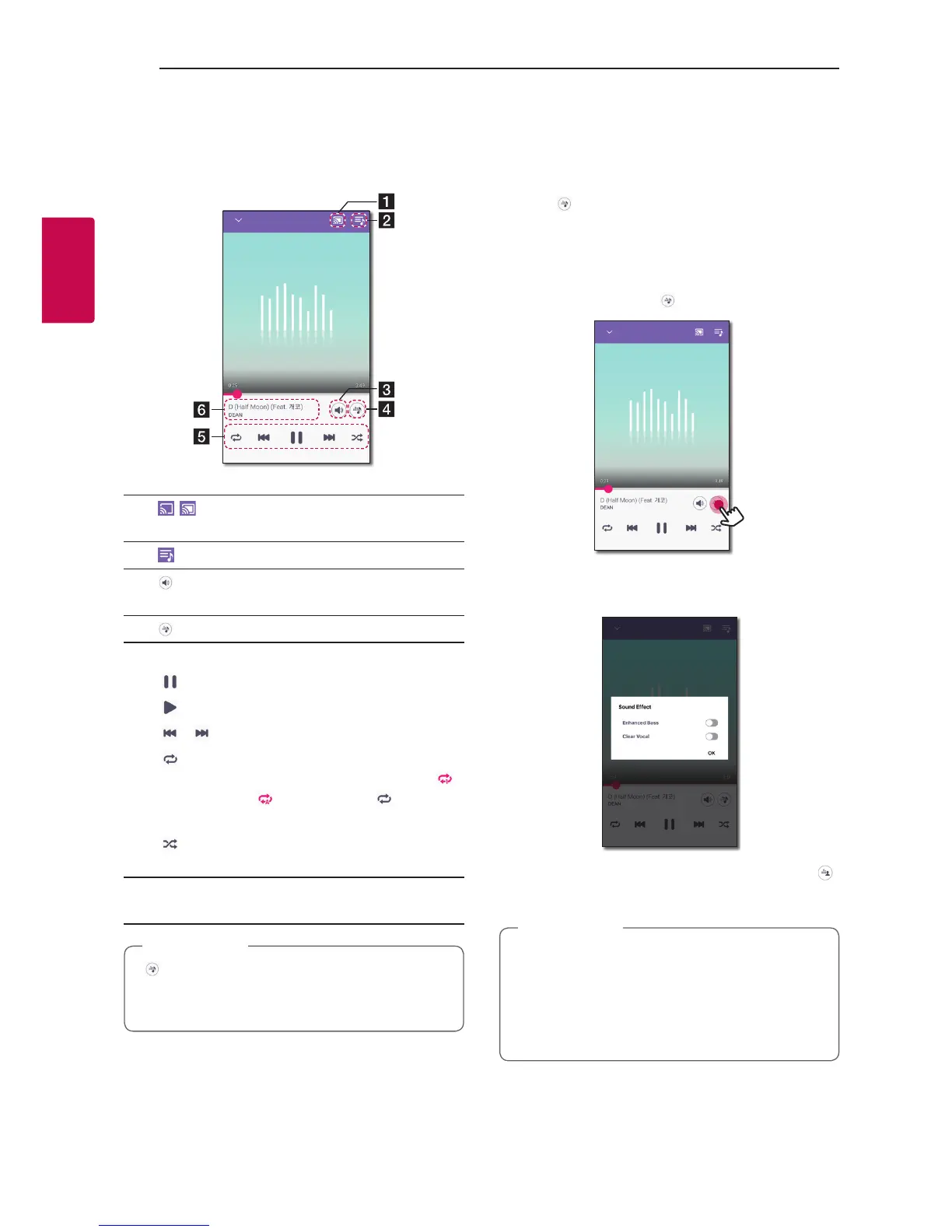
You can conrm and adjust various information on
the playback screen.
a
[ / ] - Cast music to the connected speaker
by Chromecast and stop casting the music.
b
[
] - Edits the current playlist.
c
[
] - Adjusts the volume of smart device or the
volume of Chromecast.
d
[
] - Adjusts the sound effect.
e
Adjusts playback.
[
] - Pauses playback.
[
] - Starts playback.
[
]/[ ] - Skips fast backward or forward.
[
] - Repeats the desired contents.
Every time you click it, the state changed in [ ]
(Repeat One) - [ ] (Repeat All) - [ ] (Repeat
Off) order.
[
] - Shufes the music on the list. Music will
be played in random order.
f
Displays information about the currently playing
song.
[
] is not available when you listen to music by
your smart device or listen to music from
speakers grouped with the Google [Home] app.
,
Note
Selecting Sound effect
The app provides 4 sound effects (Clear
Vocal+Enhanced Bass, Clear Vocal, Enhanced Bass or
Standard). You can select a desired sound mode by
tapping [ ].
The displayed items for the equalizer may be different
depending on the connected speaker, sound sources
and effects.
1. During playback, tap [
].
2. Select sound effect using Enhanced Bass and
Clear Vocal and tap [OK].
You can customize the sound effect by using [ ]
to adjust Treble and Bass value.
y
When you listen to music via [My Phone]
without speaker, the sound effect is not
supported.
y
Depending on the connected speaker,
displayed sound effect may differ.
,
Note



 To Next Page