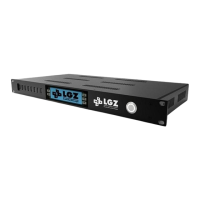
The LGZ USB has two IP settings:
- DHCP
This is the default setting and means that if your unit is connected to a DHCP network prior to being
started, it will during boot up receive an IP from the local router. This IP will be displayed on the LCD
screen under the INFO menu (picture 8).
- Static IP
If instead you want to assign your unit to a specific static IP address you must first access it through
the web interface (while it is in DHCP mode) and then, in the settings tab there assign it the static IP
address you want it to have. As soon as you acknowledge the change, it will lose its connection and
from that point on have the static IP you gave it.
4. Web Interface
The Web interface allows the user to remotely connect to the device and control all of the features
available on the LCD. It also allows the control of some features only accessible from the Web
interface. It consists of four pages with information and controls. See 4.2 for screenshots.
4.1 List of features
Here is a list of all the features that can be done via the web interface. Those with a “B” in front can
be set both via the web interface and the LCD screen directly on the unit. Those without a “B” can
only be set from the web interface.
- Switch the unit between “PAL” (European) standards and “NTSC” standards
- Set the unit to DHCP or Static IP mode for integration in your network
- Password protect your unit for access on the network
- Burn in Timecode onto the recorded files (VITC embedded timecode only)
- Burn in a custom logo/watermark on the recorded files
- Name with a custom name the files that will be recorded
- B – Set the local time on your unit
- B – Set what video format you want to record in
- B – Set what Audio Channel pair you wish to record
- B – Set what quality you want the recorded files to be (HD or SD)
- B – Format your USB sticks
- B – Start and stop your recordings


 To Next Page