Tips and Troubleshooting
Hardware Resetting
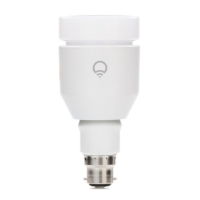
You may notice a small switch on the back of your LIFX bulb. This is the hardware
reset switch.
If you are having difficulties with a bulb, flicking the hardware reset switch will
return the bulb back to its virgin state as if it was brand new.
How to hardware reset the bulbs:
• Turn the bulb(s) off
• Flick the reset switch into the opposite position (e.g if the switch is at the top
position move it to the bottom, if the switch is at the bottom position, move it
to the top.) NOTE: once the switch is moved to the opposing position the bulb
is reset, it does not need to be returned to its original position)
• Turn the bulb closest to your router or access point on
• It should now flash Red, Green, Blue, & settle on White
• Please run through the setup procedure for the primary bulb
If you see any errors during setup, try the following:
• Force Quit the app
• Check to make sure that your device is connected to the correct
network
• Relaunch the app
Can you control your bulb(s) now? If so, please proceed with the following:
• Turn the remaining bulbs on
• They should now flash Red, Green, Blue, & settle on White
• Open the LIFX app on your device
• In the settings is an option to "Add New Bulbs"
• Tap that option and your remaining bulbs will be added into the network
• If it still isn't showing all your bulbs in the list or the options isn't greyed out,
tap it again
• You should now have control over all your bulbs.
14


 To Next Page