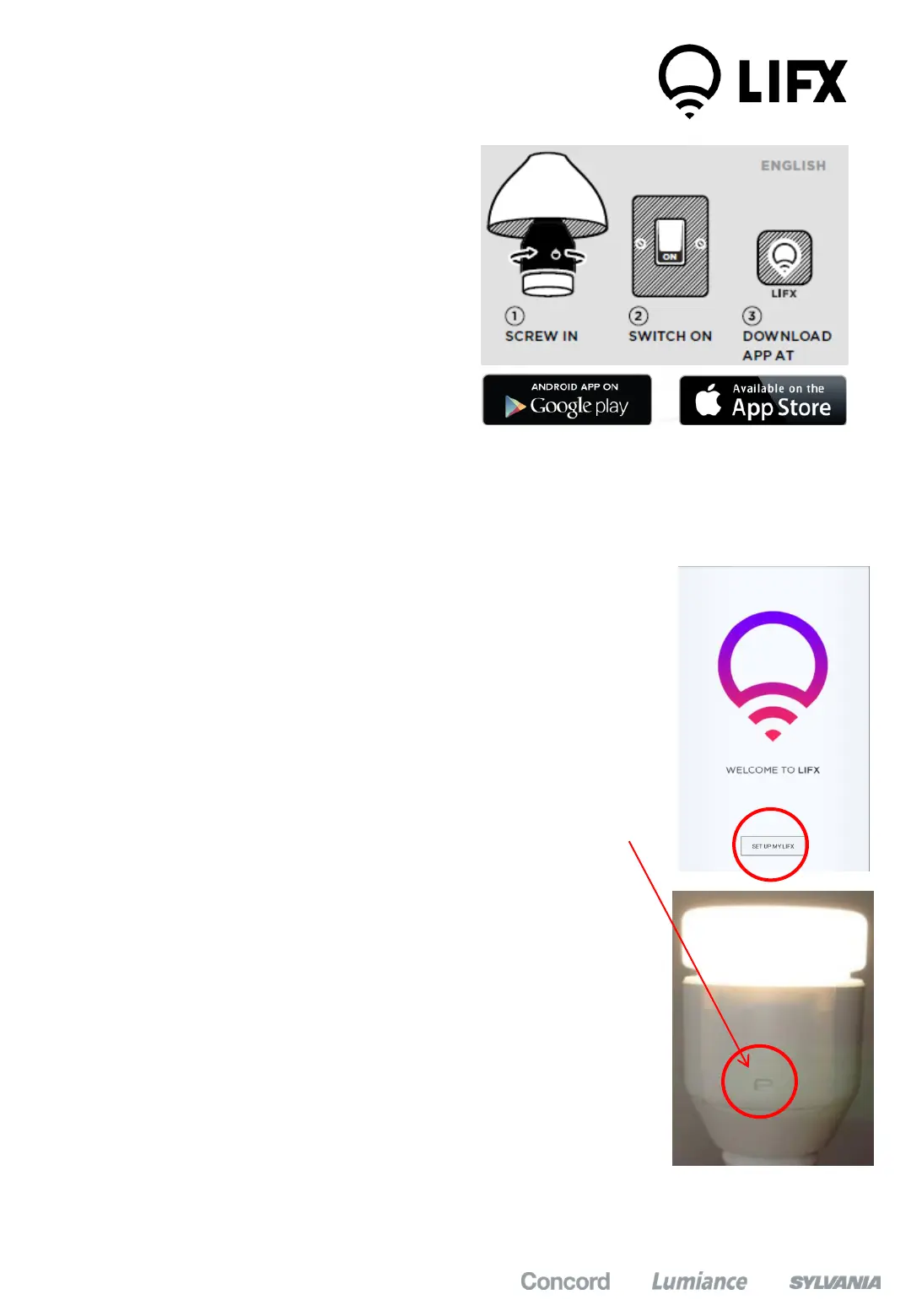
Quick Setup
1. Screw in LIFX bulb
2. Switch on power
3. Download app and
follow in app instructions
Detailed Setup
1. Screw in LIFX Bulb
2. Switch on power – the first time a LIFX bulb is plugged in it will cycle
through the different colours
3. Download LIFX app from Googleplay or Apple App Store
4. Ensure Wi-Fi is enabled on your device
5. Open LIFX App and select “Setup my LIFX” -----------------
6. App will connect automatically to lamp.
If using multiple lamps, please only switch on one lamp
for setup. Other lamps can be added later.
If the app fails to find the bulb, Please switch off the bulb
and use the hardware reset switch on the side of the
LIFX bulb. Force quit the app and re-launch setup
7. Once the bulb is connected you will be asked to select
your Wi-Fi network and provide the router password
8. Once the network credentials are inputted, these will
be given to the LIFX bulb to create the network of lamps.
Once the setup passes Step 5 you will get confirmation
that the bulbs are now setup.
If you are experiencing difficulties please email support@lifx.co and we will
do our best to help you out or visit lifx.co and see our Support section.
5


 To Next Page