GETTING SET UP • PODxt Pro — Configurations & Connections
3 • 8
PODXT Pro — Configurations & Connections
To use the USB connector, visit www.line6.com to download PODxt USB Driver Software,
as well as Line 6 Edit Mac/Windows software or GuitarPort (Windows only) software.
Selecting An Input
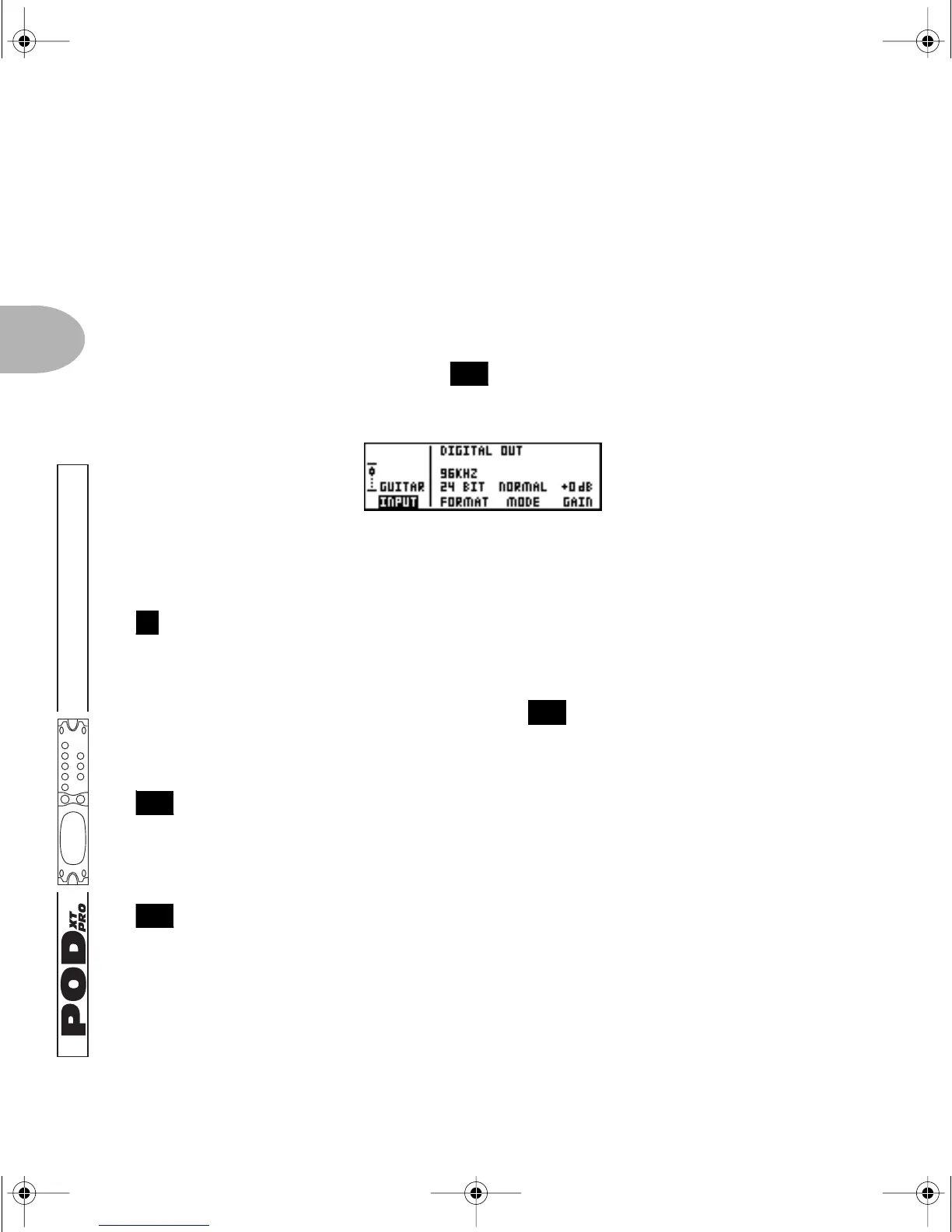
Press the I/O & DIG SELECT button once to see this page where you select from
POD
XT Pro’s many inputs and digital options:
Press the far-left Soft Button below
INPUT and select from these options:
GUITAR IN—Pick this when plugging your guitar straight into the front panel INPUT
jack. When this is selected, audio from the rear panel’s line level input and digital
inputs is ignored.
LINE IN—Select this option when whatever you want to run through PODXT Pro is
plugged into the rear panel Line Level Input . When this is selected, audio from
the front panel input and the digital inputs is ignored.
AES LEFT, AES RIGHT, AES L+R—Select one of these to use the rear panel AES/EBU
digital inputs. The
AES L+R option merges the left and right AES inputs to mono,
since POD
XT Pro only allows a mono input. When this is selected, the front and rear
panel analog inputs are ignored.
SPDIF LEFT, SPDIF RIGHT, SPDIF L+R—Select one of these for the rear panel S/PDIF
digital inputs. The
SPDIF L+R option merges the left and right SPDIF inputs to
mono, since POD
XT Pro only allows a mono input. When this is selected, the front and
rear panel analog inputs are ignored.
FEATURE FOCUS
26
2
36
36
PODxt Manual Book RevC.book Page 8 Friday, August 29, 2003 5:43 PM


 To Next Page