Creating & Storing Sounds • Inside the Edit Menu
4 • 8
Wah and Volume
From the Reverb edit page, spin the SELECT knob one click clockwise and you’ll find
the W
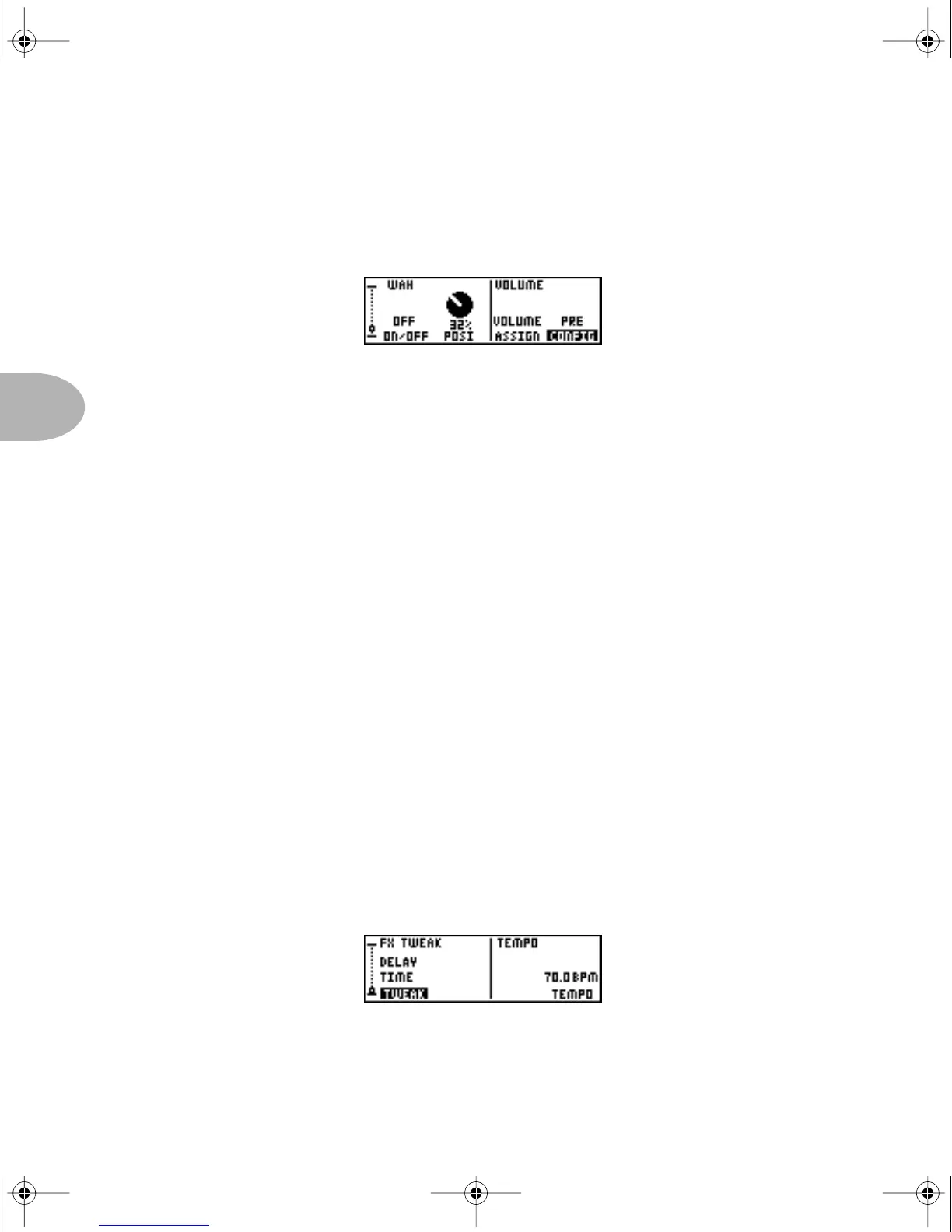
AH and VOLUME parameters. The display now looks something like this:
Let’s check out the wah first. Over the last few years, many POD users have requested
the ability to save the on/off state of the wah with a Channel Memory. That way when
you recall that channel, the wah comes on automatically. Rejoice! Rejoice! Your wish
has been granted by the all-merciful tone gods. And you didn’t even have to sacrifice
your 60’s Telecaster in a fiery devotional ceremony! (Whew.) In fact, you can even
save the position you want the wah to be set at when it comes on — by pressing the
button below
POSI and twiddling that EFFECT TWEAK knob.
Moving on to the right side of the Wah/Volume page.... Here you can determine the
behavior of an expression pedal (like the Line 6 EX-1) connected to the optional FBV
Shortboard. When
PEDAL is set to VOLUME, the EX-1 will control PODXT’s Volume
and the Shortboard’s built-in pedal will be dedicated to Wah. You can also choose the
position of the volume pedal:
PRE (before the amp model), or POST. When PEDAL is
set to T
WEAK, pedaling the expression pedal from heel to toe will move the FX
TWEAK assigned parameter from its minimum value to its maximum value.
FX Tweak Knob Assign / Tempo Assign
Imagine this: you’re in the middle of the most inspired gig of your life and you wish to
tweak the one effect parameter that would send you over the top and into sonic
nirvana...
Shazam! Your wish has been granted. Follow me to the next E
DIT page that controls
the E
FFECT TWEAK knob assignment. It looks like this:
PODxt Manual Book RevC.book Page 8 Friday, August 29, 2003 5:43 PM



 To Next Page