11. Firmware Update 12. Voice Prompts
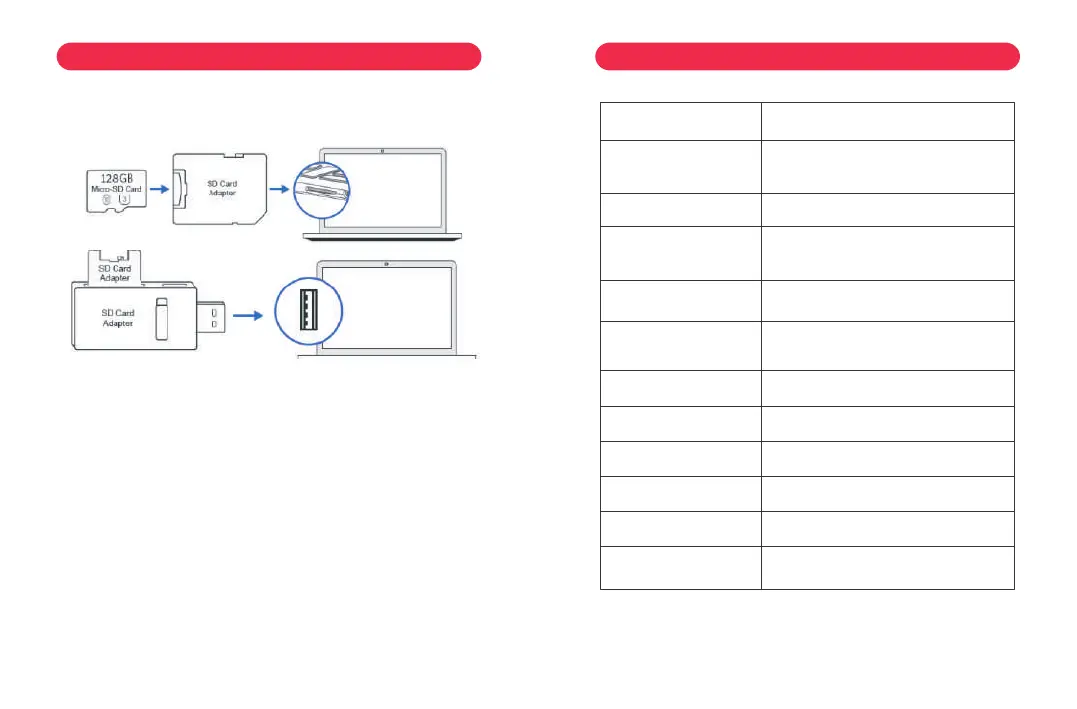
1. Remove the microSD card from the dashcam.
2. Insert the card into the microSD card reader and connect it to a
computer.
3. Download the latest D500 Firmware from www.lingdu.us > Support >
Downloads on your computer.
4. Unzip the downloaded firmware (Zip file) and copy the firmware file
named “FW96565A.bin” to the root directory of microSD card.
5. Connect the camera to the car charger to start the firmware update
process. You should see the upgrade progress bar which means your D500
dash camera is updating the new firmware.
Please NOTE:
The firmware update may take up to about 1mins. So please be patient.
Make sure the POWER does NOT get disconnected while the firmware is
being updated. Once the firmware is updated, the camera will turn OFF
automatically.
6. You can turn on and check the latest firmware version by going
into the APP's settings > Firmware Version.
Prompt Voice
Emergency Video
WiFi ON
WiFi OFF
Memory card error
Recording started
Recording stopped
Sound as “Click”
Format Successfully
Format Failed
Parking mode is on
Parking mode is off
Description
During recording once G-Sensor
triggered
Default ON, after powered on, say it
Press and hold Wi-Fi button for 3s
to switch off, say it
Wrong/bad/fake memory card
After powered on and boot ringtone
/operate via App, say it
Operate via App, say it
Take picture via App, say it
Format memory card successfully
Format memory card failed
Parking Mode has been turned on
Parking Mode has been turned off
EN-35 EN-36



 To Next Page