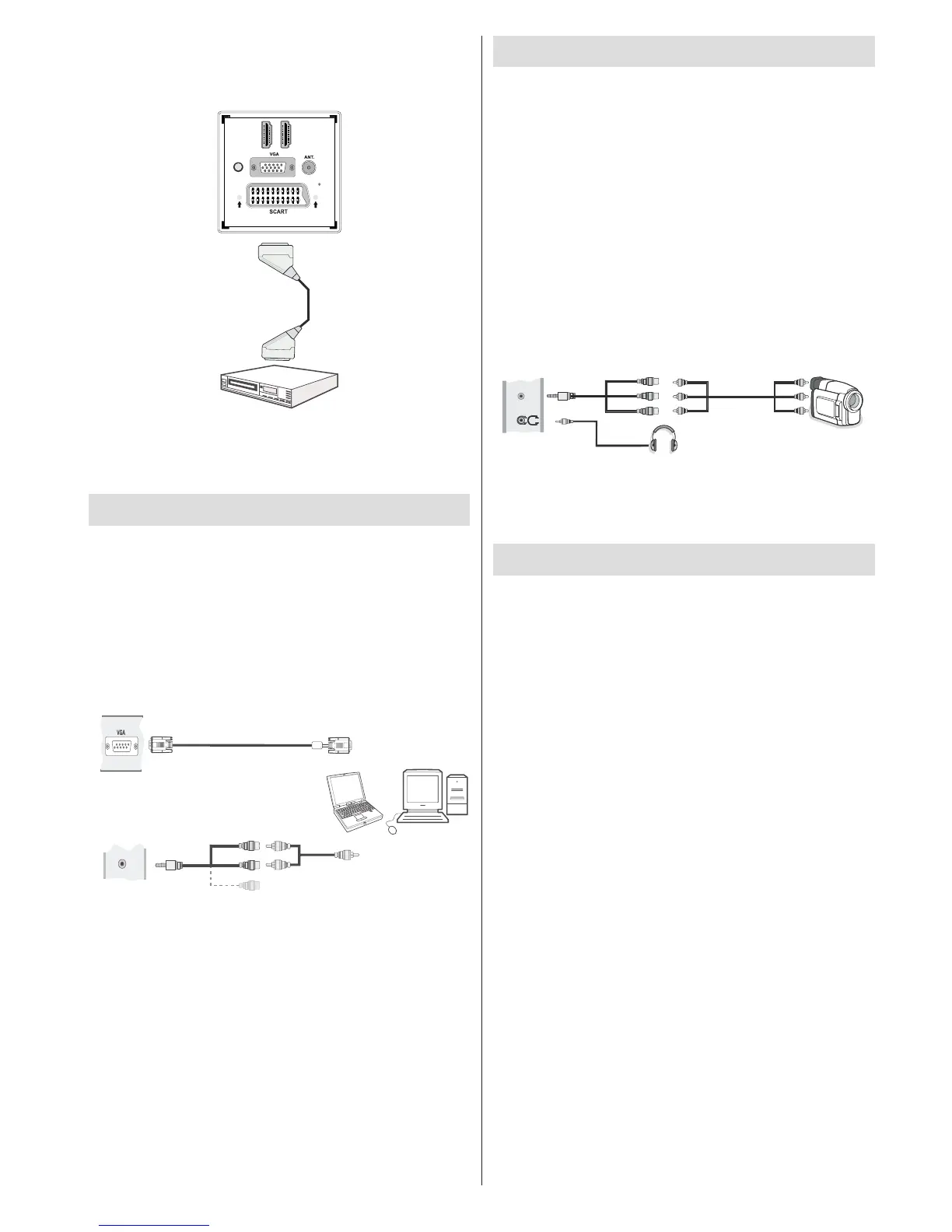
When the connection is made, switch to • YPbPr source.
See, Input selection section.
You may also connect through the • SCART input.
D I H M 1
SPDIF
Coax.OUT
D I H M 2
Scart Cable
(not supplied)
External device
Note: • These three methods of connection perform
the same function but in different levels of quality. It
is not necessary to connect by all three methods.
Connecting the LCD TV to a PC
For displaying your computer’s screen image on your
LCD TV, you can connect your computer to the TV set.
Power off both computer and display before making
any connections. Use 15-pin D-sub display cable to
connect a PC to the LCD TV. When the connection
is made, switch to PC source. See Input selection
section. Set the resolution that suits your viewing
requirements. Resolution information can be found
in the appendix parts
.
PC Input
(back)
Side AV Input
PC VGA Cable
(not supplied)
PC Audio Cable
(not supplied)
Side Audio/Video
Connection Cable
(supplied)
or
SIDE AV
Note: You should use audio inputs of side AV
connection cable (RED & WHITE) to enable sound
connection when connecting a device to your TV by
using PC input.
Note: If you connect a PC to the TV using HDMI
connection, radio interference may occur. Therefore
this type of connection is not recommended. You
should use VGA connection instead.
Using Side AV Connectors
You can connect a range of optional equipment to your
LCD TV using side connectors of the TV.
For connecting a camcorder or camera , you should •
use SIDE AV socket (side). To do this, you must use
the supplied video/audio connection cable. First,
plug single jack of the cable to the TV’s AV IN socket
(side). Afterwards, insert your camera cable’s (not
supplied) connectors into the plural part of the video/
audio connection cable. Colours of the connected
jacks should match. See illustration below.
Afterwards, you should switch to • Side AV source. See
the section Input selection in the following sections
for more information.
Camera
Side AV Connection
Cable (supplied)
AV Cable
(not supplied)
Headphone
SIDE AV
To listen the TV sound from headphones, you •
should connect headphones to your TV by using the
HEADPHONE jack as illustrated above.
Using USB Media
USB Connection
You can connect a USB hard disk drive or USB •
memory stick to your TV by using the USB inputs
of the TV. This feature allows you to play les stored
in a USB drive or record programmes.
2.5” and 3.5” inch (hdd with external power supply) •
external hard disk drives are supported.
To record a programme, you should rst connect •
a USB disk to your TV while the TV is switched
off. You should then switch on the TV to enable
recording feature. Otherwise, recording feature will
not be available.
IMPORTANT !
You may back up your les before making any •
connections to the TV set in order to avoid any
possible data loss. Note that manufacturer will not be
responsible for any le damage or dataloss.
It is possible that certain types of USB devices (e.g. •
MP3 Players) or USB hard disk drives/memory sticks
may not be compatible with this TV.
IMPORTANT: The TV supports only FAT32 disk
formatting. NTFS format is not supported. If you
connect a USB disk with NTFS format, the TV will ask
you to format the content. See the section, “Format
Disk” in the following pages for more information on
disk formatting.


 To Next Page