RECORDING AND USB MODE | 39
Scheduled Recording
See TV Guide Functions on page 37 to schedule
recordings. To manage schedules see page 28.
Playback
Menu > TV Settings > General > PVR Option. Select 'Recorded List'
to display the list of recorded programs.
Use the
/ buttons to select a recorded file.
Press the OK button to start playback in Full Screen Mode.
Press
/ RED to delete the selected file.
Press
/ GREEN to re-order the list.
Press
/ BLUE to capture a screenshot.
Press / YELLOW to delete a screenshot.
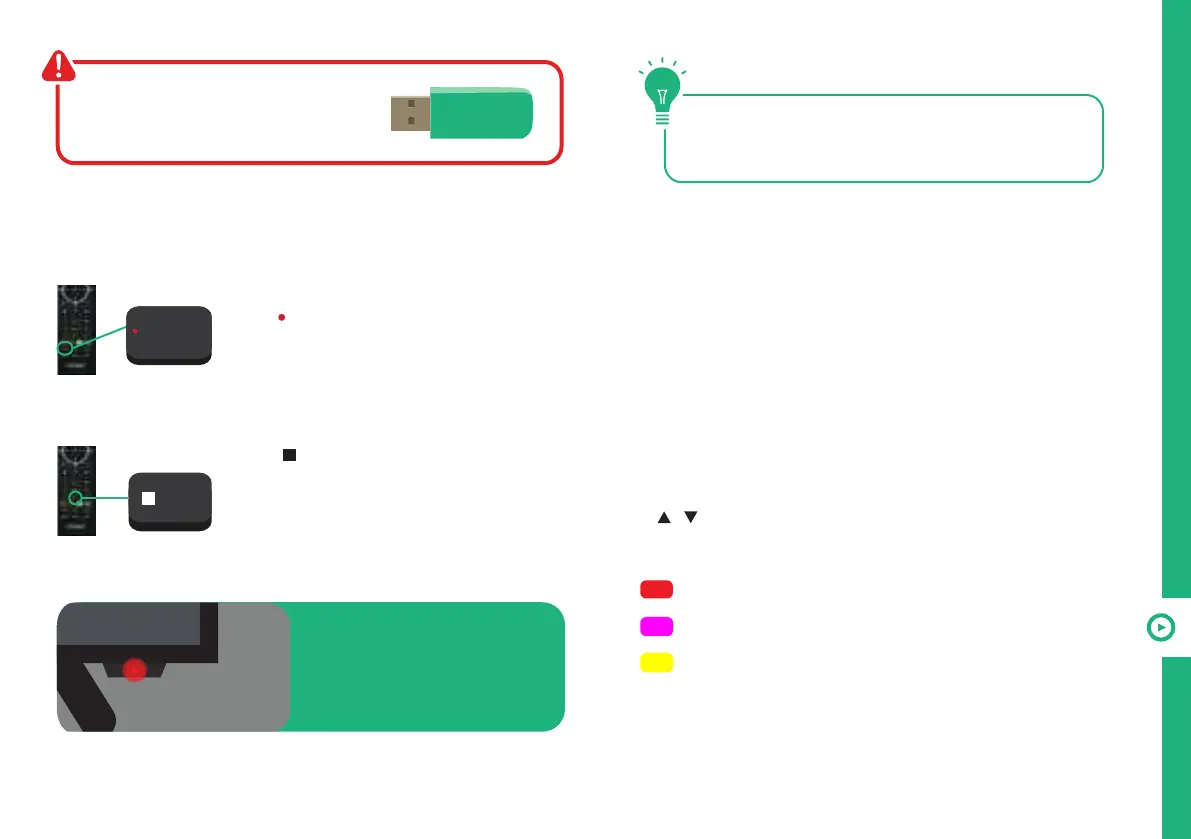
Start Recording
Press /RECORD to start recording.
Pres the EXIT button to toggle the
progress bar at the bottom of the screen.
Stop Recording
Press
/ FAV once - display the dialogue
box.
Select YES to stop recording.
Select NO to continue recording.
Recording Live TV
Before you can record with this TV
(including time-shift recording), you
must insert your USB storage device
into the USB port.
When a program is being
recorded in the background
(while the TV is in standby
mode), the Standby/On light
will flash red.
/ FAV
/RECORD
Recording, scheduled recording and pause
live TV functions only work in DTV mode
(free-to-air).



 To Next Page