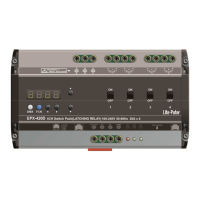
EPX-
410D/420D/430D/810D/820D/830D [
4-4 Primary/
Overlap Scene Function:
On usual, when user recall a scene, the previ
output of SC5/SC6 to any
appears the effect of several overlapped scenes.
For example:
SC2: the first channel of EPX-
SC5: the first channel of EPX-
When overlap SC5 to SC2, the first channel is ON.
Primary and Secondary Scene Function
On usual, press a scene button (1
you press the same button once again, it will be the same scene. When this function is on, press a scene
button, the corresponding scene will be
recalled
. Press the scene button to
These two scenes are recalled
by the same button is the primary and secondary scene.
For example:
Channel 1 and 2 control curtain A, Channel 3 and 4 control curtain B.
Primary scene 1 (SC1): CH1
is ON, CH2 is OFF, CH3 is O
Secondary scene 1S (SC1S)
Press SC1 button, curtain A and B go up, press the button again curtain A and B go down.
(The curtain can’t be stopped i
n the process of going up or going down
N
NN
NOTE
OTEOTE
OTE:
: :
:
when the current scene is
be recalled first.
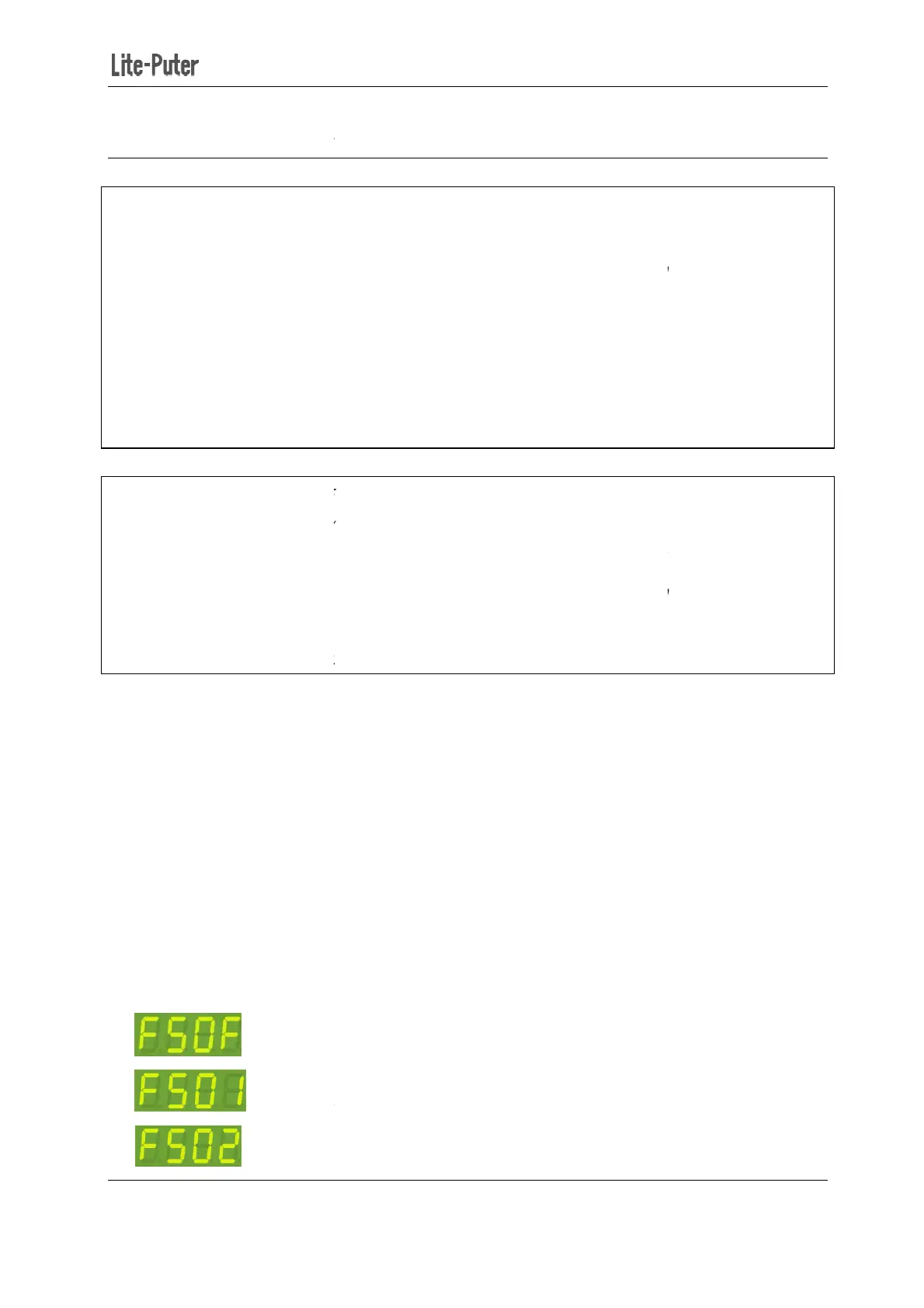
STEP-1: In the main screen
A.
Overlap scene/primary and secondary scene function are both off.
B.
Overlap scene function is O
C.
Primary and secondary scene function
410D/420D/430D/810D/820D/830D [
EUM-B]
Scene and Scene Overlap ON/OFF
On usual, when user recall a scene, the previ
ous scene will be replaced. This function is
, which means the previous scene
should not be replaced but
appears the effect of several overlapped scenes.
20D is OFF
20D is ON
When overlap SC5 to SC2, the first channel is ON.
Primary and Secondary Scene Function
On usual, press a scene button (1
-
6) on the control panel, the corresponding scene will be
you press the same button once again, it will be the same scene. When this function is on, press a scene
button, the corresponding scene will be
recalled
and press the same button again,
. Press the scene button to
shift the two scenes alternatively.
by the same button is the primary and secondary scene.
Channel 1 and 2 control curtain A, Channel 3 and 4 control curtain B.
is ON, CH2 is OFF, CH3 is O
N and CH4 is OFF.
is OFF, CH2 is ON, CH3 is OFF and CH4 is ON.
Press SC1 button, curtain A and B go up, press the button again curtain A and B go down.
n the process of going up or going down
.)
when the current scene is
OFF, press any scene button (1-6) then the
【FUNC】three
times to enter function setting.
Overlap scene/primary and secondary scene function are both off.
Overlap scene function is O
N
Primary and secondary scene function
is ON
14
Scene and Scene Overlap ON/OFF
ous scene will be replaced. This function is
to overlap
should not be replaced but
6) on the control panel, the corresponding scene will be
recalled; if
you press the same button once again, it will be the same scene. When this function is on, press a scene
and press the same button again,
another scene will be
by the same button is the primary and secondary scene.
is OFF, CH2 is ON, CH3 is OFF and CH4 is ON.
Press SC1 button, curtain A and B go up, press the button again curtain A and B go down.
scene (SC1-6) will
times to enter function setting.
Overlap scene/primary and secondary scene function are both off.


 To Next Page
 Loading...