EasyManua.ls Logo

Logia LOGLP300 - Page 13

Logia LOGLP300
20 pages
Print Icon
To Next Page IconTo Next Page
To Previous Page IconTo Previous Page
Loading...
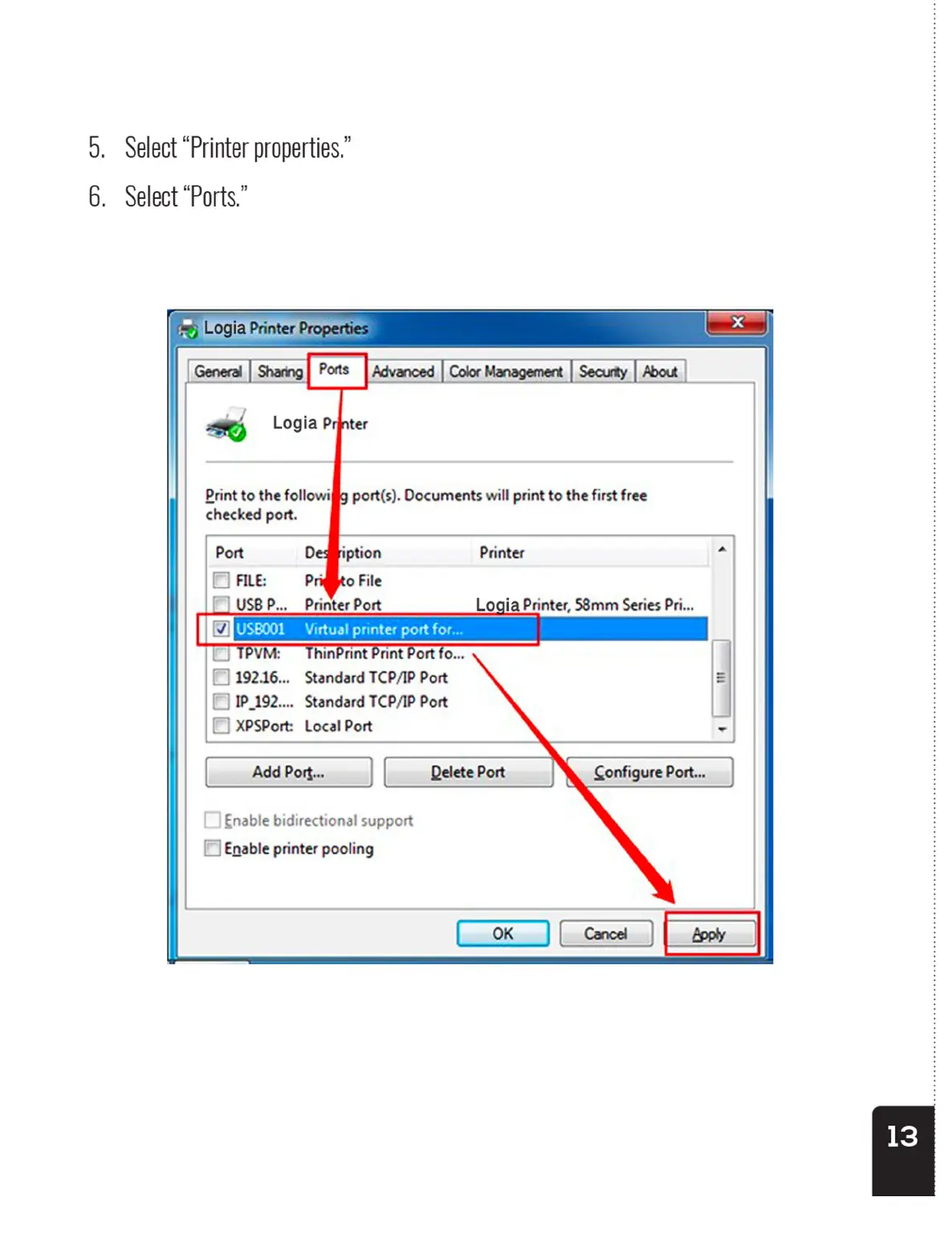
9.
Select
“Printer
properties.”
6.
Select
“Ports.”
Print
to
the
followifig
port(s).
Documents
will
print
to
the
first
free
checked
port.
Printer
Logia
Printer,
58mm
Series
Pri...
("}
192.16...
Standard
TCP/IP
Port
()
1P_192....
Standard
TCP/IP
Port
[}
XPSPort:
Local
Port
Add
Port...
Delete
Port
Enable
bidirectional
support
("]
Enable
printer
pooling
9.
Select
“Printer
properties.”
6.
Select
“Ports.”
Print
to
the
followifig
port(s).
Documents
will
print
to
the
first
free
checked
port.
Printer
Logia
Printer,
58mm
Series
Pri...
("}
192.16...
Standard
TCP/IP
Port
()
1P_192....
Standard
TCP/IP
Port
[}
XPSPort:
Local
Port
Add
Port...
Delete
Port
Enable
bidirectional
support
("]
Enable
printer
pooling