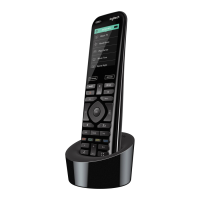
User Manual Harmony 890
Changing the Behavior of Buttons Within an Activity
When you select an Activity, the Harmony remote will:
• Turn on all the correct entertainment devices
• Set the device inputs correctly
• Set up the remote’s buttons to control the Activity
Based on our knowledge of how each of your devices is
controlled, the Harmony remote will make its best effort to
match all the buttons you need to control an Activity.
However, there may be some commands you want to add to
buttons or access via the display. Commands can be added
to buttons quickly and easily by customizing any Activity to
change the behavior of buttons.
To change the behavior of buttons:
1. From
Home in the Harmony software, click Activities.
2. Click an Activity.
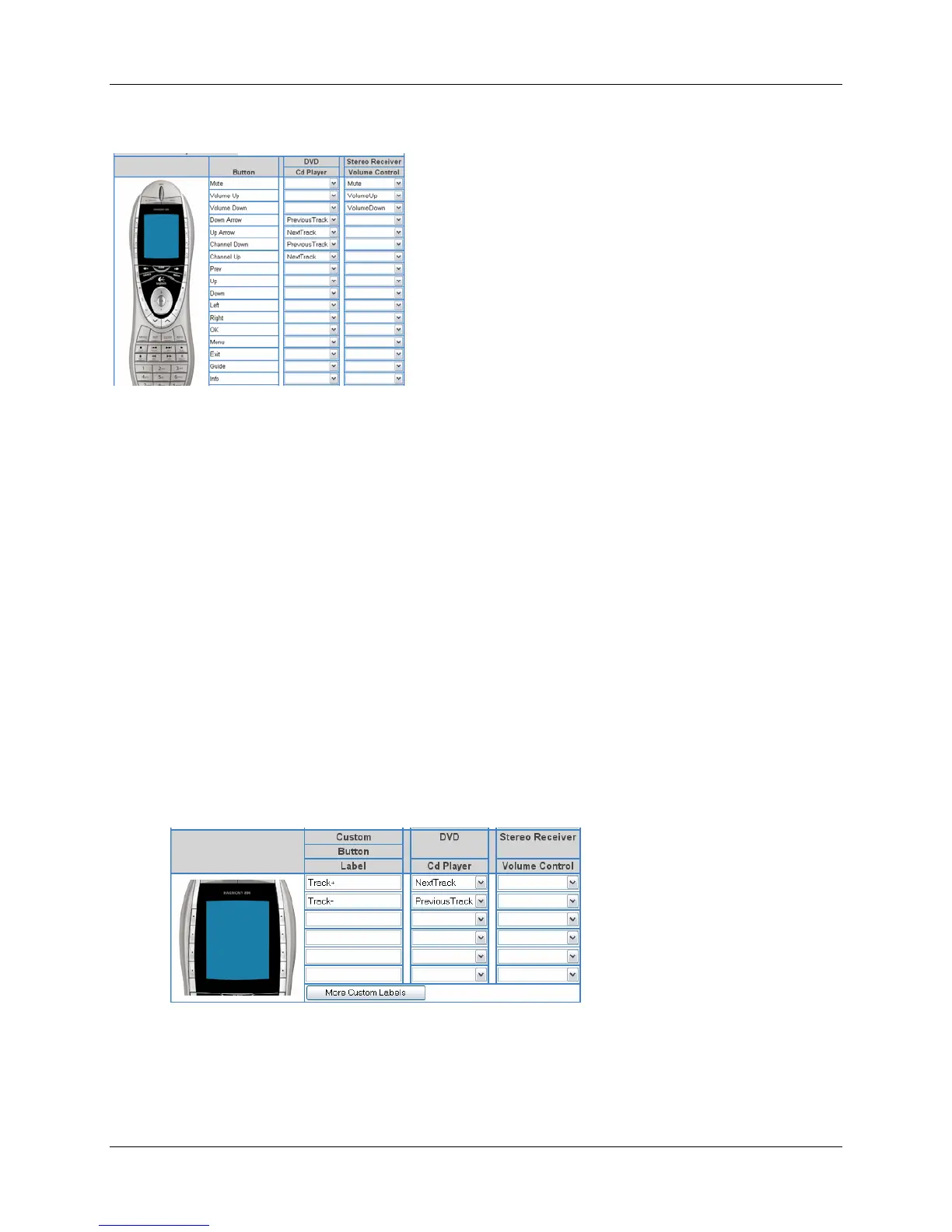
The Change Behavior of Buttons feature shows you the:
• Buttons that have a command associated with them
• Device being controlled
• Command being sent to the device
To set a button to send a command to more than one device at a time:
1. From
Home in the Harmony software, click Activities.
2. Click an Activity.
Adding Custom-Labeled Buttons
You can also add any number of custom-labeled buttons to an Activity.
To add custom-labeled buttons:
1. From
Home in the Harmony software, click Activities.
2. Click an Activity.
v. 1.1 page 13




 To Next Page