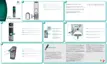
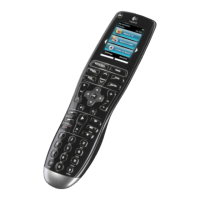
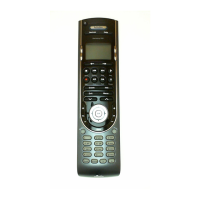
The Logitech Harmony 550 is an Internet-powered universal remote control designed to simplify the management of your home entertainment system. It can control most devices that understand infrared (IR) signals, offering a streamlined experience by consolidating multiple remotes into one.
Function Description
The Harmony 550's primary function is to provide unified control over various entertainment devices through "Activities." An Activity is a predefined set of commands that the remote sends to your entertainment system to turn on and configure the necessary devices for a specific task, such as "Watch Television" or "Listen to Music." When an Activity is selected, the remote automatically configures its buttons and display to control the relevant devices for that Activity.
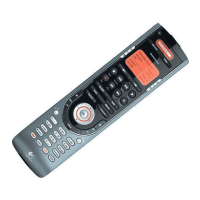
The remote features a display that shows lists of Activities, devices, help options, and available IR commands. Display buttons on the side of the screen allow you to select corresponding commands. Navigation is facilitated by Left/Right Arrow buttons for viewing more options.
Key buttons on the Harmony 550 include:
- OFF: A single button press turns off all devices in your system.
- Activities: Displays a list of your configured Activities. Selecting an Activity from this list sets up your entertainment system accordingly.
- Devices: Lists all your configured devices, allowing for direct control of individual components. This mode is primarily for sending specific commands to a single device and is generally not needed during normal Activity-based use.
- Help: This crucial button assists in troubleshooting synchronization issues. If devices are not responding correctly within an Activity, pressing Help initiates a series of questions on the remote's display to help resynchronize the remote with your system.
- Glow: Activates or deactivates the display backlight.
- Smart Buttons: These customizable buttons can be assigned different commands depending on the selected Activity.
- Infrared Learning Port: Located at the end opposite the USB connector, this port allows the Harmony 550 to learn IR commands from your original device remotes.
Usage Features
The Harmony 550's setup process is guided by the Logitech Harmony remote control software, which is installed on your computer. This online setup involves five main steps:
- Login Information: Creating your user login.
- Check Connection: Ensuring communication between your computer and the remote.
- Set Up Devices: Providing information about all your home theater devices. If a device is not in the Harmony database, the software can learn its commands.
- Set Up Activities: Defining how your devices work together for various tasks (e.g., "Watch Television"). You specify which devices are used and how you want to control specific features like volume within each Activity.
- Update Remote: Downloading your personalized configuration and settings to the Harmony 550.
Once configured, using the remote is intuitive:
- Selecting an Activity: Press the Activities button, then select the desired Activity from the display. The remote will send the necessary commands to power on and configure your devices. A "Starting Activity" message can be enabled or disabled to remind you to keep the remote pointed at your system during startup.
- Controlling Individual Devices: Press the Devices button to enter device mode. From the list, select a specific device to control only its features. This is useful for sending commands not typically part of an Activity or for troubleshooting.
- Customizing Buttons: The Harmony remote control software allows extensive customization. You can change the behavior of standard buttons within an Activity, assigning different commands to them. You can also add custom-labeled buttons to the remote's display for specific commands not assigned to physical buttons.
- Learning IR Commands: If a command for a device is not available in the Harmony database, the remote can learn it from your original remote. This involves pointing the original remote at the Harmony's infrared sensor and pressing the desired button. The learned command is then uploaded to the Harmony database and can be assigned to a button. When naming learned commands, specific conventions (e.g., capitalizing words, starting with main function, using "Input" prefix for input selectors) are recommended for easier assignment and organization.
- Motion Sensor: If the remote is idle for two hours, the motion sensor activates, turning on the backlight when motion is detected. This feature can be turned off by pressing the Glow button.
Maintenance Features
The Harmony 550 includes several features to help users maintain its functionality and troubleshoot issues:
- Help Button (on remote): This is a critical troubleshooting tool. If your devices are "out of sync" (e.g., the remote thinks a device is on when it's off), pressing the Help button initiates a guided process on the remote's display. It asks simple Yes/No questions to identify and resolve synchronization problems by resending necessary commands. Causes for being "out of sync" can include obstructions, pointing the remote away during startup, or being too far from the system.
- Remote Assistant: An optional feature that provides extra guidance on how to use your Harmony remote. It can be enabled or disabled via the Harmony control software.
- Online Support Tools: The Harmony remote control software provides access to various support resources:
- Troubleshoot: A dedicated option within the software to address situations where the Harmony remote is not controlling your system correctly.
- Search: A keyword search tool for finding answers to questions.
- FAQs (Frequently-Asked Questions): A searchable list of common customer questions and answers from Harmony's support center.
- User Manual: The digital version of this manual, explaining the remote's concepts, setup, and usage.
- Help Button (in software): Provides context-specific help within the setup process.
- Get Support: Links to a list of support tools and services.
- Remote Preferences: Accessible through the software, this section allows users to customize settings such as the duration the backlight stays on, the type of help displayed by the Help button (Smart help for specific Activity issues or Full help for all devices), and whether the "Starting Activity" message is shown.
- Update Remote: After making any changes to your configuration or settings in the software, it is essential to click "Update Remote" to ensure these latest settings are downloaded and applied to your Harmony 550.
By leveraging these features, users can ensure their Harmony 550 remains synchronized with their entertainment system and continues to provide a seamless control experience. If problems persist, contacting the Harmony Support Team is recommended.

 Need help?
 General

 To Next Page