5.8 Remote control
5.8.1 Preparation
The device can also be controlled via remote control. For this purpose, activate the remote control
item in the Options menu and assign the two-digit device ID. If multiple devices are used, enter a dif-
ferent device ID for each device. This is necessary for the remote control commands to reach a specific
device. Adopt the changes with function key F2 (save) for the changes to take effect
5.8.2 Switching on/addressing a device
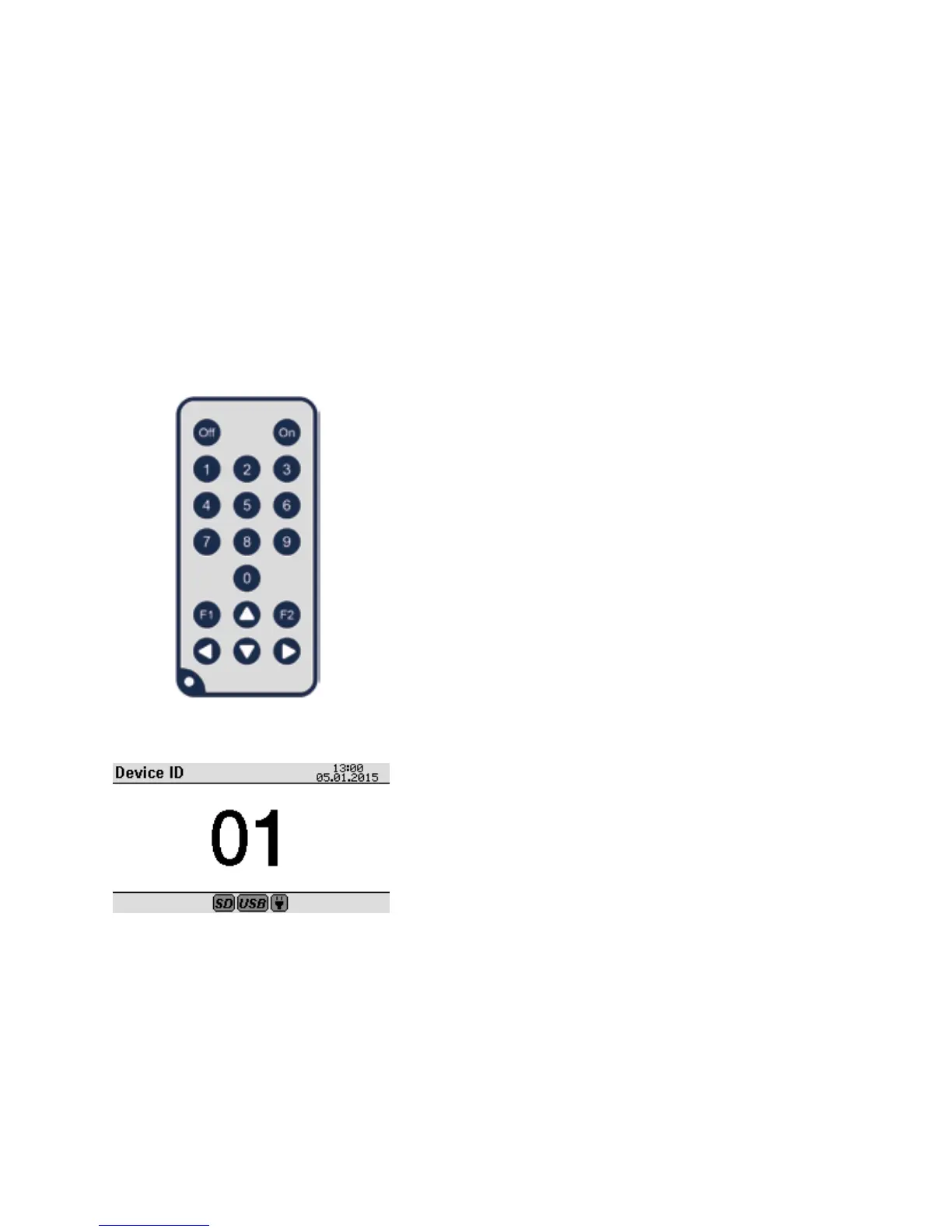
Point the remote control at the device. Press and hold the ON button on the remote control until
the device ID (Figure 20) appears in the display. In the process, it is irrelevant whether the device was
switched on or off beforehand. If there are other devices in range, they will also display their device
ID, if they are appropriately configured.
Using the number keys of the remote control, enter the
two-digit ID of the desired device. The ‚Display current valu-
es‘ menu is shown on this device. If no ID is entered for an
extended time or an incorrect ID is entered, the device swit-
ches back to its previous status.
The F1, F2, up arrow ▲, down arrow ▼, right arrow ►, and
left arrow
►
keys on the remote control can now be used
like the keypad of the selected device. The device can also
be switched off with the OFF key. The number keys 1 to 6
assume the function of the six head keys. The remaining
number keys have no function other than ID entry.
Use of the device via remote control is limited. Only the
‚Display current values‘, ‚Display measurement series‘, and
‚Export measurement series‘ submenus can be opened from
the main menu. Since the remote control does not have all
the keys, entry of the file name is not possible for a data
export. Only the automatically generated file name can be
used in this case, or existing files can be overwritten.
The connection with the remote control is severed once a
key on the device is pressed.
In order to sever the connection from the remote control or
it select a different device, press the ON key. The device ID is
displayed again. Now enter the new ID in order to de-select
the corresponding device, or wait a moment. In both cases
the original device returns to its previous state.
Figure 19
Figure 20


 To Next Page