33
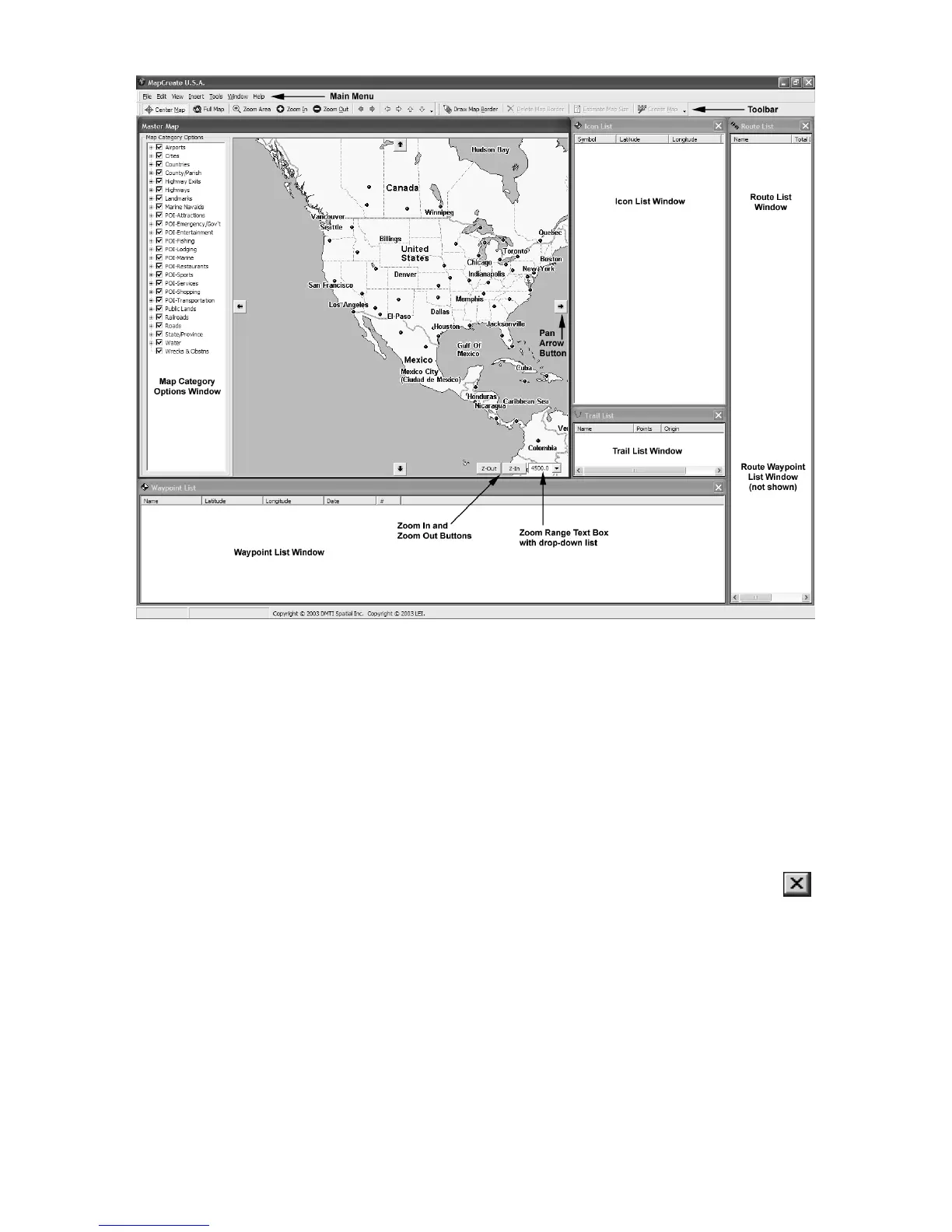
MapCreate 6 GPS text list windows.
You can drag the borders of these windows to resize them to suit your
viewing preferences. The windows can also be manually arranged
around the screen, or you can just use the default Auto Arrange setting,
under the Window menu. When you close the program, MapCreate re-
members the windows and map you were using. The next time you
start MapCreate, the program opens the previous map and windows,
just as you left them.
Closing MapCreate
To close or exit MapCreate click
FILE|EXIT or click the X CLOSE button
at the top right corner of the screen.
MapCreate Screen Components
If you're pretty familiar with how Windows programs work, you may want
to skip ahead to the segment on Creating Rectangle Map Borders on page
47. But, before we actually start mapping, we'd like to describe the differ-
ent elements of the MapCreate screen. The next few segments explain
what they are and what they do. You'll also learn how to move around the
map.
Status bar



 To Next Page