37
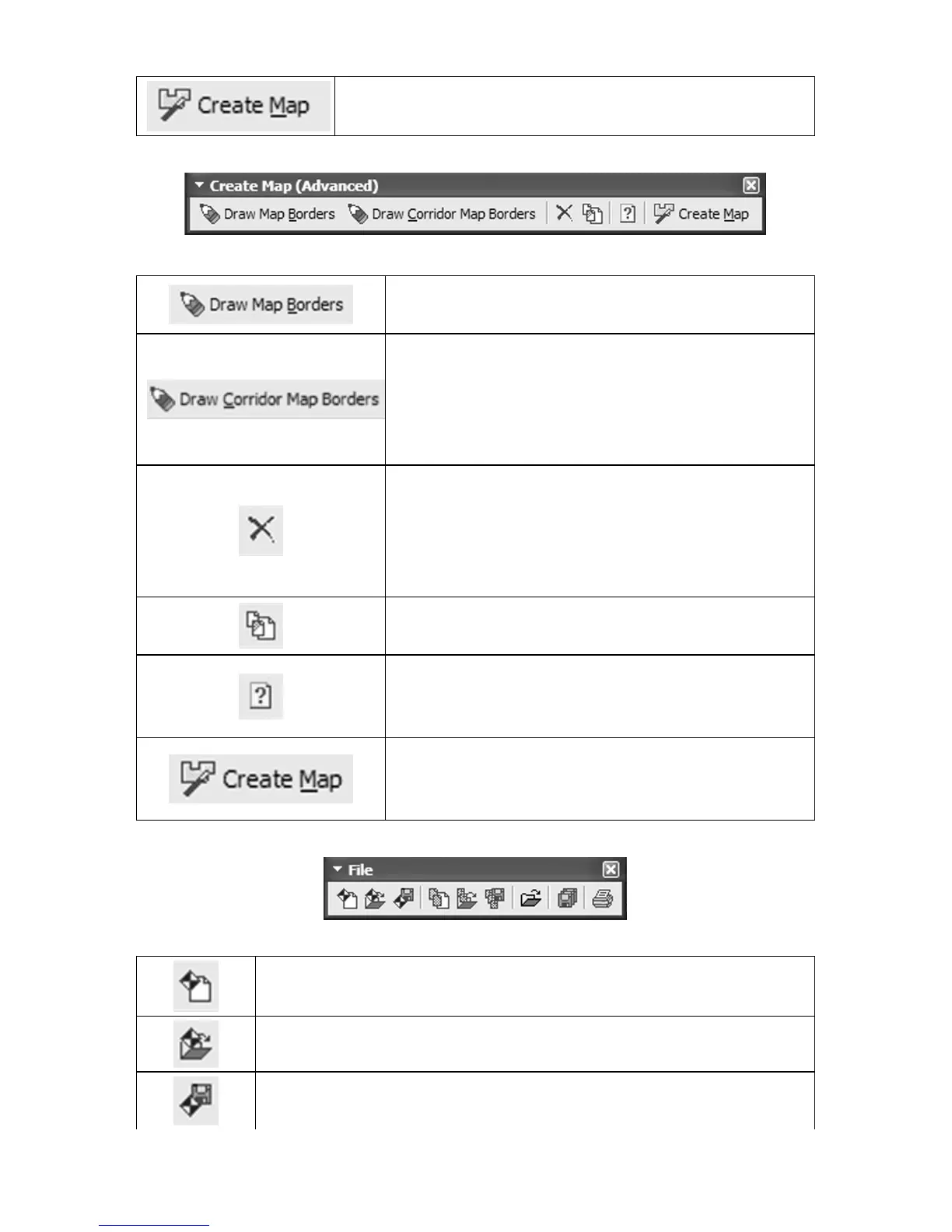
Create Map: creates a map file your GPS unit
can use from an area defined by a map border.
Create Map (Advanced) toolbar
Draw Map Borders: draws map borders
as green rectangles.
Draw Corridor Map Borders: draws
irregularly-shaped magenta corridor bor-
ders. Useful for areas that don't fit neatly
into rectangle borders, or for making strip
maps that follow cross-country routes.
Delete Map Border: clicking anywhere
on a green map border or repeatedly
clicking the handle boxes of a magenta
map border with this tool removes the bor-
der from your map.
Clear Map Border: lets you clear or erase
all map borders displayed on the map.
Estimate Map Size: calculates an esti-
mate of the final file size of your map based
on the current map borders.
Create Map: creates a map file your GPS
unit can use from an area defined by a
map border.
File toolbar
New GPS Data File: clears or erases from the screen
any GPS data appearing on the Master Map.
Open GPS Data File: Opens an existing GPS data file.
Save GPS Data File: saves to disk any new or edited
GPS information displayed on the Master Map.



 To Next Page