- 18 -
Accessing main-board area
Although a LUVOX AIO system contains no user serviceable parts
inside, it may be desired for users to have access to the main
board area of the device to:
• Expand random access memory
• Reset BIOS settings *
• Replace Lithium battery cells
• Access internal CF slot
• …
1. Power down your LUVOX AIO device
2. Disconnect all power cabling
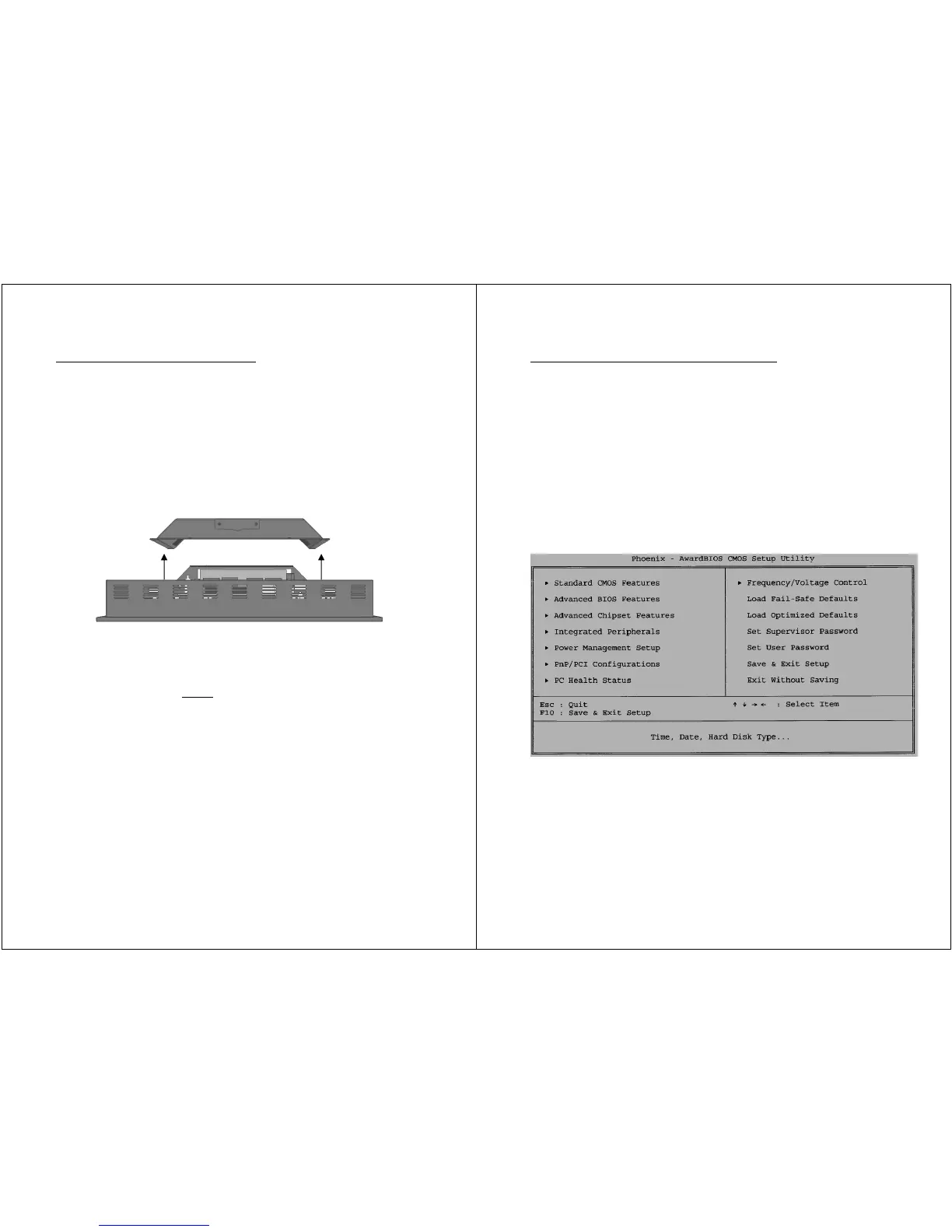
3. Remove the 8 white M3 screws which secure the cover
(black screws are never
user serviceable)
4. Remove cover and disconnect the optional external Compact
Flash slots when ought necessary and present**.
5. Carry out the desired service
(Consult the main board’s installation guide for specific
information about the main board)
6. Replace cover in reverse order
*NOTE: When a BIOS reset is carried out , the system’s LCD
panel has to be reactivated by using an external VGA monitor
(see next chapter)
**NOTE: Make sure you re-connect the IDE cable correct. The
red edge of the IDE cable must match with PIN 1 of the CF
socket.
- 19 -
LUVOX AIO Default BIOS settings
It is important to know what to understand under default BIOS
settings. When the system’s BIOS is reset, the system will return
to the default setting according the main board. Meanwhile
LUVOX default BIOS settings done during production of your
LUVOX AIO deviate from these.
The BIOS settings carried out during production are now briefly
summarized. It may help you to re-initialize your system in case
this necessity would ever occur.
(Consult the main board’s installation guide for more specific
information about the main board’s BIOS)
Fig 1.) Press DEL during startup to enter the main BIOS screen


 To Next Page