EasyManua.ls Logo

Luxul XMS-1208P - User Manual

Luxul XMS-1208P
8 pages
Print Icon
To Next Page IconTo Next Page
Loading...
Fo ld Fo ld Fo ld
READ ME FIRST
QUICK INSTALL GUIDE
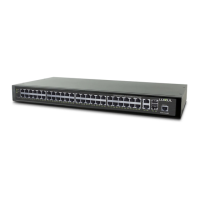
12-Port/8 PoE+ Gigabit
Managed Switch
XMS-1208P
Includes:
XMS-1208P 12-Port/8 PoE+ Switch
Rack Mount Kit
Rubber Feet
Power Cord
INSTALLATION AND SETUP
1
Physical Installation
The XMS-1208P can easily be installed in a standard 19” rack. Two mounting ears
are included for installing and stabilizing the switch. When attaching the mounting
ears and installing the switch in a rack, please refer to the following illustration:
Rack-mounting the XMS-1208P
Use the included screws to attach the mounting ears to each side
of the switch.
Mount the switch in the rack with the LEDs facing outwards. Be sure the
switch is level and properly secured in the rack.
Desktop Setup
For use as a desktop device, position and apply the included rubber feet to the
bottom of the XMS-1208P.
2
Connecting Ethernet and Power
Ethernet and Power Connections
Use one of the ten Ethernet ports to connect the XMS-1208P to any Ethernet-
enabled device, including servers, routers, or other switches. No crossover cable
is necessary.
The XMS-1208P supports 10/100/1000 Mbps Ethernet; 10/100 Mbps half/
full-duplex mode and 1000 Mbps full-duplex mode. Ports 1-8 are PoE+ and
are enabled by default. Ports 9 and 10 are Gigabit Ethernet only (non PoE),
while ports 11 and 12 are Gigabit SFP ports.
Use the included power cable to connect the XMS-1208P to a surge-
protected outlet. The AC input socket is on the rear panel. The built-in
power supply supports 100~240VAC at 50-60Hz.
Network Cabling
Luxul recommends at least Cat-5e unshielded twisted pair (CAT5e UTP)
cabling. To ensure best performance and stable data transmission at 1000
Mbps, use Category-6 unshielded twisted pair (CAT6 UTP).
If you intended to use optical fiber to extend the network beyond the 300-
foot limit of twisted pair Ethernet, SFP modules are required (not included).
c CAUTION: Multiple Uplink channels can create loops, resulting in
network failure. Ensure only one Uplink channel exists
between switches or between the XMS-1208P and a router.
n NOTE: When powering up, the port LEDs may take a moment to
initialize. This is normal as the XMS-1208P initialization and
startup sequence completes.
n NOTE: The XMS-1208P has an internal 130W power supply. Do not
exceed 25.5W each or 130W combined consumption of all
external PoE devices.
Sales
P: 801-822-5450
E: sales@luxul.com
Technical Support
P: 801-822-5450 Option 3
E: support@luxul.com
LUX-QIG-XMS-1208P-v1 08281810
Copyright and Trademark Notices
No part of this document may be modified or adapted in any way, for any purposes without permission
in writing from Luxul. The material in this document is subject to change without notice. Luxul reserves
the right to make changes to any product to improve reliability, function, or design. No license is granted,
either expressly or by implication or otherwise under any Luxul intellectual property rights. An implied
license only exists for equipment, circuits and subsystems contained in this or any Luxul product.
© Copyright 2018 Luxul. All rights reserved. The name Luxul, the Luxul logo, the Luxul logo mark and
Simply Connected are all trademarks and or registered trademarks of Luxul Wireless, Inc. All other
trademarks and registered trademarks are property of their respective holders.
Question and Answer IconNeed help?

Do you have a question about the Luxul XMS-1208P and is the answer not in the manual?

Overview

The Luxul XMS-1208P is a 12-Port/8 PoE+ Gigabit Managed Switch designed for robust network installations, offering both physical and logical setup options. This Quick Install Guide provides essential information for deploying and managing the switch effectively.

Function Description:

The XMS-1208P is a managed network switch that provides 12 Gigabit Ethernet ports, with 8 of these ports supporting Power over Ethernet Plus (PoE+). This allows for both data and power transmission over a single Ethernet cable to compatible devices such as IP cameras, wireless access points, and VoIP phones, simplifying network infrastructure and reducing cabling requirements. The "managed" aspect means the switch offers advanced configuration and monitoring capabilities, allowing network administrators to optimize performance, enhance security, and troubleshoot issues. It supports standard Ethernet speeds and full-duplex operation, ensuring high-speed data transfer. The inclusion of SFP ports provides flexibility for fiber optic connections, extending network reach and supporting high-bandwidth uplinks.

Important Technical Specifications:

  • Ports: 12 total ports, including 8 PoE+ Gigabit Ethernet ports and 4 additional Gigabit Ethernet ports. Ports 9 and 10 are Gigabit Ethernet only (non-PoE), while ports 11 and 12 are Gigabit SFP ports.
  • Ethernet Standards: Supports 10/100/1000 Mbps Ethernet, 10/100 Mbps half/full-duplex mode, and 1000 Mbps full-duplex mode.
  • PoE+ Support: 8 ports provide PoE+ power.
  • Power Supply: Internal 130W power supply.
  • Power Consumption: Do not exceed 25.5W each or 130W combined consumption of all external PoE devices.
  • AC Input: 100-240VAC at 50-60Hz.
  • Default IP Address: 192.168.0.3
  • Default Username: admin
  • Default Password: admin
  • Cabling Recommendations: Cat-5e unshielded twisted pair (CAT5e UTP) for best performance and stable data transmission at 1000 Mbps. Category-6 unshielded twisted pair (CAT6 UTP) is also recommended. For optical fiber, SFP modules are required (not included) for distances beyond 300 feet.

Usage Features:

Physical Installation:

The XMS-1208P can be installed in a standard 19-inch rack using the included rack mount kit. Two mounting ears are provided for stability. The LEDs should face outwards when mounted. For desktop use, rubber feet are included to be applied to the bottom of the switch.

Connecting Ethernet and Power:

The switch connects to Ethernet-enabled devices (servers, routers, other switches) using standard Ethernet cables. No crossover cable is necessary. The included power cable connects the switch to a surge-protected outlet.

IP Addressing:

The switch is configured to a network with a 192.168.0.X address scheme. If your network uses a different address scheme, you will need to set a temporary static IP address on your computer to configure the switch. The default IP address of the switch is 192.168.0.3, and the default Gateway/Router address is 192.168.0.3. Luxul provides an IP addressing guide at luxul.com/ip-addressing for more information.

Logging In:

To access the web configuration interface, open a web browser and enter the switch's default IP address (192.168.0.3) in the address field. Log in using the default username "admin" and password "admin".

Front Panel:

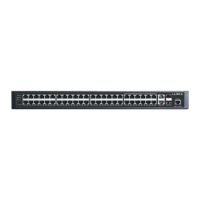
The front panel includes one console port, 10 Gigabit RJ-45 ports, and 2 Gigabit SFP ports. LED status indicators are present for each port, displaying Link/Activity and PoE modes. A Mode/Reset button allows switching between LED displays and performing reset/restore functions.

LED Indicators:

The XMS-1208P features System, Link/Act, and PoE LEDs for each port, providing visual feedback on the switch's operational status and port connections.

  • System LED:
    • Flashing: Normal operation.
    • On: Malfunction (contact support).
    • Off: Startup/initialization or no power.
  • Port Link/Act Status 1-12 LEDs:
    • Green: 1000Mbps device connected.
    • Yellow: 10/100Mbps device connected.
    • Flashing: Port receiving or transmitting data.
    • Off: Nothing connected.
  • Port PoE Status 1-8 LEDs:
    • Green: Switch providing PoE power.
    • Yellow: PoE off due to fault or connected device exceeding power limit.
    • Off: Port disconnected or link failed.
    • Note: At startup, port LEDs flash briefly during a self-test.

Mode/Reset Button to Change LED Functionality:

Tapping the Mode/Reset button briefly toggles the port indicators between displaying port link speed and PoE status.

Maintenance Features:

Mode/Reset Button to Reset/Restore:

The Reset button on the front panel is used for rebooting the switch or restoring factory default settings.

  • To Reboot/Reset the Switch: With the switch powered on, press the Reset button for approximately three seconds until both the Link/Act and PoE LEDs light up, then release.
    • Caution: Do not hold the button for more than four seconds, as this will erase all settings and restore factory defaults.
  • To Restore Default Settings: With the switch powered on, press and hold the Reset button for approximately eight seconds until both the Link/Act and PoE LEDs turn off. Release the button, and the switch will automatically restore factory default settings and reboot. The System LED will flash again once the switch is running with factory defaults.
    • Caution: Restoring default settings will remove all custom configurations.

Network Cabling:

Luxul recommends using at least Cat-5e unshielded twisted pair (CAT5e UTP) cabling for optimal performance and stable data transmission at 1000 Mbps. For fiber optic connections, SFP modules are required to extend the network beyond 300 feet. Multiple Uplink channels can create loops, resulting in network failure. Ensure only one Uplink channel exists between switches or between the XMS-1208P and a router.
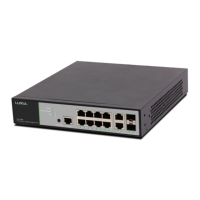
Luxul XMS-1208P Specifications

General IconGeneral
BrandLuxul
ModelXMS-1208P
CategorySwitch
LanguageEnglish

Related product manuals