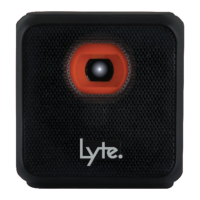
The Lyte smart cube projector, model cube480, is a compact and portable device designed for projecting images and videos. It features a resolution of WVGA (854 x 480) and an aspect ratio of 16:9, providing a clear and standard viewing experience. The projector offers a brightness of up to 50 Lumens in its brightest mode, making it suitable for various indoor environments.
Important Technical Specifications:
- Resolution: WVGA (854 x 480)
- Aspect Ratio: 16:9
- Brightness: 50 Lumens max (brightest mode)
- Effective Projection Distance: 0.5m - 3m
- Effective Projection Size: 20" - 100"
- Connectivity: Wi-Fi (5G or 2.4G network compatible), Bluetooth®
- Power Input: DC 5V, 2A
- USB Port: 2.0, supports up to 64GB with FAT32 format
- Headphone Port: 3.5mm audio jack
- Dimensions (L x W x H): 62mm x 62mm x 63mm
- Weight: Net: 322g, Gross: 640g
Usage Features:
The Lyte cube480 projector is designed for ease of use, offering several features for setup and operation:
Getting Started:
- Power Supply and Charging: The projector uses a 5V 2A AC adapter for charging. It is recommended to use the included USB power adapter to ensure proper charging. A 5V portable power bank with 2A or more output can also be used. For first-time use, the projector should be charged for 3 hours before turning it on.
- Turning On/Off: To turn on, press and hold the power button on the projector for 5 seconds. To turn off, press and hold the power button on the projector or the remote for 3 seconds. The remote's power button cannot power on the projector; it only works once the projector is already on.
Remote Control:
- Bluetooth® Air Mouse Remote: The projector comes with a Bluetooth® Air Mouse Remote.
- Pairing: For first-time use, the remote needs to be paired. This is typically guided by the system upon initial power-on. To pair, press and hold the OK button and the Volume - button on the remote simultaneously for 5 seconds until the remote control LED flashes rapidly. If manual pairing is needed, navigate to "Settings" -> "Bluetooth® setting" on the projector, then repeat the button combination on the remote and select "SONG-1" on the projector.
- Air Mouse Mode: Press the Air Mouse button to turn Air Mouse mode on. Press any navigation button to turn it off.
- LED Indicator:
- Slow flash: Unpaired mode.
- Fast flash: Enter pairing mode.
- Single flash: Each button press will flash once.
- Battery: The remote uses 2 x AAA batteries. To open the battery cover, slide the case as shown in the manual. The remote will disconnect after a few minutes of inactivity to save battery; press any button to reconnect.
Adjustments:
- Focus Adjustment: The projector has a focus adjustment mechanism (likely a wheel or slider) to sharpen the image.
- Keystone Correction: To adjust keystone, go to "Settings" -> "Keystone". A red dot highlights the selected corner, which can be adjusted using navigation buttons on the projector or remote. Press OK to move to the next corner. Press Return or Home to confirm and exit. The Menu button can reset keystone to its original state.
- Brightness Adjustment: The projector has two brightness modes: "Brightest mode" and "Standard mode". To change, go to "Settings" -> "Picture" -> "LED Brightness". For improved battery life, "Standard Mode" is recommended.
Connectivity:
- Wi-Fi: Connect to a 5G or 2.4G Wi-Fi network via "Settings" -> "Wi-Fi".
- Airplay (iOS/macOS):
- Via Wi-Fi: Ensure both the iOS/macOS device and projector are on the same Wi-Fi network. On the projector, open the 'iOS Cast' app and select 'iPhone' or 'Mac'. On the iOS device, slide up for the menu and select "Screen Mirroring" -> "CUBE480". On Mac, turn on Airplay from the top taskbar and select "CUBE480".
- Via Personal Hotspot (iOS): Turn on Personal Hotspot on the iOS device. On the projector, connect to the Wi-Fi shared by the Personal Hotspot. Then, on the iOS device, select "Screen Mirroring" -> "CUBE480".
- Miracast (Android): On the projector, open the Miracast app. On the Android device, go to "Settings" -> "Display" -> "Cast" (or "More Settings" -> "Enable wireless display" depending on Android version). Select "CUBE480" to mirror the screen.
Apps:
- Youtube App: Select "Youtube" on the home screen to open. Requires an internet connection.
- Application Store: Access the "Application Store" from the home screen to download apps. Note that some downloaded apps may not be compatible. Requires an internet connection.
- Uninstalling Apps: Go to "Settings" -> "General" -> "Application Management". Use the Air Mouse remote to point at the app, press and hold the Air Mouse button until a pop-up menu appears, then select "Uninstall".
Maintenance Features:
- Troubleshooting: The manual provides solutions for common issues:
- Projector won't turn on: Charge for 3 hours with a 5V 2A adapter, or press and hold the power button for 10 seconds.
- Apps running slowly/not displaying correctly: Ensure hardware meets app requirements, or restart the system.
- System running very slowly: Restart the system or perform a factory reset ("Settings" -> "General" -> "Factory Reset"). Remember to back up data before a factory reset.
- No sound from projector: Check for blocked speaker outlets, unplug anything from the headphone port, ensure projector/device/app is not muted, turn up volume, or restart the system.
- No sound for headphones: Ensure headphone plug is fully inserted, check mute status, and turn up volume.
- Projector won't connect to computer via USB: The Micro USB port is for power only, not data transfer.
- Remote is not working: Ensure remote is within 5 meters, reset the remote by removing/reinserting batteries, restart the projector, ensure Bluetooth® is enabled (Settings -> General -> System settings -> Bluetooth®), or change the remote battery.
Safety Instructions:
- Read the manual thoroughly before use.
- Ensure proper ventilation (at least 20cm clearance).
- Keep away from heat sources, high temperatures, humidity, direct sunlight, dirt, and dust.
- Supervise children.
- Do not cover ventilation openings.
- Prevent metal objects from falling onto the equipment.
- Do not place heavy objects or objects filled with water/naked flames near the equipment.
- Do not look directly at the light beam to avoid eye damage.
- Battery replacement should only be done by an authorized service technician. Batteries must not be exposed to excessive heat.
The Lyte smart cube projector is a versatile and portable device, ideal for users seeking a compact projection solution with wireless connectivity and app support.


 To Next Page
 General