Chapter 164
4
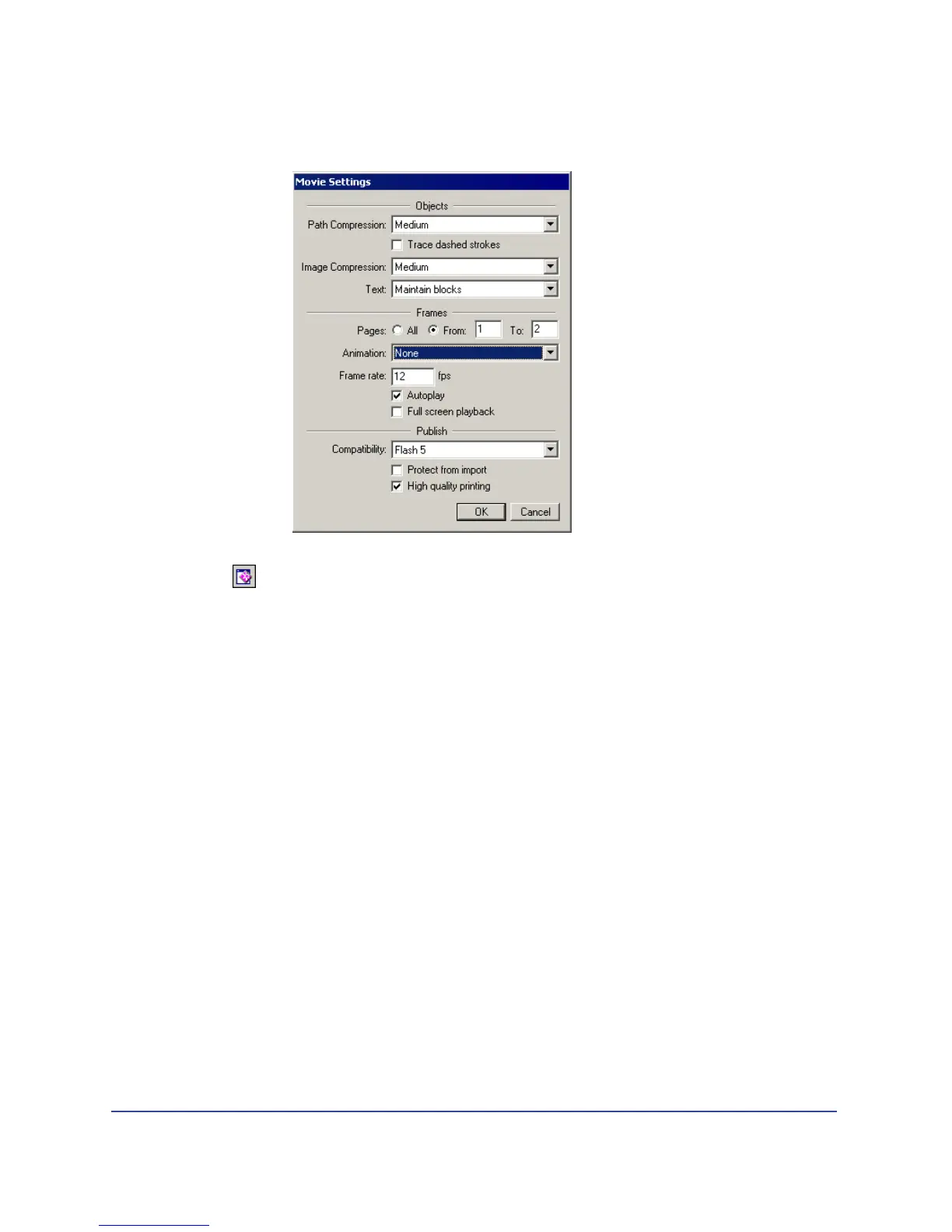
In the Animation pop-up menu, select None, then click OK.
5 In the Controller, click the Test Movie button.
FreeHand creates a temporary SWF of your document. Page 1 appears in a
Flash Playback window, similar to how it will appear if you export the file as a
SWF using the current movie settings.
6 Move the pointer to the Next button. The pointer changes to a pointing finger,
which indicates the button is navigable. Click the button to go to page 2 of
your document.
7 Click the Back button to return to the first page.
Export the document
Now that you’ve previewed your document in the Flash Playback window, you
can export your file as a SWF. When you export a movie, it saves with the current
settings specified in the Movie Settings dialog box.
1 With the Flash Playback window still open, click the Export button in the
Controller, or choose Control > Export Movie.
2 In the Export Movie dialog box, enter a name for the movie and browse to a
location in which to save the movie, then click Save.
You can open the SWF file in the Flash Player to view pages 1 and 2.



 To Next Page