magicleap.com Copyright © 2024 Magic Leap Inc.
Magic Leap 2 Maintenance
(cont.)
File management
Charging Magic Leap 2
Magic Leap 2 Settings and Congurations for Battery Optimization
When the Magic Leap 2 takes a photo or a video that information is stored locally on the Magic
Leap 2 Compute Pack (256 GB) and retrieved using the Hub. The Hub allows access to digital
les such as pictures, videos, and bug reports.
The following are other ways that les can be transferred from the device to external storage:
1. Connect the device to external storage via USB-C cable. Transfer of large le sizes is
enabled by the exFAT drivers on Magic Leap 2.
2. Connect the Magic Leap 2 device to networked storage over Wi-Fi. Note that the trans-
fer speed is slow.
Example speeds: For a 9 GB le, it may take ~5.5 min to transfer from host to device using adb-
over-Wi-Fi. Copying the same size le from a ash drive may take ~30 sec. Transferring the le
from the device to the host may take ~7.5 min using adb-over-Wi-Fi and ~2 min using the ash
drive. The ash drive always outperforms adb-over-Wi-Fi.
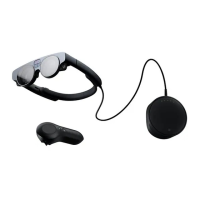
To charge the device, Magic Leap 2 requires a USB Type-C charging cable. Magic Leap 2 Com-
pute Pack takes 110 minutes to charge to 90%, and 180 minutes to charge to 100%. Assuming
the use of AC power, the controller takes 150 minutes to charge to 100%.
Magic Leap 2 charging cable provided Charger Outputs (DC) can switch between three power
output combinations to charge the controller and compute pack:
• 05V 3A / 15W
• 09V 3A / 27W
• 15V 3A / 45W
IMPORTANT: It’s recommended to leave the device charging at a charging station. If the device is
left to charge, then the device will automatically trigger battery-saver mode.
Power consumption is heavily inuenced by how the device is used, given the number of sen-
sors, the level of access provided to the platform, and the sheer number of variables related to
CPU/GPU utilization, settings, environmental conditions, etc. The application must be tested
to determine practical battery life while running in the target environment.
The following sensors and features can be disabled or managed to optimize battery
and performance:
• Dynamic Dimming™ technology: Can be turned o in Settings
• Bluetooth: Can be turned o in Settings
• Wi-: Can be turned o in Settings
• Camera: Can be turned o when not in use
• Microphone: Can be turned o when not in use
The following device settings can be disabled or managed to optimize battery and per-
formance. However, this depends on the features required to power the experience. The
general rule is to disable a setting if it is not used.
• Display:
• Display Modes: Set to Manual.
• Brightness: Lower brightness consumes fewer resources, but the setting should be
calibrated to the ambiance of the room.
• Segmented Dimming: Turn OFF
• Apps and Notications
• Notications: Disable/Turn OFF,
• Permission Manager: Turn OFF all Magic Leap permissions except for those that are
required for the experience.
• Gestures & Inputs
• Hand Tracking: Turn OFF if not using.
• Voice Input: Turn O if not using.
• Network
• Bluetooth - Turn OFF. If the controller is needed (Eg, for troubleshooting the device),
connecting the controller via USB-C will automatically Turn ON Bluetooth.
Hardware Maintenance and Best Practices


 To Next Page
 Loading...