Copyright © 2024 Magic Leap Inc.
This guide covers best practices for deploying 10 or more Magic Leap 2 devices in an enterprise
environment where an identied application is used.
Learn how to deploy and manage Magic Leap 2
Setup Requirements
Hardware
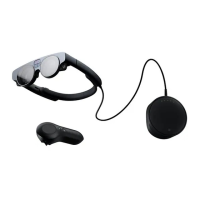
Magic Leap 2
MDM Solution
(Recommended)
The Hub
Software Application
(Required)
License Activation (Optional)
Single Sign-On (Optional)
Network Conguration
Lens Kits and/or Prescription
Inserts (Optional)
Inventory/Asset Management
Systems (Recommended)
This guide is based on a Magic Leap 2
running on OS 1.4.1 or later. There is an OS
Updater that can be used on the device to
update the device to the latest OS or use
the Hub to update to the latest OS.
It is recommended to use a mobile device
management (MDM) solution to set
up, congure,and manage Magic Leap 2
devices. There is a wide range of providers
that are supported by Magic Leap 2. For
more information to deploy, refer to the
MDM section.
Magic Leap Hub is a piece of software for
managing your Magic Leap 2 development
tools and connecting your device to your
computer to sideload applications. It can be
downloaded from our Magic Leap 2 Developer
Portal. You'll need to enable Developer Mode
to use ML Hub. To enable Developer Mode,
refer to Enable Developer Mode.
It is required to have the enterprise
solution’s application or Android Package
(aka APK) available and/or the Independent
Software Vendor (ISV) solution application.
If an enterprise or developer pro license was
purchased with the device, have the email
that states the license key readily available
during setup. For more information, refer to
the License Activation section.
Connecting to an identity management
system using OAuth is available on Magic
Leap 2, depending on the security posture
of the enterprise. Providers such as
Microsoft Entra or OKTA are supported.
For more information, refer to the Device
Identity Management section.
Magic Leap 2 ts seamlessly into your
existing IT infrastructure network. No
internet connection is required for Magic
Leap 2 devices. Magic Leap rst-party
applications and ISV applications may
require a network connection. MDM solu-
tions require a network connection.
If an internet connection is required,
you should follow your organization’s
established network best practices and
procedures for connecting Magic Leap
2. New connections will default to DHCP
addressing. If more advanced network
congurations are required (static
addresses, 802.1x authentication, etc.),
refer to more in-depth Magic Leap docu-
mentation
Lens kits and/or prescription inserts are
prescription insert lenses that are required
if the user wears prescription glasses or
contacts. For more information, refer to the
Prescription Inserts sections.
It is recommended to inventory the headset
and controller in the enterprise's existing
inventory/asset management systems.
For more information on how and when to
inventory devices, refer to the Inventory
Devices section.


 To Next Page