EasyManua.ls Logo

Marantz M-CR603 - User Manual

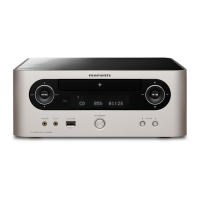
Marantz M-CR603
56 pages
Print Icon
To Next Page IconTo Next Page
Loading...
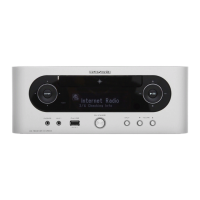
CD Receiver
M-CR603
SVENSKA NEDERLANDS ESPAÑOL ITALIANO FRANÇAIS DEUTSCH ENGLISH
1.M-CR603NENG0728.inddF11.M-CR603NENG0728.inddF1 2010/07/2920:39:162010/07/2920:39:16

Table of Contents

Other manuals for Marantz M-CR603

Questions and Answers

  • M
    Melissa WilliamsSep 7, 2025
    What to do if my Marantz M-CR603 Car Receiver cannot play iPod?
    • R
      Ralph BassSep 8, 2025
      If your Marantz Car Receiver isn't playing from your iPod, ensure that the input source is set to “iPod/ USB.” Also, check that the cable is properly connected and reconnect if necessary.
  • E
    emilyrossAug 25, 2025
    What to do if my Marantz M-CR603 Car Receiver display is lit but no sound is produced?
    • T
      Travis VargasAug 25, 2025
      If the display is lit but no sound comes from your Marantz Car Receiver, check the following: * Ensure the correct input source is selected. * Increase the volume to a suitable level. * Make sure the MUTING function is switched off.
  • S
    Samuel CarrollAug 25, 2025
    How to fix Marantz M-CR603 when display not lit and sound not produced when power switched to on?
    • J
      jessicamartinAug 26, 2025
      If the display isn't lit and there's no sound when you turn on your Marantz Car Receiver, the power cord might not be securely plugged in. Check the connections on the receiver's rear panel and the power plug connection to the outlet.
  • P
    Patrick GraySep 17, 2025
    Why does my Marantz Car Receiver say 'Server Full' or 'Connection Down'?
    • D
      Dawn StevensSep 17, 2025
      If your Marantz Car Receiver displays 'Server Full' or 'Connection Down' for some radio stations, the station might be congested or not currently broadcasting. Wait a while before trying again.
  • C
    Caitlin WatsonSep 23, 2025
    What to do if Marantz Car Receiver displays “100 Station Limit”?
    • W
      William KellerSep 23, 2025
      Reduce the number of stations to less than 100.
  • J
    Jose ColeSep 12, 2025
    Why won't my Marantz Car Receiver play files from my USB device?
    • D
      Diane DukeSep 12, 2025
      If your Marantz Car Receiver is not playing files on a USB memory device, the USB memory device might be in a format other than FAT16 or FAT32. Also, the USB memory device might be divided into multiple partitions, or the files may be stored in a non-compatible format. Set the format to FAT16 or FAT32. When divided into multiple partitions, only files stored in the top partition can be played. Record the files in a compatible format. Note that files that are copyright protected cannot be played on this set.
  • J
    Joshua SuarezSep 3, 2025
    Why is my Marantz M-CR603 display off?
    • A
      Allison WattsSep 3, 2025
      If the display on your Marantz Car Receiver is off, it's likely that the Dimmer setting is set to “OFF”. Change the Dimmer setting to something other than “OFF”.
  • T
    Tanya HullSep 3, 2025
    What to do if my Marantz M-CR603 cannot play a CD-R or CD-RW disc?
    • J
      jason60Sep 3, 2025
      If your Marantz Car Receiver won't play a CD-R or CD-RW disc: * Ensure the disc has been finalized. Finalize the disc and then try playing it again. * The recording quality might be poor, or the disc itself might be of low quality. Use a properly recorded disc.
  • K
    Kristin PriceSep 23, 2025
    Why does my Marantz Car Receiver say 'No skips remaining'?
    • R
      Robert MclaughlinSep 23, 2025
      Unfortunately, our music licenses force us to limit the amount of tracks you can skip in an hour.
  • T
    Timothy RiveraAug 29, 2025
    What to do if my Marantz Car Receiver turns off and the timer indicator flashes red?
    • G
      George KennedyAug 29, 2025
      If your Marantz Car Receiver suddenly turns off and the TIMER indicator flashes red (at 0.5 second intervals), it could be due to the protection circuit being activated by a rise in internal temperature or core wires of two speakers touching each other. Turn off the power, let the set cool down, and then turn it back on. Ensure the set is in a well-ventilated area. Also, unplug the power cord, twist the core wires tightly or terminate the speaker cables, and then reconnect.

Summary

Safety Precautions

Important Safety Instructions

Essential guidelines for safe operation and maintenance of the apparatus.

Caution: Risk of Electric Shock

Warning about the risk of electric shock and not removing the cover.

Warning: Fire and Moisture Hazard

Advice to prevent fire or electric shock by avoiding rain or moisture.

Getting Started

Accessories

List of supplied accessories with the Marantz M-CR603 unit.

Main Features

Key features of the Marantz M-CR603 CD Receiver.

Cautions on Handling

Important precautions for handling the unit, power cord, and during moving.

About the Remote Control

Connections

Speaker Connections

Guide to connecting speaker cables to the unit for optimal audio output.

Connecting Recording Components

Instructions for connecting CD recorders, MD recorders, or tape decks.

Connecting a TV

Steps to connect a TV to the unit for audio playback, including optical connection.

Connecting an Antenna

How to connect FM, AM loop, and DAB antennas for radio reception.

Connecting to a Home Network (LAN)

Guide for connecting the unit to a home network for streaming and control.

Connecting an iPod

Instructions on how to connect and play music from supported iPod models.

Connecting a USB Memory Device

Steps for connecting USB memory devices to play music and view files.

Connecting the Power Cord

Procedure for connecting the supplied power cord to the unit and power outlet.

Basic Operations

Preparations

Initial steps before operating the unit, including power and settings.

Turning the Power On;Off

How to turn the Marantz M-CR603 on, off, and completely off.

Setting the Current Time

Instructions for setting the unit's clock automatically or manually.

Operations During Playback

Overview of basic playback controls like input selection, volume, and tone adjustment.

CD Playback

Playing CDs

How to insert discs, play, stop, and control playback of audio CDs.

Playing Random Order

Enabling and disabling random playback for CDs.

Playing Tracks in Desired Order (Program Playback)

Programming specific track playback order for audio CDs.

MP3 and WMA Files Playback

Playing MP3 and WMA files from discs, including folder and file selection.

Tuner Playback

Tuning in Broadcast Stations

How to tune into FM, AM, and DAB broadcast stations.

Automatically Presetting FM Stations

Automatically saving FM broadcast stations for quick access.

Presetting FM;AM Stations Manually

Manually saving favorite FM/AM broadcast stations for quick access.

Listening to DAB;DAB+

Receiving and tuning into DAB and DAB+ digital radio broadcasts.

Network Audio Playback

About the Internet Radio Function

Information on the internet radio function and supported stations.

Listening to Internet Radio

Steps to access and play internet radio stations.

Playing Files Stored on a Music Server

How to play music files and playlists from a computer's music server.

Listening to Last.fm

Connecting to and using the Last.fm music discovery service.

Listening to Napster

Accessing and playing music through the Napster subscription service.

Portable Audio Player Playback

Connecting and playing music from portable audio players via AUX.

Listening to AUX

Using the AUX input terminals for external audio sources.

Advanced Operations

RDS (Radio Data System)

Using RDS features like search and displaying broadcast information.

PTY (Program Type)

Identifying broadcast stations by program type.

TP (Traffic Program)

Finding RDS stations that broadcast traffic program information.

Menu Map

A guide to the unit's menu structure and available settings.

Firmware Update

Procedure for updating the unit's firmware for new features and improvements.

Setting Speaker Output

Configuring speaker output modes (A, B, Bi-Amp) for optimal audio.

Setting the Others [Other]

Adjusting audio levels, AMP characteristics, and other system settings.

Adjusting Audio Level Balance

Balancing audio levels between speaker outputs A and B.

Other Functions

Inputting Characters

Methods for inputting characters for preset names and network settings.

Resetting the Microprocessor

Procedure to reset the unit's microprocessor to factory default settings.

Information

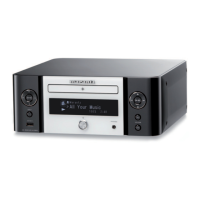
Part Names and Functions - Front Panel

Identification and explanation of front panel controls and indicators.

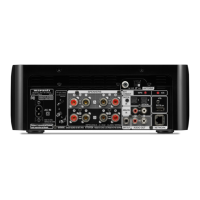
Part Names and Functions - Rear Panel

Identification and explanation of rear panel connections and ports.

Part Names and Functions - Remote Control

Overview of buttons and functions on the remote control.

Troubleshooting

General Issues

Solutions for general operational problems, including power and display issues.

CD Issues

Troubleshooting steps for CD playback errors and disc compatibility.

Tuner Issues

Resolving issues with radio reception, such as noise and interference.

Network;iPod;USB Issues

Resolving issues related to network, iPod, and USB memory device connectivity.

Specifications

Dimensions

Marantz M-CR603 Specifications

General IconGeneral
Frequency range5 - 22000 Hz
Audio formats supportedAAC, FLAC, LPCM, MP3, WAV, WMA
Signal-to-Noise Ratio (SNR)90 dB
Total Harmonic Distortion (THD)0.05 %
RMS rated power120 W
FM band range87.5 - 108 MHz
Supported radio bandsAM, FM
Radio Data System (RDS)Yes
Media types supportedCD, CD-R, CD-RW
Playback disc formatsCD audio
CD changerNo
Device typeHiFi CD player
Product colorBlack
Number of decks1 deck(s)
Channels quantity2 channels
Disc loading typeTray
Remote control typeRC009CR
Volume controlRotary
Audio input3
USB 2.0 ports quantity1
Power consumption (standby)0.4 W
Power consumption (typical)50 W
Weight and Dimensions IconWeight and Dimensions
Depth280 mm
Width111 mm
Height302 mm
Weight4300 g

Related product manuals