EN
quick guide
7
Dive Menu Settings
We conclude this quick guide by looking at how
to set up Nemo for a dive.
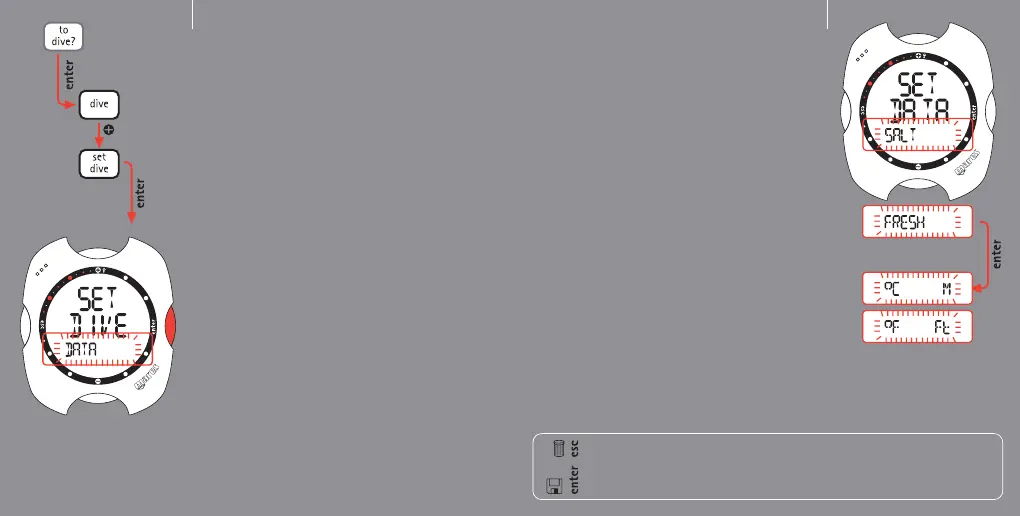
From Main Menu mode, press the <+> or <->
buttons until "TO DIVE MODE" appears on the
display. Press the <enter> button to accept this
item.
This accesses the "Dive Menu".
Using the <+> or <-> buttons you can view the
various menu items. Scroll until "SET DIVE"
appears on the display. This allows you to set both
the operating mode of the computer for the dive
(explained below) as well as the general dive
parameters, which we will do now.
Press the <enter> button to accept the "SET DIVE"
item. The "DATA" message will now appear on the
display bar. Press <enter>again to accept this
item as well.
You are now in Set Dive - Data mode, which
enables you to set all the general parameters of
the dive.
8
EN
Note:
pressing <esc> during the settings cancels any changes made and reverts to the preceding value;
pressing <enter> during the settings accepts the changes made and advances to the next parameter,
or returns to the higher menu level.
Setting the Dive Parameters
In Set Dive - Data you can set the type of water
(which influences the accuracy of the computer's
depth readings) and the units of measurement. Be
careful, because in this mode you can also clear the
residual nitrogen memory (see Set Dive section).
To ensure maximum accuracy, you need to set Nemo
for fresh water ("Fresh") or seawater ("Salt") as
appropriate. You can do this by pressing the <+> or
<-> buttons. Remember to check this setting often,
especially if you use Nemo in different
environments: lakes, sea, rivers, swimming pool.
Press the <enter> button to save the water setting,
and then go on to select either metric (meters and
Celsius) or imperial (feet and Fahrenheit) units of
measurement. Press and hold down the <esc>
button for 2 seconds to go back to Time Mode.
That's all for the quick guide! Read the full
instruction booklet to learn more. Happy diving with
Nemo!



 To Next Page