ENGLISH-11
29933/02080 Rev CA
SPECIAL CHARACTERS
To add special characters, bar codes or logos to your message, always begin from a
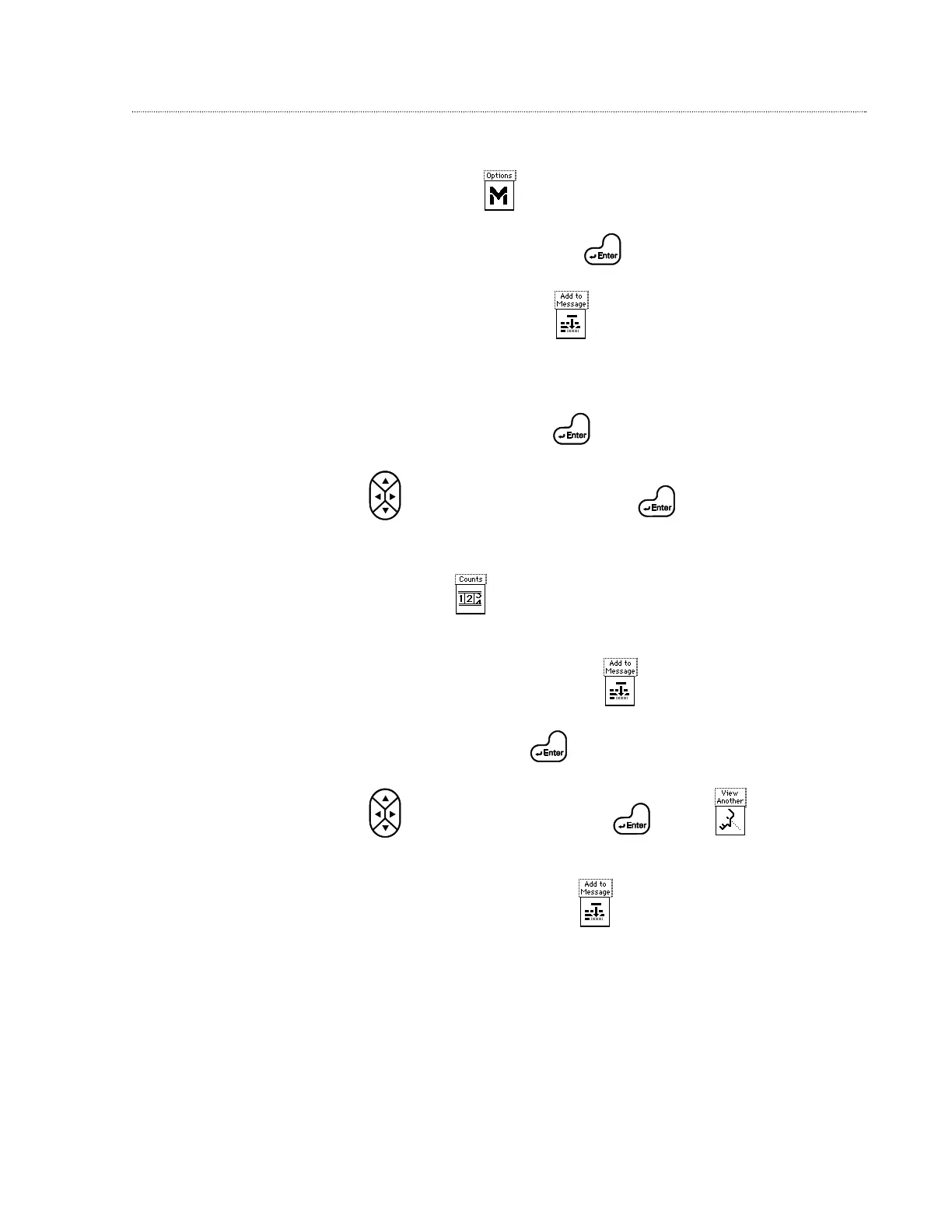
message screen. Press . Pop-up menu of available options is displayed.
1. Highlight Character Map option; press . Character Map screen is displayed.
2. Highlight desired character; press or take note of applicable keystroke
combination for future use.
1. Highlight Bar codes option; press . Bar code screen is displayed.
2. Use to select the desired bar code; press .
3. Type bar code data.
4. Count only: press to add count information to bar code. See Incrementing
Count section on page 5 for more information.
5. To add the bar code to the message, press .
1. Highlight Logos option; press . Logo selection screen is displayed.
2. Use to select the desired logo. Press or press to display the
logo on screen.
3. To add the logo to the message, press .
Logos
Bar codes
Viewing/Adding
Special Printable
Characters
(Character Map)


 To Next Page