MAGPOWR Spyder Configuration Tool
3. CONFIGURING THE NETWORK CONNECTIONS
The computer and the Spyder must be on the same network subnet and each must have a unique IP Address. The
Spyder defaults to the subnet 192.168.1.xx and has an IP Address of 192.168.1.100. When connecting multiple
Spyders you will have to change the IP Address in each Spyder to make sure each one has a unique IP Address.
3.1. PC SETUP
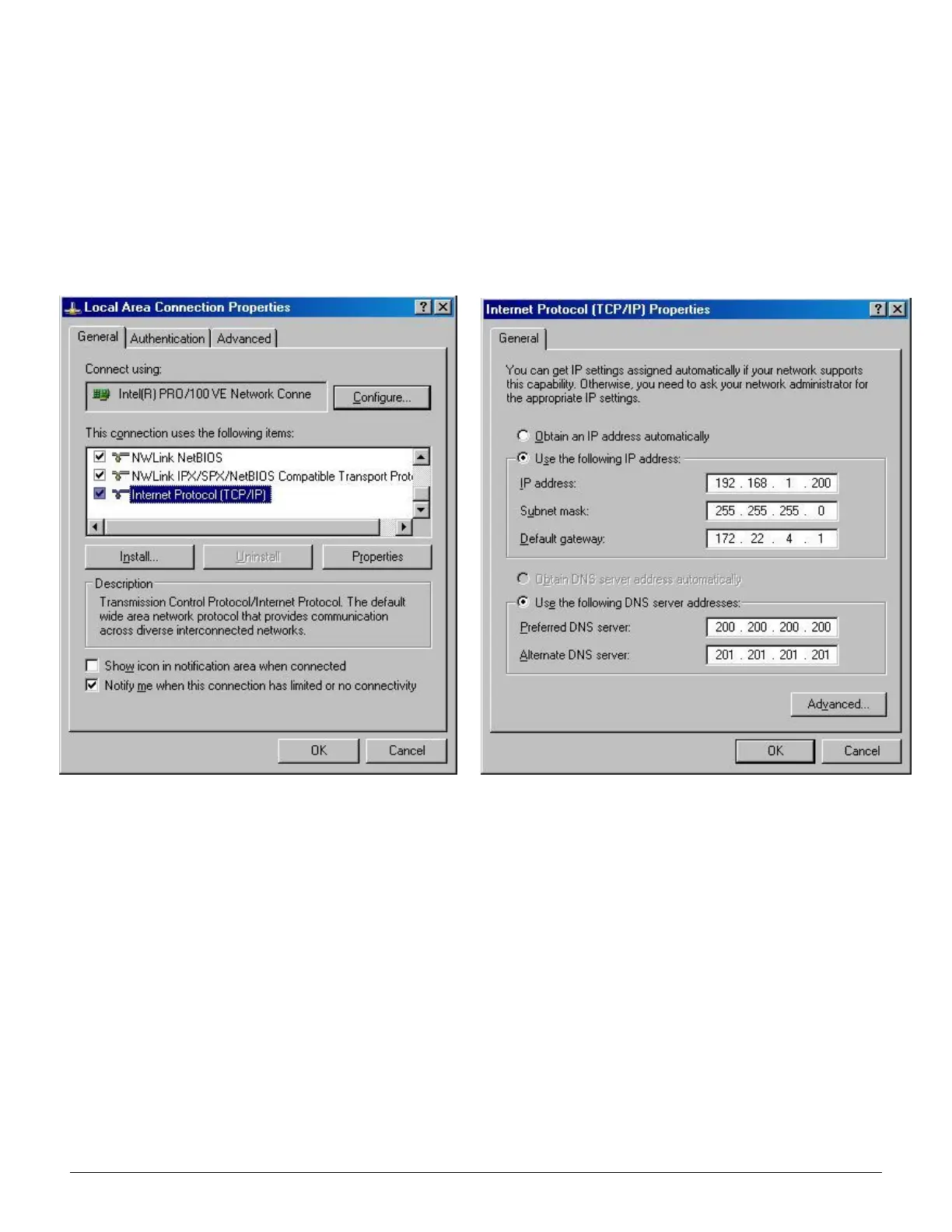
On your computer open the Network Connections. Double click on the LAN icon and then click on Properties. You
should see a window similar to figure 1. Highlight the Internet Protocol(TCP/IP) and click on Properties and a
window similar to figure 2 should show. There are slight differences in these two windows depending on which
Windows operating system you are using.
Figure 1. Local Area Connections Figure 2. TCP/IP Properties
CAUTION: Remember your settings in figure 2. Return to these settings when you are finished using the Spyder
Configuration Tool. If you want the Spyder(s) connected to your local network permanently please contact your IT
department for assistance with the IP Address configuration.
- Select "Use the following IP Address" in figure 2.
- Type in the IP Address and Subnet Mask as shown in figure 2 above.
- Do not change Default Gateway or DNS server setup in figure 2.
- Click "OK" on both the figure 2 and figure 1 windows.
- Restart Windows operating system if required. Not required on Windows XP.
3.2 SPYDER SETUP
- Go to the IP Address screen on the Spyder under the Network menu.
- Set the Spyder IP Address to a number with the same first three numbers as your computer and make the
fourth number different. If your computer has an IP Address of 192.168.1.200 then make the Spyder IP
address 192.168.1.xx, where xx is a number between 1 and 254.
- For multiple Spyders each one must have a unique IP Address.
- Turn the Spyder power off and then on to complete the IP Address change.


 To Next Page
 Loading...