MAGPOWR Spyder Configuration Tool
Each Spyder may have a name with up to 31 characters. A Spyder's name may be changed using the Spyder's
web page. Use Internet Explorer to access the web page by typing into the address bar http:// followed by the
IP Address of the Spyder. Go to the Network page to change the name of the Spyder.
4. INSTALLING THE SPYDER CONFIGURATION TOOL
Run the SpyderConfigTool_Setup.exe program. Follow the directions in the installation wizard. You may leave all
the settings in the installation wizard at the defaults.
5. SPYDER CONFIGURATION TOOL OPERATION
5.1. RUNNING THE SPYDER CONFIGURATION TOOL
After installation is finished, there will be a Spyder Configuration Tool icon on your desktop. Click on the
icon to run the Spyder Configuration Tool.
5.2. USER INTERFACE
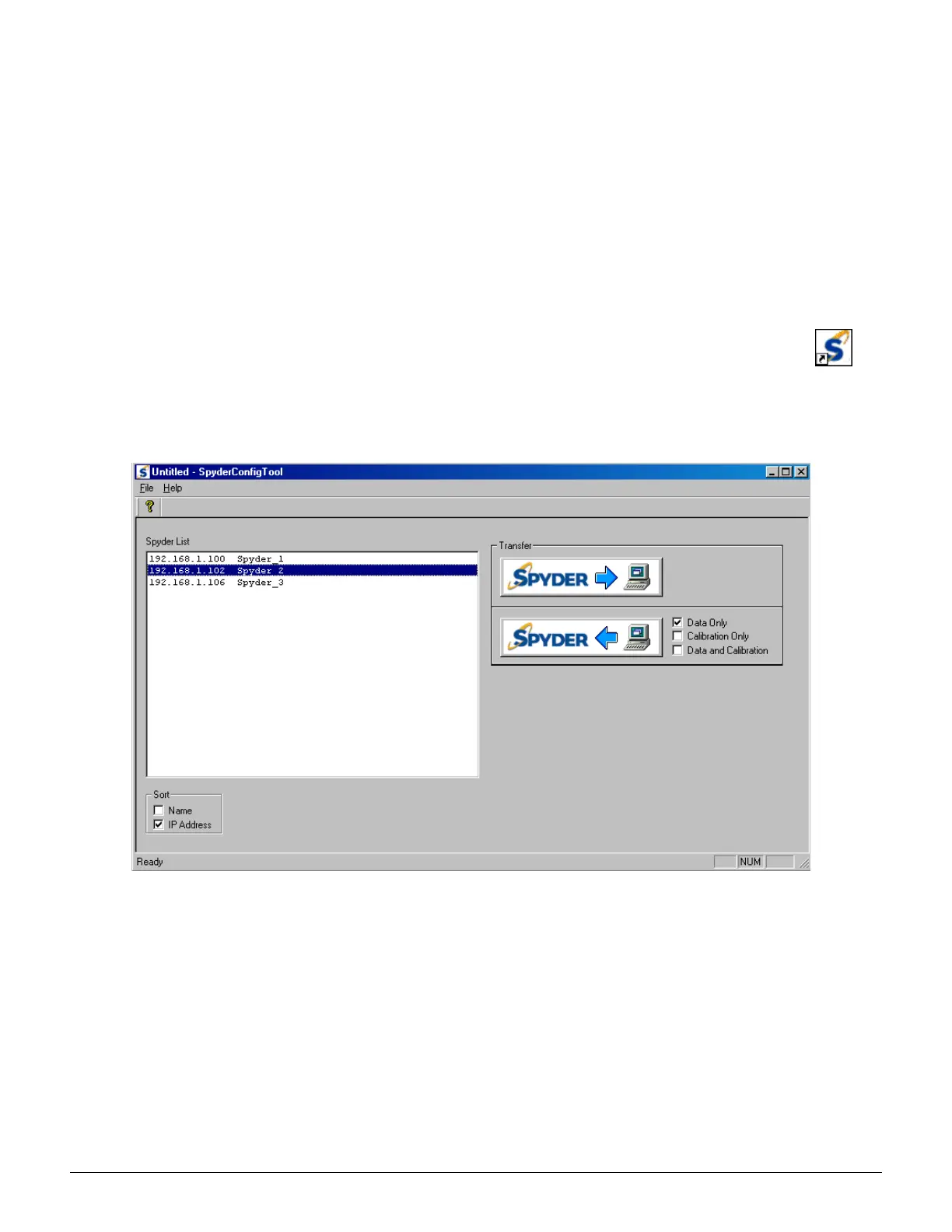
The Spyder Configuration Tool User Interface is shown in figure 3.
Figure 3. Spyder Configuration Tool User Interface
The "Spyder List" box will show all the connected Spyders in alphabetical order either by IP Address or Spyder
name. The "Sort" checkboxes select either sorting by IP Address or Spyder name. The list of connected Spyders is
updated every 10 seconds.
Select a Spyder for communication by clicking in the "Spyder List" box. The transfer of parameters will occur with
the selected Spyder.
There are two buttons, one transfers parameters from the Spyder to a file, and the other transfers parameters from
a file to the Spyder.



 To Next Page