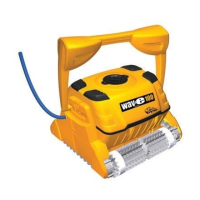
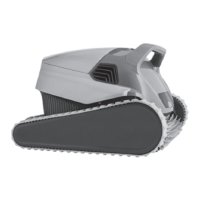
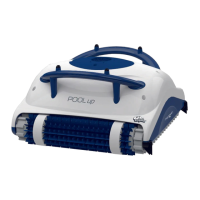
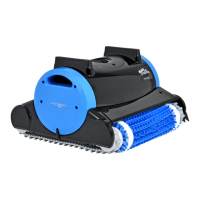
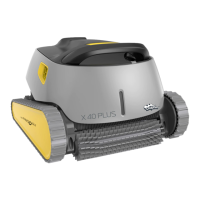
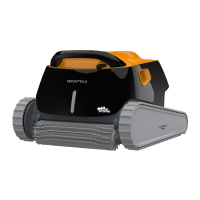
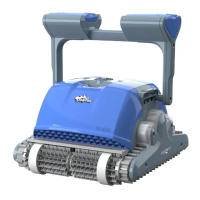
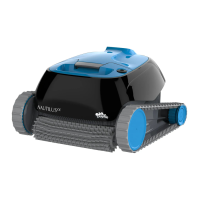
This document provides user instructions for the Maytronics Dolphin robotic pool cleaner, specifically the Classic 13 and Classic 13+ models. This robotic pool cleaner is designed to provide reliable, convenient, and cost-effective pool cleaning, ensuring maximum pool hygiene through its filtration, active brushing, and all-surface climbing capabilities.
Function Description
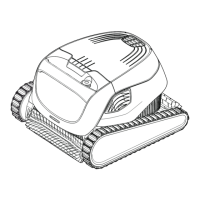
The Maytronics Dolphin robotic pool cleaner is an advanced device engineered to autonomously clean swimming pools. Its primary function is to remove debris, dirt, and algae from the pool floor and walls, enhancing water quality and overall pool hygiene. The cleaner operates by moving across the pool surfaces, brushing them to dislodge contaminants, and then filtering the water through its internal filtration system. The device is equipped with a digital switch-mode power supply that manages its operation. For enhanced control and connectivity, the Classic 13+ model integrates with the MyDolphin™ Plus IoT mobile app, allowing users to manage cleaning cycles and monitor the robot's status remotely. The app leverages cloud connectivity, Bluetooth®, and Wi-Fi® to provide a seamless user experience.
Usage Features
Using the Dolphin robotic pool cleaner is designed to be straightforward. Before its first use, the power supply should be positioned approximately 3.5 meters (12 feet) from the pool edge, ideally in the middle of the longest side of the pool. The blue cable connecting the robot to the power supply must be completely unwound and free of kinks. The cable is attached to the power supply by aligning a notch on the connector with a groove in the socket and turning it clockwise. Once connected, the power supply should be plugged into an electrical outlet, ensuring it is protected by a Ground Fault Interrupter (GFI) or Earth Leakage Interrupter (ELI). The power supply should be kept out of standing water and positioned at least 11 cm (4 inches) above ground for safety.
To begin cleaning, the pool cleaner is placed into the pool and allowed to sink to the floor, ensuring the blue cable is unobstructed. The power supply is then turned ON, initiating the cleaning cycle. The robot will operate until the cycle is complete. For models compatible with the MyDolphin™ Plus app, additional options and manual driving navigation are available. The robot features indicator lights: a blue blinking light signifies normal operation, while a green blinking light indicates smartphone communication for manual driving.
When removing the pool cleaner from the water, the power supply must first be turned OFF. The blue cable can be used to bring the robot to the pool edge, and then the handle should be used to lift it out. It's crucial not to pull the robot out of the water solely by the cable. Once out, the cleaner should be placed on the edge of the pool to allow water to drain.
The MyDolphin™ Plus IoT mobile app, available on Google Play and the Appstore, provides advanced control for Classic 13+ models. To get started with the app, users need to ensure their mobile device is connected to a 2.4Ghz Wi-Fi® network, Bluetooth® is enabled, and for Android users, GPS and Location Services are ON. After downloading and activating the app, users create an account or log in, then scan the QR code on the power supply or manually search for the robot to pair. The app guides users through connecting the robot to their home Wi-Fi® network. LED lights on the power supply indicate connectivity status: flashing blue for Bluetooth® connection, steady blue for connected via Bluetooth®, flashing green for Wi-Fi® network and cloud connection attempts, steady green for successful Wi-Fi® and cloud connection, and alternating blue and green for Bluetooth® connection while attempting Wi-Fi® and cloud connection. On/Off LEDs indicate waiting for operation (flashing green), remote program updates (alternating blue/green/red), or a fault (steady red).
Maintenance Features
Regular maintenance is essential to ensure the longevity and optimal performance of the robotic pool cleaner. The primary maintenance task involves cleaning the dual filter basket after each use. To do this, the power supply must be unplugged before any servicing. The filter cover is opened, and the handle of the filter basket lifts up independently, allowing the basket to be removed. A latch on the bottom lid of the basket is opened to release debris, which can then be cleaned with a hose.
Periodic filter cleaning, recommended at least once a month, involves dismantling the four ultra-fine filter panels of the outer basket. First, the inner net basket is removed by holding down the handle. Then, the panels are dismantled by pressing on them with thumbs in a specific sequence (panel 1 first, then 2, 3, and 4). The filter panels are cleaned with a hose. Reassembly follows the reverse order (4-3-2-1), taking care not to force the filters into place. Finally, the clean filter basket is inserted, and the filter cover is closed.
Another important maintenance task is cleaning the impeller if debris becomes trapped. Again, the power supply must be unplugged. The impeller cover is dismantled using a Phillips screwdriver (not an electric one). After cleaning around the impeller housing, the components are reassembled.
For off-season storage, if the pool cleaner will not be used for an extended period, it should be thoroughly cleaned, ensuring no water remains inside. The filter basket should be cleaned and reinserted. The cable should be rolled up without kinks and placed on the caddy. The pool cleaner should be stored upright on its caddy in a shaded area, protected from direct sun, rain, and frost, at a temperature between 5°C and 45°C (41°F and 113°F).
Troubleshooting information is also provided for common issues such as the power supply not working, the pool cleaner not moving, moving in circles, not turning or moving in one direction, not cleaning the entire pool, or the blue floating cable having kinks. Solutions typically involve checking power connections, clearing obstructions from the impeller or tracks, cleaning the filter basket, correcting power supply positioning, or adjusting pool water chemistry. For MyDolphin™ Plus app-related issues, troubleshooting steps include checking internet signals, reconnecting to Wi-Fi® or Bluetooth®, and addressing connection errors after router or power supply replacements. For persistent problems, users are advised to contact Maytronics Customer Care.


 To Next Page
 General