Audio Controls Without Navigation
17 18
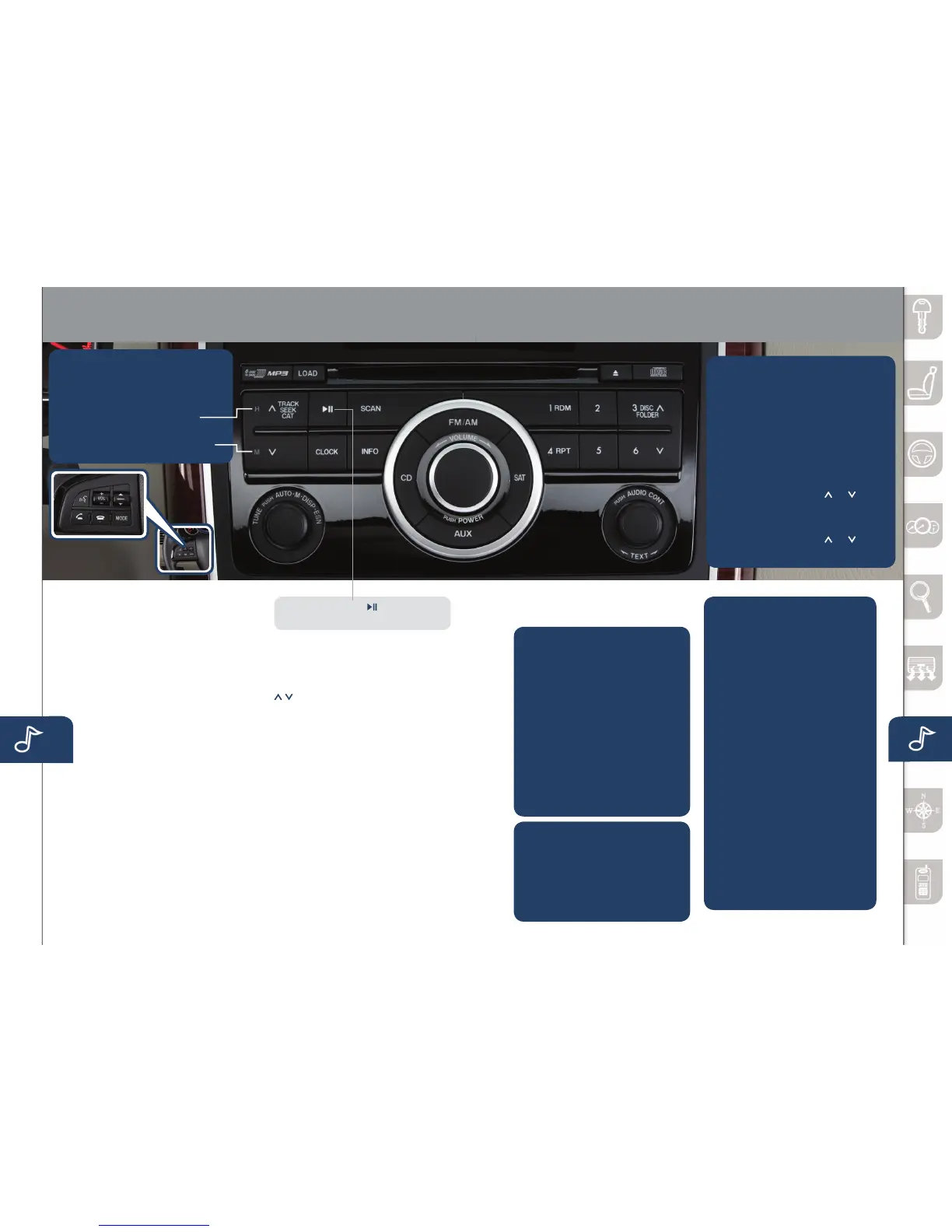
1. P u s h t h e LOAD button.
2.After“IN”isdisplayedonthe
Information Display, insert the CD.
3. Repeat steps 1 and 2 until up
to6CDsareloaded.
To Change Music CD
PushtheDISCbutton( or )
during playback.
To Change MP3 CD
PushtheDISCbutton( or ) for
1.5secondsormoreduringplayback.
TO LOAD/PLAY A CD
(if equipped with 6-CD changer)
1.
PushandholdtheCLOCK button
until displayed time ashes.
2. PushandholdtheH (hours)
button to the correct hour.
3. PushandholdtheM (minutes)
button to the correct minute.
SETTING YOUR CLOCK
POWER ON
PushthePOWER/VOLUMEtoturn
the audio system on.
MEDIA SELECTION
Radio:PushFM/AMbuttonto
selecttheFM1,FM2,orAMband.
Satellite Radio:PushtheSAT
buttonforSIRIUSRadio
®
. If your
vehicleisequippedwithSIRIUS
Radio
®
(satellite radio antenna on
roofortrunklid),yournewMazda
includes a free introductory
subscription with a limited term trial
offer.Call888-539-7474toactivate!
SeetheOwner’sManualand/or
dealer for details. Contact your
MazdadealeraboutaddingSIRIUS
Radio
®
ifyourMazdaCX-9isnot
alreadyequippedwithit.
CD:PushCDbuttontoselectthe
CD player.
Auxiliary Input:PushAUXbutton
toswitchtojackinputorRearSeat
EntertainmentSystem(RSES).
NOTE: Play/Pause button is only
functionalwhenusingSIRIUSRadio
®
.
TUNING
Manual:TurntheTUNEdialto
manuallychangethefrequency.
Seek:PushtheTRACK/SEEK
tuning buttons to automatically
seekahigherorlowerfrequency
with a station.
Scan:PushtheSCANbuttonto
automatically sample strong
stationsforsecondseach.Push
again to cancel.
Preset Channel:PushthePreset
Channelbuttons(1-6)toselecta
stationstoredinmemory.Tostorea
station,pushandholdabutton(1-6)
until a beep is heard.
Auto Memory Tuning:Pushthe
AUTO-Mbuttontostoreanadditional
6stationsoneachFMandAMband
without disturbing the previously
storedstations.RefertotheOwner’s
Manualforcompletedetails.
CLOCK
Pushtodisplayclock.
INFO
Pushtodisplaythetripcomputer
inplaceoftheclock.Thetrip
computercandisplay:
• Currentfueleconomy
• Averagefueleconomy
• Approximatedistanceyou
can travel on the available
fuel in your gas tank.
• Averagevehiclespeed.
• Whenaveragefueleconomy
or average velocity is displayed,
pushINFObuttonmorethan
1.5secondstoreset.
PLAYING BLUETOOTH
®
(BT) AUDIO
1MakesureBTaudiodevice
is paired.
2TurnonBTaudiodevice.
3PushtheAUXbuttonuntil
“BTAUDIO”isdisplayed.
BLUETOOTH
®
AUDIO
Bluetooth
®
enabled phones and
audio players provide an opportunity
to play music through the audio
system with no wires attached,
however,therearesomelimitations:
•Duringplayback,thesongtitle
or artist will be shown on the
vehicle’sinformationdisplay.(This
mayvaryduetothespecication
ofyourphoneorplayer(AVRCP
1.3required).Toobtainfurther
information, please refer to the
Owner’sManual).Thisisnota
problem with the vehicle, phone,
orplayer.Thecurrentaudioprole
does not send this information.
•Notallcontrolsonthephoneor
player will be active when paired
to the vehicle.
•Wirelesssignalstrengthcanaffect
audio streaming.
•Soundqualityofstreamingaudio
varies depending on the device.
BLUETOOTH
®
HANDS-FREE
(P. 25 )
/
AUDIO ( PP. 17- 2 2)
www.MazdaUSA.com



 To Next Page