Navigation System
23 24
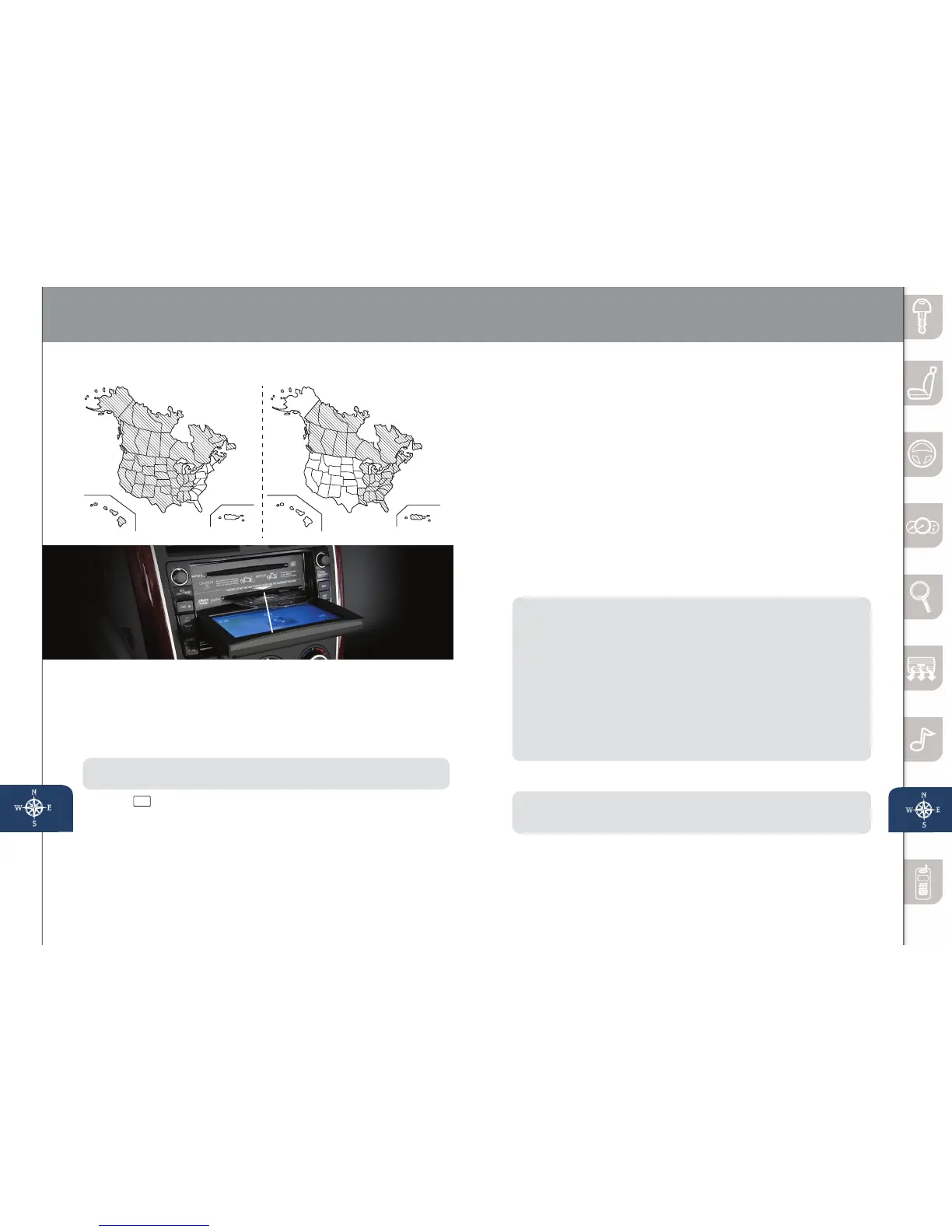
Your navigation system operates using the map discs supplied.
• DiscAcoversmostoftheMidwestandWesternstatesincluding
Hawaii and Alaska.
• DiscBcoverssomeoftheMidwestandalloftheEasternstates
includingPuertoRico.
• BothdiscscoverallofCanada.
NOTE: Ifthe“stateyouraddressisin”isnotdisplayedwhenenteringadestination,
you may have the wrong disc in the navigation system.
1 Push
LOAD
.
2 When“Load/Eject”screenappearsselect“MAP”.Waitfornavigation
screen to tilt open.
3 Remove current map disc (if installed) and insert the desired map disc,
withtheprintedsidefacingup,intothelowerDVDMAPslot.
4 ReadtheCautioncarefullyandselectthe“AGREE”on-screenbutton.
PleaserefertoyourNavigationSystemOwner’sManualforcomplete
details and important safety information.
INSERTING THE MAP DISC
Insert map disc into lower DVD slot
SET HOME LOCATION
NOTE:HomeaddressmustbestoredinADDRESSBOOKbeforeproceeding.
Follow“SELECTINGADESTINATION”step1-11andonstep12select“Memory
Pt.”insteadof“Destination”tostoreaddress.
1 Push“MENU”buttononnavigationface.
2 Select“ADDRESSBOOK”.
3 Select“MemoryPoints/Home”.
4 Select“List”.
5 Selecthomeaddressfromlist.
6 Select“Category”.
7 Select“Home”.
SELECTING A DESTINATION
You can choose setting a destination using a street address, point of
interest, emergency, memory point, home, preset destination, previous
destination, freeway on/off ramp, coordinates, or select from map.
1 Push“MENU”buttononnavigationface.
2 Select“DestinationEntry”.
3 Select“Address”.
4 Selectthe“State”or“Province”.
•ScrolldownpasttheStatestondCanadianProvinces.
5 Select“City”.
6 Select“InputCityName”.
7 Usethekeyboardtoenterthecityname.
8 Select“Street”.
9 Usethekeyboardtoenterthestreetname.
10 Select“HouseNo”.
11 Usethekeyboardtoenterthehousenumber,thenselect“OK”.
12 Whenthemapappears,select“Destination”.
13 Select“Start”orjuststartdriving.
NOTE:
• For safety reasons, some navigation functions cannot be performed via the
Navigationscreenwhiledriving.
• Whenenteringnumbersforastreetname,(e.g.,1stAve.),push“Sym.”
button to switch to the numeric keyboard.
• Map Orientation:“NorthUp”-Geographicnorthisup.
“HeadUp”-Thedirectionyouareheadingisup.
• Route Preferences:Select“Prefer”or“Avoid”fortollroads,majorroads,
ferries, restricted roads and border crossing.
• RETURNbutton:Pushbuttontoreturntothepreviousnavigationscreen.
• VOICEbutton:Pushtoreplayavoicenavigationassistfromthe
navigation system.
• DISPbutton:Pushtosetscreenangle,brightness,contrast,day/night
screen and display on/off.
Disc A
OCIR OTREUPIIAWAH
Disc B
OCIR OTREUPIIAWAH
DISC A DISC B
www.MazdaUSA.com



 To Next Page