Audio Controls Without Navigation
19 20
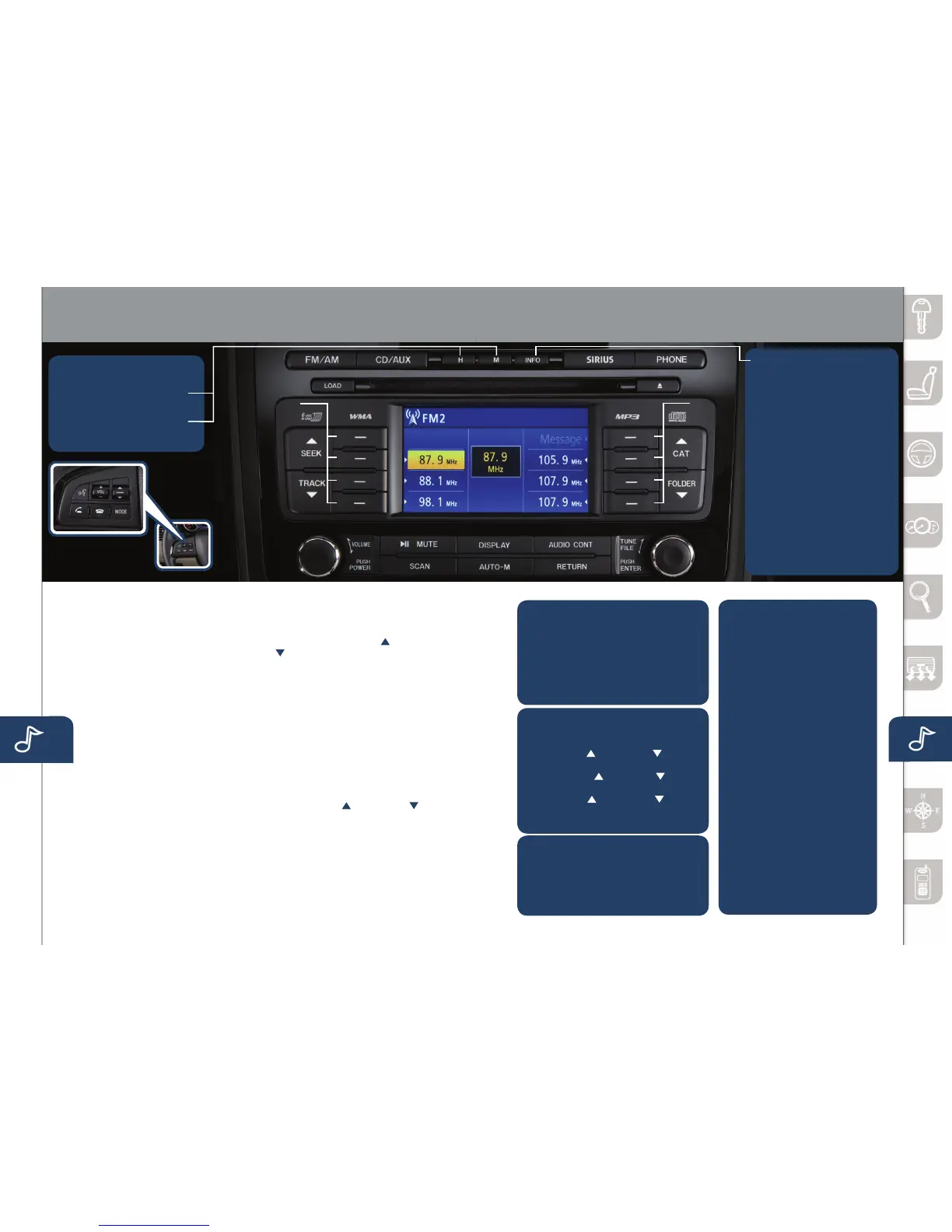
• PushtheH button to set
the hour.
• PushtheM button to set
the minutes.
SETTING YOUR CLOCK
INFO
Pushtodisplaythetrip
computer in place of the
clock on the information
display.Thetripcomputer
candisplay:
• Currentfueleconomy
• Averagefueleconomy
• Approximatedistanceyou
can travel on the available
fuel in your gas tank.
• Averagevehiclespeed.
• Whenaveragefuel
economy
or average
velocity is displayed,
push
INFObuttonmorethan
1.5secondstoreset.
BLUETOOTH
®
HANDS-FREE
(P. 25 )
/
AUDIO ( PP. 17- 2 2)
Selection
Buttons
1-4
Selection
Buttons
5-8
POWER ON
PushthePower/Volumedialtoturn
the audio system on.
MEDIA SELECTION
Radio:PushFM/AMbuttontoselect
theFM1,FM2,orAMband.
CD:PushtheCD/AUXbuttonto
select the CD player which plays
CDs,MP3s,andWMAs.Seethe
Owner’sManualforcompletedetails.
Auxiliary Input:PushtheCD/AUX
button to selecttheauxiliaryjack.
Satellite Radio:PushtheSIRIUS
buttonforSIRIUSRadio
®
. If your
vehicleisequippedwithSIRIUS
Radio
®
(satellite radio antenna on
roofortrunklid),yournewMazda
includes a free introductory
subscription with a limited term trial
offer.Call888-539-7474toactivate!
SeetheOwner’sManualand/or
dealer for details. Contact your
MazdadealeraboutaddingSIRIUS
Radio
®
if your
MazdaCX-9
is not
alreadyequippedwithit.
TUNING
Manual:TurntheTUNEdialto
manuallychangethefrequency.
Seek:PushtheSEEK orTRACK
tuning buttons to automatically
seekahigherorlowerfrequency
with a station.
Scan:PushtheSCANbuttonto
automatically sample strong stations for
secondseach.Pushagaintocancel.
Preset Channel:PushSelection
Button 2, 3, 4, 6, 7, or 8 to select
astationstoredinmemory.Tostore
a station, push and hold Selection
Button 2, 3, 4, 6, 7, or 8 until
station is displayed.
Category (SIRIUS Radio
®
only):
PushtheCAT orFOLDER to
change to a different category.
Auto Memory Tuning:Pushand
holdtheAUTO-Mbuttontostore
anadditional6stationsoneachFM
andAMbandwithoutdisturbingthe
previouslystoredstations.Toreturn
to previously stored stations, push
theFMorAMbutton.Refertothe
Owner’sManualforcompletedetails.
LOADING A CD
Single CD Player
•InserttheCDintotheslot,
label-side up.
In-Dash CD Changer
•PushtheLOADbuttonandwhen
“PleaseInsertaDisc”isdisplayed,
insert the CD.
PLAYING A CD
•PushaSelectionbuttontoselect
aCD(6CDchanger).
•PushCAT orFOLDER to select
afolder(MP3/WMA).
•PushSEEK orTRACK to
selectpreviousornexttrack.
•PushCAT orFOLDER to
selectpreviousornextfolder
(forMP3sandWMAs).
PLAYING BLUETOOTH
®
(BT) AUDIO
1MakesureBTaudiodevice
is paired.
2TurnonBTaudiodevice.
3PushtheCD/AUXbuttonuntil
“BTAUDIO”isdisplayed.
BLUETOOTH
®
AUDIO
Bluetooth
®
enabled phones
and audio players provide an
opportunity to play music through
the audio system with no wires
attached, however, there are
somelimitations:
•Duringplayback,thesongtitle
or artist will be shown on the
vehicle’sinformationdisplay.
(Thismayvaryduetothe
specicationofyourphoneor
player(AVRCP1.3required).
Toobtainfurtherinformation,
pleaserefertotheOwner’s
Manual).Thisisnotaproblem
with the vehicle, phone, or
player.Thecurrentaudioprole
does not send this information.
•Notallcontrolsonthephone
or player will be active when
paired to the vehicle.
•Wirelesssignalstrengthcan
affect audio streaming.
•Soundqualityofstreamingaudio
varies depending on the device.
www.MazdaUSA.com



 To Next Page