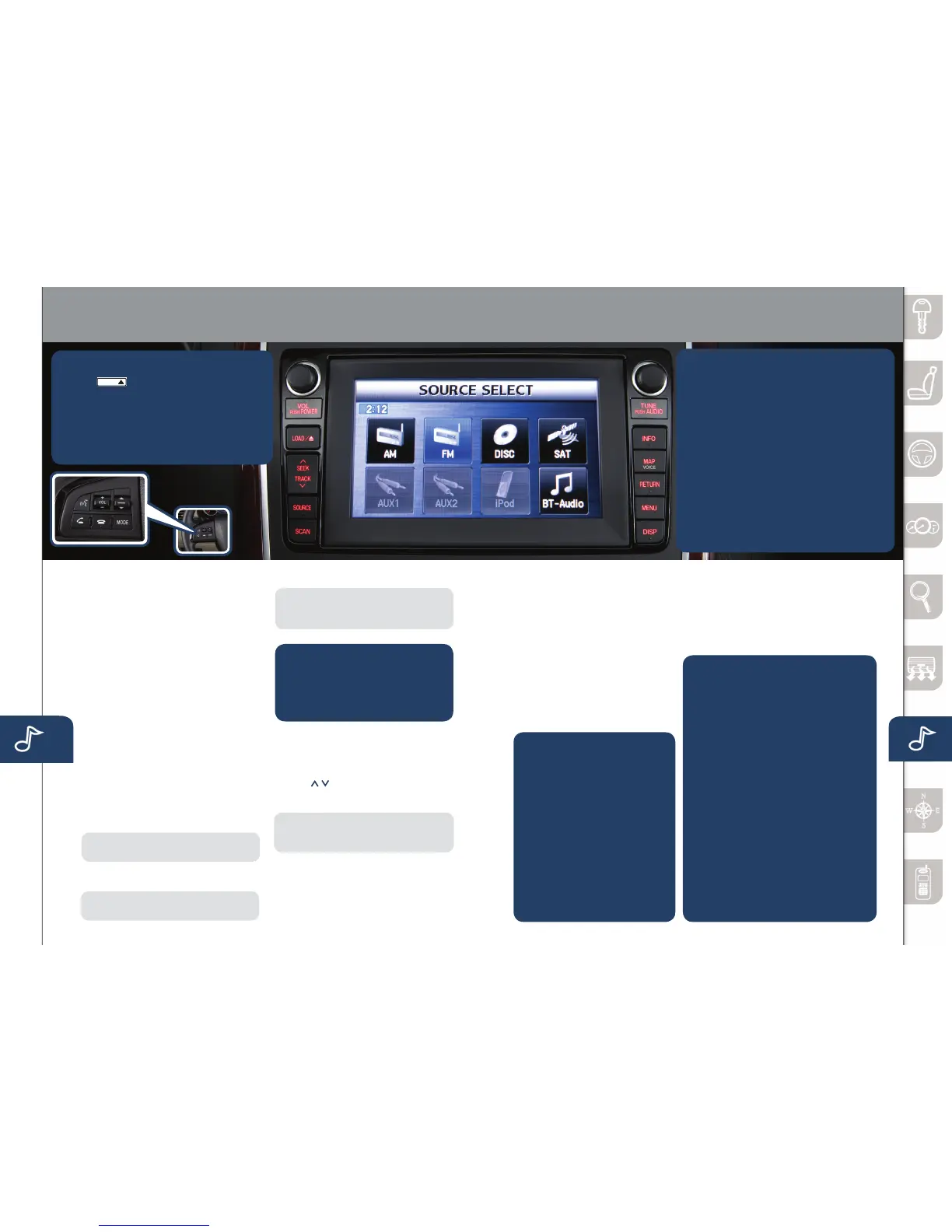
Audio Controls With Navigation
21 22
1. P u s h
LOAD /
.
2.SelecttheCD (DISC) on-screen button.
3.Waitforthescreentolower.
4. InserttheCDafter“IN”isdisplayedon
theInformationDisplay.TheCDwillbegin
playing after the screen closes.
TO LOAD/PLAY A CD
POWER ON
PushthePOWER/VOLUMEbuttonto
turn the radio on.
MEDIA SELECTION
PushtheSOURCEbuttontoselectthe
appropriateon-screenbutton:
Radio:SelectFMorAMbuttonfor
FM1,FM2,orAMband.
DISC:SelectforCDplayer.
Satellite Radio:
SelectSATforSIRIUS
Radio
®
.Ifyourvehicleisequippedwith
SIRIUSRadio
®
(satellite radio antenna
onroofortrunklid),yournewMazda
includes a free introductory subscription
with a limited term trial offer. Call
888-539-7474toactivate!Seethe
Owner’sManualand/ordealerfordetails.
ContactyourMazdadealeraboutadding
SIRIUSRadio
®
ifyourMazdaCX-9isnot
alreadyequippedwithit.
AUX 1:SelecttoswitchtoAUX
jack input.
NOTE:
AUX1illuminatesonlyifexternal
deviceisconnectedtoAUX1jack.
AUX 2:SelecttoswitchtoRearSeat
EntertainmentSystem(RSES).
NOTE: AUX2illuminatesonlyifRSES
is powered on.
iPod:SelecttoplayiPod
®
.
NOTE: iPodilluminatesonlyifdealer
installediPodintegrationkitanddevice
is connected.
BT-Audio:SelectforBluetooth
®
Audio.
PLAYING BLUETOOTH
®
(BT) AUDIO
1 MakesureBTaudiodevice
is paired.
2 TurnonBTaudiodevice.
3 PushtheCD/AUXbuttonuntil
“BTAUDIO”isdisplayed.
TUNING
Manual:TurntheTUNE/AUDIOdialto
manuallychangethefrequency.
Seek/Track:PushandholdtheSEEK/
TRACK buttons to automatically
seekahigherorlowerfrequencyor
track, depending on media selected.
NOTE:
If you continue to push and hold
thebuttons,thefrequencywillcontinue
changing without stopping until released.
Scan:PushtheSCANbuttonto
automatically sample strong stations for
secondseach.Pushagaintocancel.
Preset Channel: Can be used to
store8AM,16FMand18SIRIUS
Radio
®
stations.
1 PushtheSOURCEbutton.
2 SelectAM/FMorSAT.
3 ForFM,selectFM1/2
button,forSAT,select
PRESETSbutton.
4 Tunetothedesiredstation
usingtheSEEK/TRACK
button or by turning the
TUNE/AUDIOdial.
5 Selectandholdanychannel
preset on-screen button for
about two seconds until a
beep is heard.
• Repeattostoreotherstations.
INFO
Pushtodisplaythetrip
computer in place of the clock
ontheinformationdisplay.The
tripcomputercandisplay:
• Currentfueleconomy
• Averagefueleconomy
• Approximatedistanceyou
can travel on the available
fuel in your gas tank.
• Averagevehiclespeed.
•
Whenaveragefueleconomy
or average velocity is
displayed,pushINFO
buttonmorethan1.5
seconds to reset.
1. PushtheMENU button.
2.SelecttheSetClocktab.
3.Scrollto“DisplayType”andselect;then
selecta24-hourora12-hourdisplay.
4.Usethe+ hour and - hour tabs to enter
the correct hour.
5.
Usethe+1min(minutes)and-1min
to move minutes ahead or back.
NOTE:
• WhenAutoTimeZoneisswitchedON,the
time cannot be adjusted manually.
• WhenAutoTimeZoneisswitchedOFF,
the daylight saving time
on-screen button
cannot be operated.
SETTING YOUR CLOCK
Auto Memory Tuning:
SelectandholdtheAUTO-Mon-screen
button until beep is heard to store an
additional8stationsoneachFMandAM
band without disturbing the previously
storedstations.RefertotheOwner’s
Manualforcompletedetails.
BLUETOOTH
®
AUDIO
Bluetooth
®
enabled phones and audio
players provide an opportunity to play
music through the audio system with
no wires attached, however, there are
somelimitations:
•Duringplayback,thesongtitleor
artistwillbeshownonthevehicle’s
informationdisplay.(Thismayvary
duetothespecicationofyourphone
orplayer(AVRCP1.3required).To
obtain further information, please refer
totheOwner’sManual).Thisisnota
problem with the vehicle, phone, or
player.Thecurrentaudioproledoes
not send this information.
•Notallcontrolsonthephoneorplayer
will be active when paired to the vehicle.
•Wirelesssignalstrengthcanaffect
audio streaming.
•Soundqualityofstreamingaudiovaries
depending on the device.
BLUETOOTH
®
HANDS-FREE
(P. 25 )
/
AUDIO ( PP. 17- 2 2)
www.MazdaUSA.com



 To Next Page