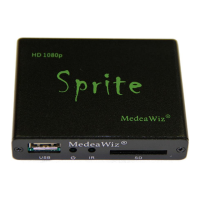
MedeaWiz® Sprite
Team Kingsley LLC
16 | P a g e
Firmware Upgrade
How to upgrade the firmware
We may release upgraded firmware in the future. Please check
http://www.teamkingsley.com/downloads.html for updates.
1) Use a blank USB drive or one with your video files on it. Do not use one that contains items
not meant for the Sprite. Copy the new .img firmware file to the drive.
2) Unplug the power to the Sprite. Insert the USB drive into the Sprite. Plug in the power.
3) Using the IR remote control, press “File”
4) Select the USB drive and navigate to the .img firmware file.
5) Select the .img firmware file and press “Enter”
6) Select “Yes” and “Enter”
The power LED will go off. After a while the power LED will come on and the Sprite will begin
playing a video file, if present.
This process will take a few minutes. Be patient.
We recommend that you leave your video files on the SD or USB drive. In this case the Sprite
will begin playing file 000.xxx confirming the update is completed.
Do not remove power or remove the USB drive until the update is competed. Interrupting the
process may result in a non-functional player. It is highly recommended to use a UPS battery-
backup power supply.
You may also use a SD memory card instead of a USB drive to update the firmware.


 To Next Page