Questions? Refer to Page 10-13 For Customer Care Information.
5-5
What You See
on the Display
What You Do Comments
Data Review for Patient History by Patient ID:
Please refer to page 5-2 of the Data Review section for the step-by-step
instructions to access the Data Review menu.
Note: If no information is stored for the desired category that was
selected, the following message will be displayed on the monitor:
“No Stored Tests”.
Note: If no tests match the criteria specified, this message will be
displayed on the monitor: “No Tests Match Request”.
If the monitor displays a message not indicated in these procedures,
please refer to section 10, Troubleshooting.
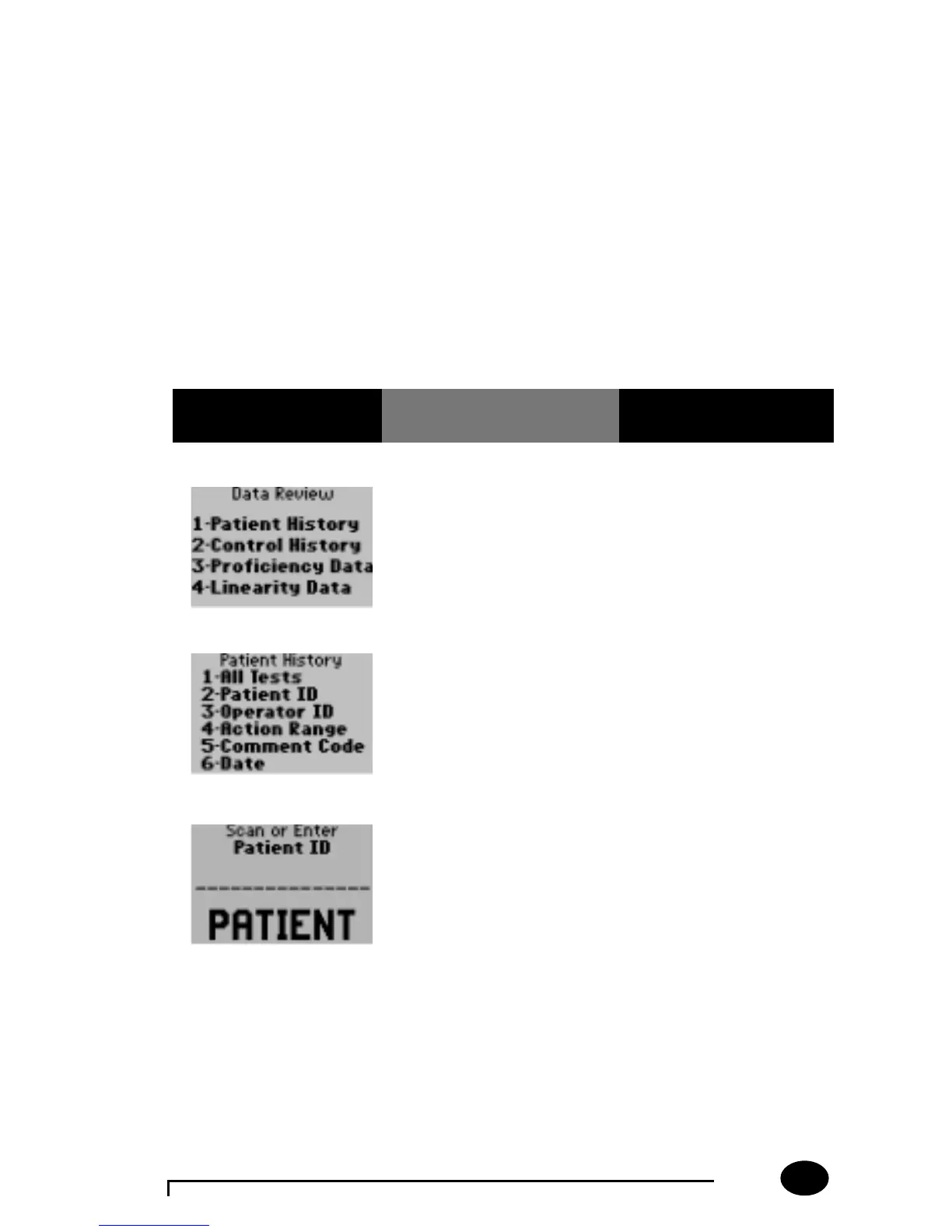
1. Press 1 – Patient
History.
The Patient History menu
now appears.
2. Press 2 – Patient ID. The monitor will prompt
for the Patient ID to be
scanned or entered.
3. Scan or manually enter
the Patient ID via the
keypad, then press
Enter.


 To Next Page