Downloading Results to a PC
T
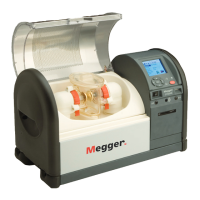
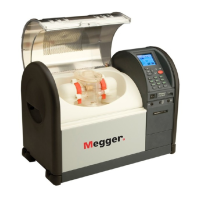
o transfer test results to a PC, connect a suitable cable (see below) between the RS232 socket on the
OTS and a serial port on the PC. A suitable communications program is required on the PC.
When the OTS is set to print to an external printer, text will appear on the PC display, which may be
copied to other programs for storage or calculation.
RS232 Cable
T
he following shows the cable connections which has been found to work with Microsoft
®
T
erminal and
Hyperterminal programs:-
PC: ‘D’ type socket OTSAF/2 9 pin ‘D’ type socket
Function 25 Pin 9 Pin Pin Function
RXD (i/p) 3 2 3 TXD (o/p)
GND 7 5 5 GND
RTS (o/p) 4 7 6 Busy (i/p)
DCD (i/p) 8 1
DTR (o/p) 20 4 Joined together
DSR (i/p) 6 6
1, 7, 8 Not connected.
2, 4, 9 Reserved - Do not connect.
Shell Braid Shell
(Screen)
Configuring the OTS
From the main menu, choose OPTIONS and then PRINTER CONTROL. Verify the following settings:-
Baud Rate - 9600
Ext. Printer - ON
It may be useful to set AUTOPRINT to
On, which will cause the OTS to output data automatically after
each test sequence.
Refer to page13 ‘
Setting the Printer options‘
for further information on how to do this.
Configuring the PC Communication Program
The following settings have been found to work with Microsoft
®
Terminal and Hyperterminal programs.
Baud Rate - 9600
Data Bits - 8
Parity
- None
Stop Bits - 1
Flow Control
-
Hardware
28
Operation



 To Next Page