4
8. Can I set-up my router without creating an account in the Mercku App?
Yes, you can! You can set up your Mercku device using our web interface if you don’t
want to create an account in the Mercku App. Please keep in mind that you won’t be
able to access your network remotely without the Mercku App.
To set up your network using the web interface, please do the following:
1. Connect your device to the M6's open Wi-Fi network or use the provided ethernet
cable and open http://mywifi.mercku.tech on your web browser.
2. Follow the instructions to set up your M6 and set up your SSID and network/admin
password.
3. Once the M6 has been configured successfully, the router indicator light will turn
white. You can now connect your devices to the network and manage the system
through the web interface.
9. How do I change the phone number associated with my account?
1. In the Mercku App, go to Settings> Select Unbind
2. Click > Logout
3. Click Login > Register > Enter new phone number and create password
4. Once the login is complete, connect your Mercku network and follow the instructions
on the App interface
10. Why can't I access http://mywifi.mercku.tech?
Please ensure that you are connected to the Mercku Wi-Fi network in order to access
the website.
If you are still experiencing difficulties, please email support@mercku.com.
11. I cannot go further on Mercku App after connecting to the Mercku Wi-Fi.
What should I do?
Please ensure your Mercku App has been granted full permissions on your device and
make sure location services is enabled when using the App. If you are still experiencing
this issue, please contact Mercku support at support@mercku.com
12. How do I add a node to my M6 mesh network?
There are 3 different ways to add an M6 node to your existing mesh network:
1) Without using the Mercku App or Portal:
a. Plug in the power to the M6 node and wait until the LED indicator is orange
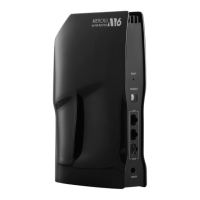
b. Press the "Connect" button on the main M6 router
c. Press the "Connect" button on the M6 node


 To Next Page