6
3. What color options are there?
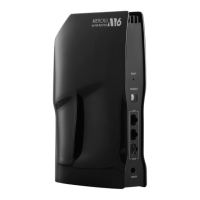
The M6 comes in black, white, and red.
4. Can I mesh my M2 Bees or Queens to the M6 router, or vice versa?
You can not mesh M2 devices with the M6 router, or vice versa. Since the M6 users a
different Wi-Fi 6 chipset than Mercku M2 line of products, they are not able to mesh.
5. I don’t have any Wi-Fi 6-enabled devices, can I still use the M6 as a
router?
Yes, definitely! The M6 is backwards-compatible, and you will be able to connect
devices that support older wireless standards to the network.
6. I forgot my Wi-Fi password, what do I do?
If you’ve forgotten your Wi-Fi password, you can update it only if you have your Mercku
App bound to your network:
1. After binding the router, open the Mercku App > Go to Settings > Select Wi-Fi Settings
2. Go to Wi-Fi password field to change the Wi-Fi password.
If you don’t have your network set up with the Mercku App, you will need to factory reset
your system in order to reset the password. Using a paperclip or a pin, press the “Reset”
button behind your M6 router to initiate a factory reset. Please note: factory resetting
your M6 will restore all settings back to factory settings, except the firmware version
your system is on.
7. I forgot my router admin password, what do I do?
The router admin password is used to access your Mercku web interface at
http://mywifi.mercku.tech
. By default, the admin password is the same as your Wi-Fi
password unless you set it up otherwise during installation.
If you’ve forgotten your router admin password, you can update it only if you have your
Mercku App bound to your network:
1. After binding the router, open the Mercku App > Go to Settings > Select Router Admin
Password
2. Input your new password
If you don’t have your network set up with the Mercku App, you will need to factory reset
your system in order to reset the password. Using a paperclip or a pin, press the “Reset”
button behind your M6 router to initiate a factory reset. Please note: factory resetting
your M6 will restore all settings back to factory settings, except the firmware version
your system is on.


 To Next Page