8
9. How can I unbind a router from my account?
Unbinding a device dissociates your M6 from your Mercku App account. This can be
used in the event you change the phone number that's associated with your Mercku
App account.
Please ensure that you are using the latest app version. There are two different ways to
unbind:
1. On the Mercku App, go to Settings > Select Unbind (at the bottom of the page).
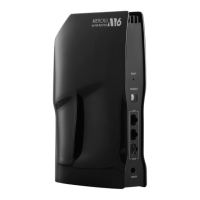
2. You can also reboot, and factory reset your M6 router to unbind your account. You
can factor reset your router by doing one of the following:
• On the Mercku App: Select the main router > Press Factory Reset
• On the Mercku Portal: Under My Wi-Fi> Select Router Management > Click on
List > Click Factory Reset beside the router you would like to factory reset
• Press the reset button at the back of the M6 using a pin or paperclip and wait
until the indicator light is blinking red. Please Note: do not press and hold the
button
If rebooting and factory resetting doesn't fix your problem, please send us an email
at support@mercku.com containing the SN number on the bottom of the M6 and we'll
look into unbinding your router on our end.
10. What is "Smart Connect" and how can I turn this on?
Smart Connect combines both the 2.4 GHz and 5 GHz networks into a single SSID. This
enables your device to connect automatically to the appropriate network depending on
the device's capabilities.
Please Note: Some devices, especially IoT devices, only support 2.4 GHz and they may
not be able to connect when Smart Connect is enabled.
11. What is “Increase Mesh Coverage”?
Increase Mesh Coverage is a feature that enables Mercku devices to connect to a
specific band. When enabled, Mercku nodes will automatically connect to the 2.4 GHz
band, and when disabled, Mercku nodes will automatically connect to the 5 GHz band.
By pushing your Mercku nodes on to the 2.4 GHz band, you’re enabling your system to
expand its network coverage, however this means that backhaul may be slower
(relative to when it’s turned off).
12. What should I do if I see “Invalid code 100200”?
Please reboot your system by disconnecting the power, then plugging it back in after 10
seconds. If you continue to get this error message, please factory reset your router.
You can factory reset by doing one of the following:


 To Next Page