■■■■■■■■■■■■■■■■■■■■■■
4 Operation and maintenance
Optrode
■■■■■■■■
11
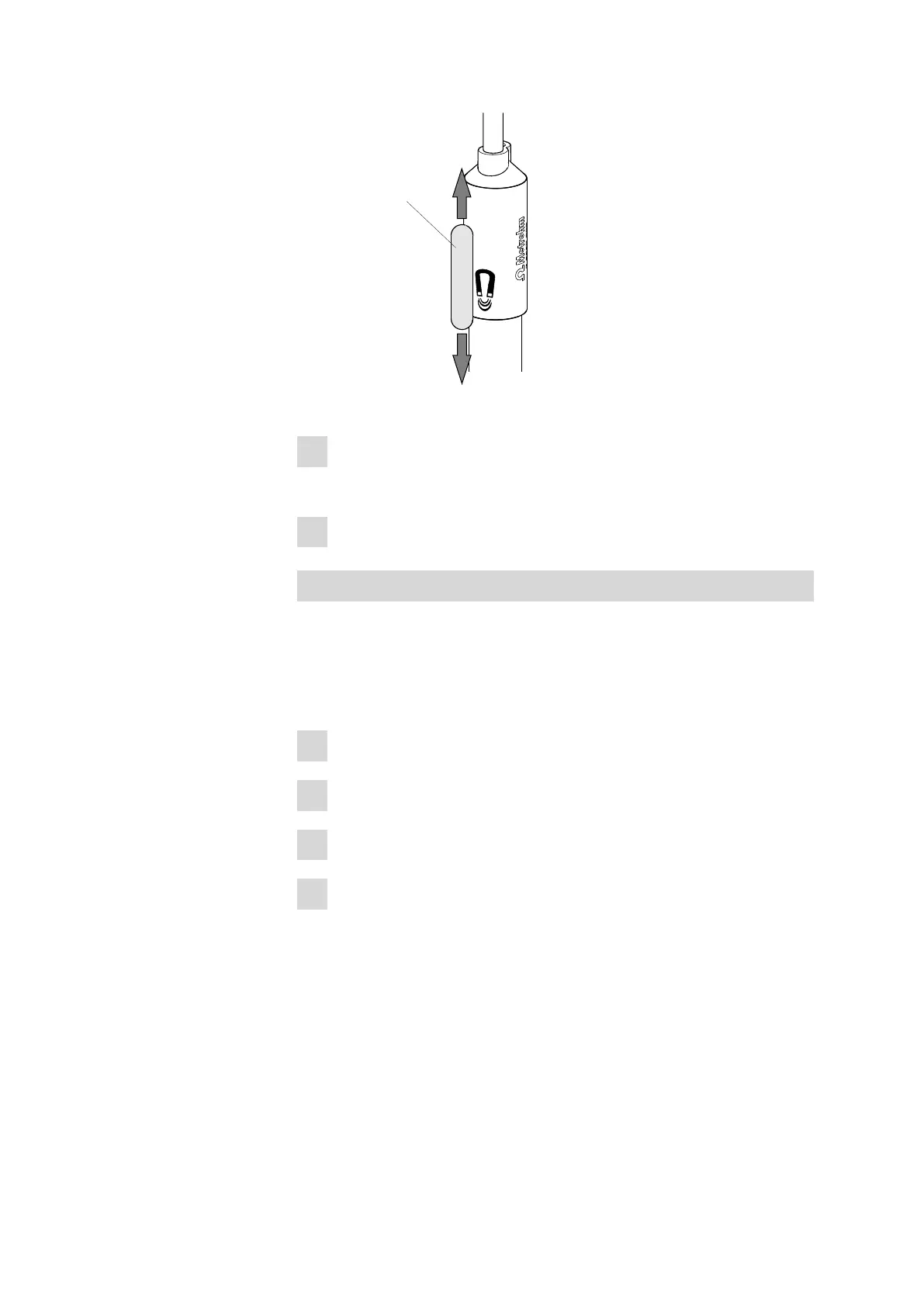
Figure 10 Switching the LED
2
Briefly move the magnet up and down again.
Moving the magnet switches to the next LED.
3
Move the magnet again until the desired wavelength is set.
Switching between LEDs via tiamo
The Optrode is recognized automatically by the control software tiamo
(version 2.5 and higher). However, this only works if the Optrode is con-
nected directly to the titrator or control instrument via USB.
The wavelength is changed as follows in tiamo:
1
Double-click on the command in the method run.
2
Open the General/Hardware tab.
3
Under Sensor, select the option Optrode.
4
Under Wavelength, select the desired wavelength.
(A wavelength of 610 nm is suggested by default, no matter what
wavelength the Optrode is currently set to.)
The selected wavelength can later be used in the formula editor as
variable (.WVL).


 To Next Page