14
(Note: Device watermarks aren't supported on some devices.)
Tap More in Photo mode, and tap Settings. In Camera settings,
tap Watermark, and then enable Add time stamp on photos and Device
watermark.
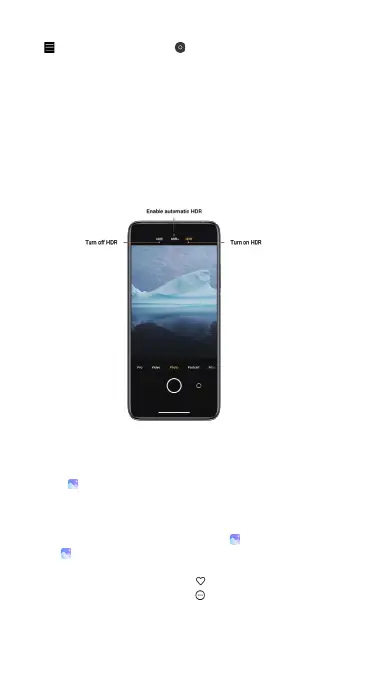
HDR
HDR is short for high dynamic range. This feature makes multiple shots in
order to underexpose bright areas and overexpose dark spots and combine
them together so every item on your photo is clearly visible.
You'll see the HDR icon on your screen when this feature is on. Taking photos
in HDR is slightly longer than taking regular photos.
(Note: Auto HDR isn't supported on some devices.)
Gallery
Open the Gallery app to view all the visual media stored on your device.
You can view, edit, and manage pictures and videos.
View pictures
Pictures stored on your device are viewable in the Gallery app.
1. From Gallery, tap Photos.
2. Tap a picture to view it. Swipe left or right to view other pictures or videos.
• To mark the picture as a favorite, tap Favorite.
• To access the following features, tap More:
• Add to album: Move the picture to an album.
• Set as wallpaper: Set the picture as wallpaper.
• Start slideshow: Showcase the picture in a slideshow.



 To Next Page