Copyright © 2009-2013 Micca, LTD. All rights reserved.
manually start a slideshow through the “Photo” icon from the main menu.
Background music will also begin playing if music files are found. To change this
behavior, refer to detailed settings in Chapter 6.
When viewing photos, refer to Section 3.3 for remote control functions available. The
following operations are available using the buttons on the back of the photo frame:
Play or pause the photo slide show.
Decrease background music volume (only if music is playing)
Increase background music volume (only if music is playing)
Go to the previous photo.
Go to the next photo.
Stop the slide show and return to the photo thumbnail menu.
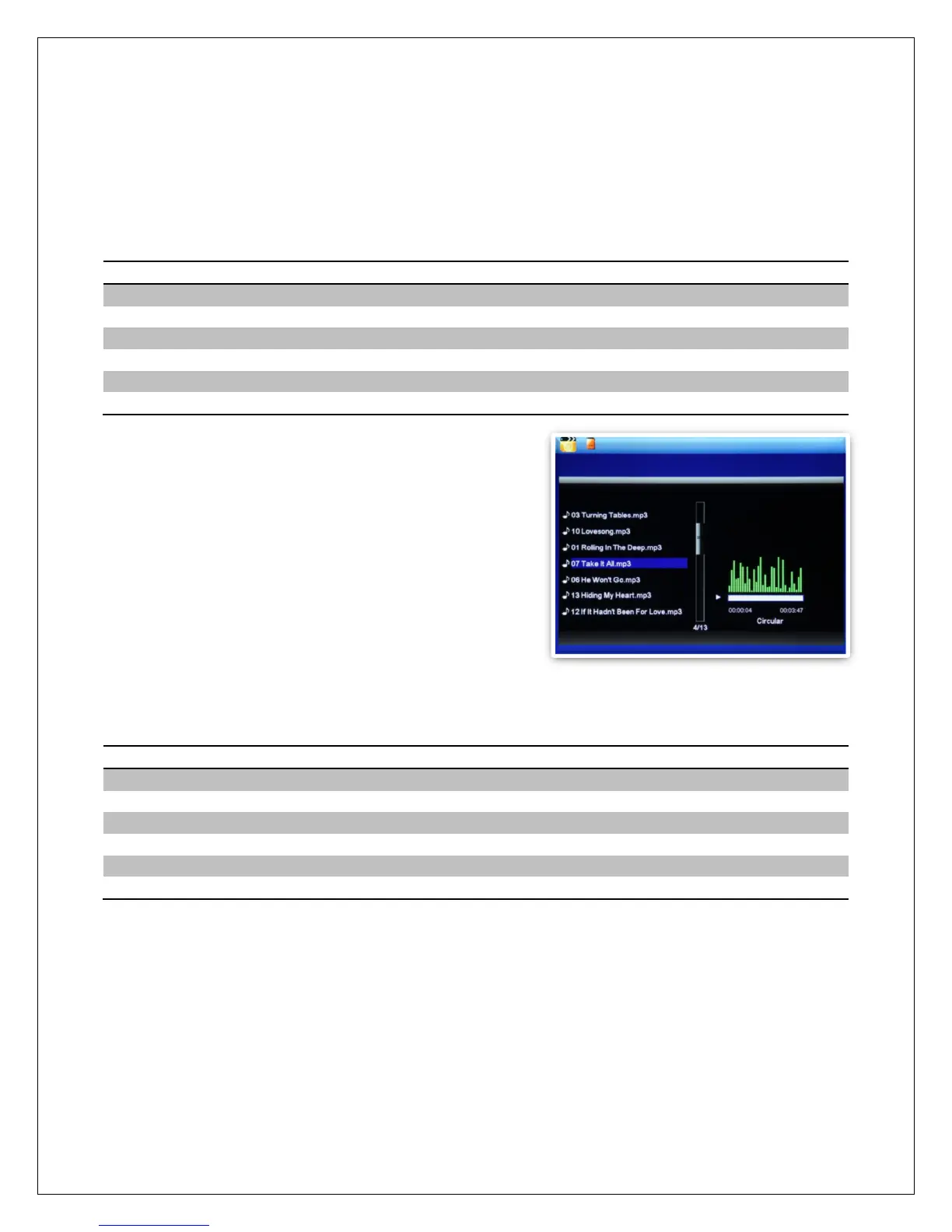
5.4 Playing Music
To begin playing music, select the “Music” icon
from the main menu. All supported music files
found on the storage device will be displayed in
one list. Only MP3 music files with an “mp3” file
extension are supported. Scroll to the desired
music file and press the “Play/Pause/Enter”
button to begin playing the music.
While playing music, refer to Section 3.3 for remote control functions available. The
following operations are available using the buttons on the back of the photo frame:
Play or pause the music.
Turn down the playback volume.
Turn up the playback volume.
Go to the previous music file.
Go to the next music file.
Stop the playback and return to the main menu.
5.5 Playing Videos
To begin playing videos, select the “Video” icon from the main menu. All supported
video files found on the storage device will be displayed in one list. Scroll to the desired
video file and press the “Play/Pause/Enter” button to begin playing the video.
Only video files with an “mp4” or “avi” file extension are supported. If a video file does
not play, then it is likely not in a supported format. It is possible to convert such videos



 To Next Page