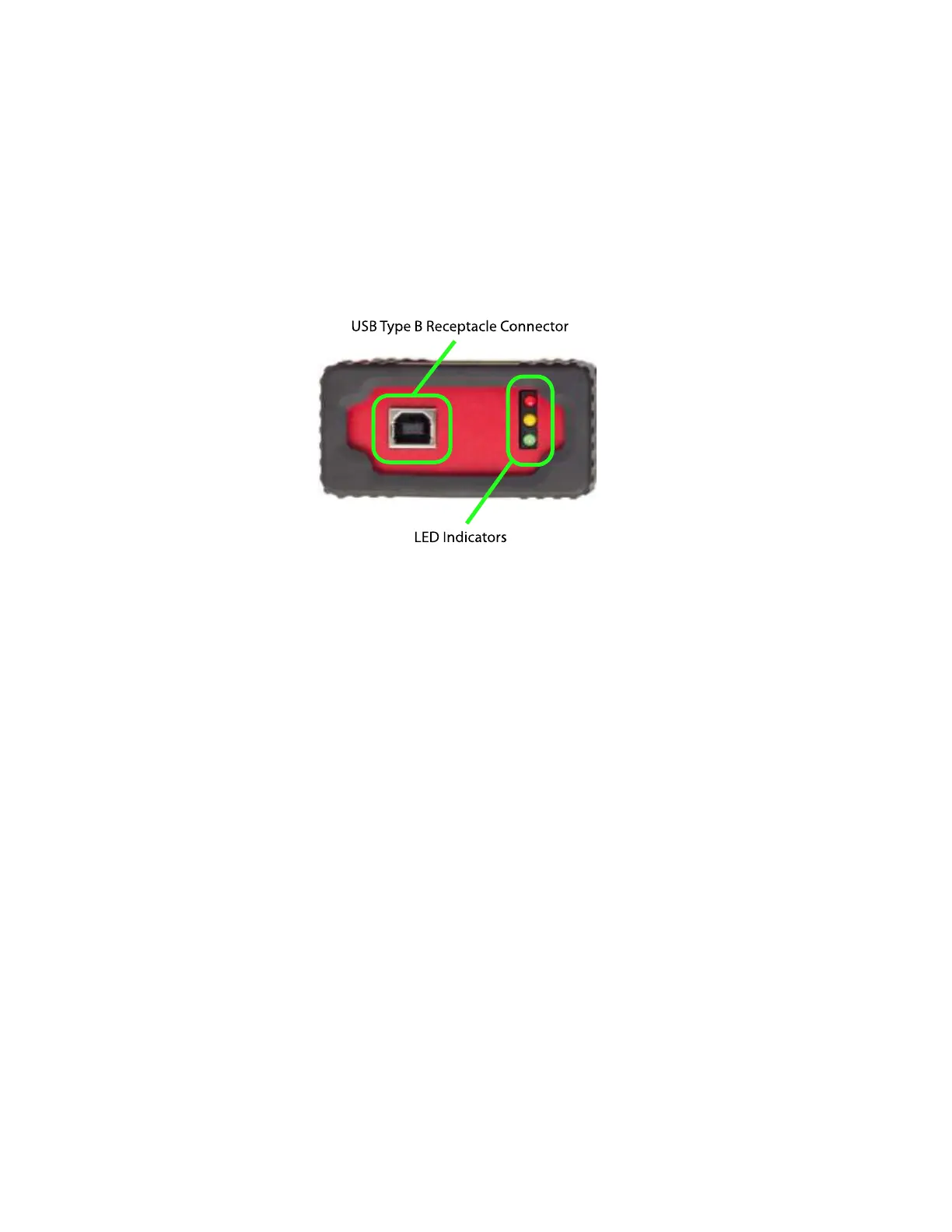
LED Indicators
LEDs near the USB port provide information about SyncLink USB operation:
Red Only Device plugged in and powered.
Yellow Only Device software loaded, DB-25 interface is disabled.
Green On Device is ready for use. Red = Transmit Data, Yellow = Receive Data
Troubleshooting
Try these steps if the SyncLink USB is plugged into a USB port and not functioning as expected:
All LEDs Off
Verify host system or USB hub is turned on and powered.
Try a different USB cable, or reseat cable.
Plug SyncLink USB in a different USB port.
Plug SyncLink USB in a different host or hub.
If the above steps fail, the SyncLink USB may have a hardware failure.
Red LED Only
Verify device software (driver) is installed and loaded.
Verify device software is latest version.
Verify device is not disabled in software (such as in Windows Device Manager).
If the above steps fail, the SyncLink USB may have a hardware failure.
Yellow LED Only
Follow the steps appropriate for your operating system to enable the DB-25 serial interface. In
Windows, this is done from the Advanced tab of the Properties page of the device in the Device
Manager. You must select the serial interface standard required for your application (RS232, V.35,
RS530, etc).



 To Next Page