41
9. Press Enter to select the newly created print server.
10. Select Print Server Configuration.
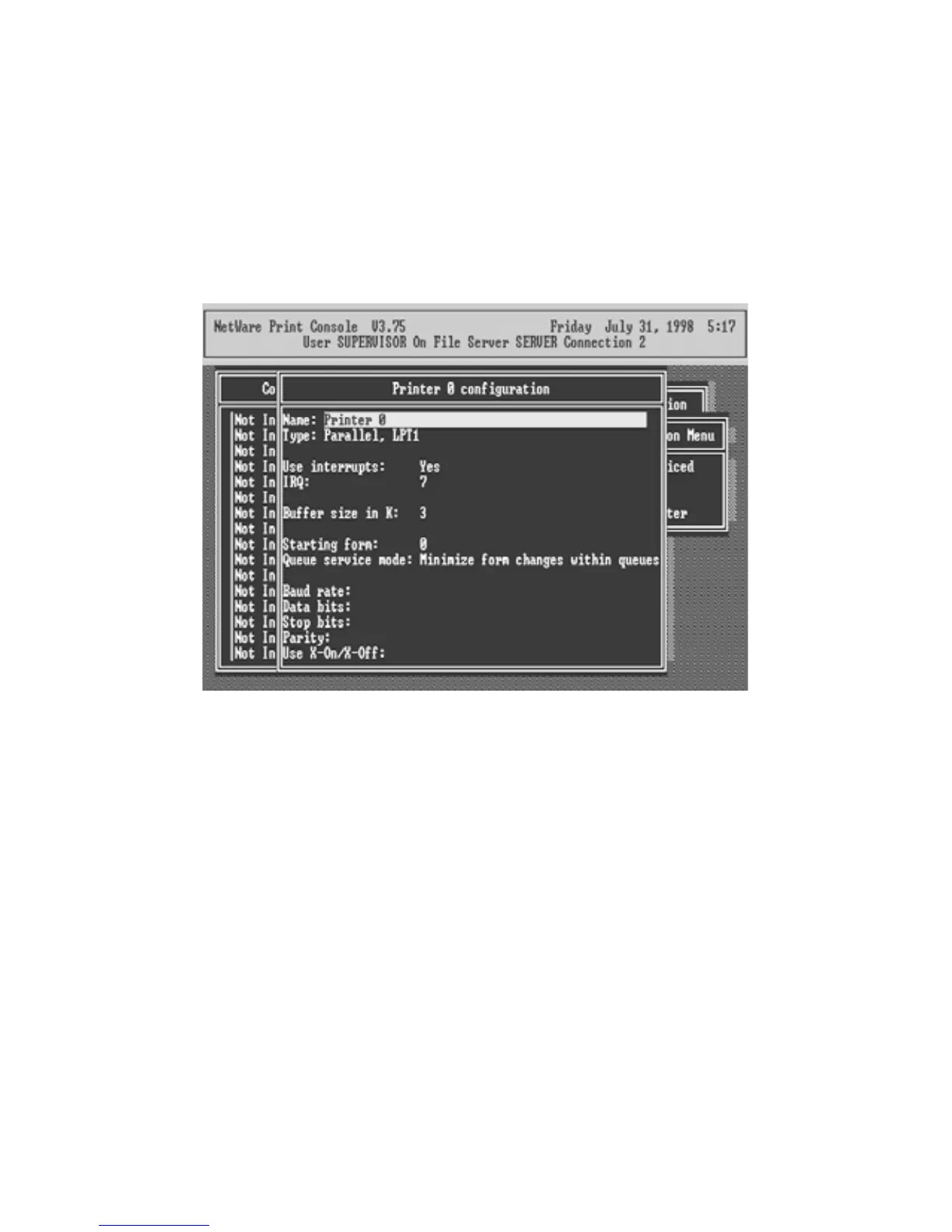
11. Select Printer Configuration.
12. Select Printer 0 (or Printer 1, Printer 2), and press Enter, then select
LPT1 (or LPT2, LPT3) in the Type field. If your print server is with
only one port, you do not need to configure this Type field.
13. Press Escape, and answer Yes to the Save Changes question.
14. Select Queues Serviced by Printer, then select Printer 0 (or Printer 1,
Printer 2) and press Enter.
15. Press Insert and add your newly created print queue to the list of
queues serviced by the printer. Enter a priority number for the queue
service, or press Enter to accept the default.



 To Next Page