Chapter 9: Protecting User Accounts and Using Parental Controls 145
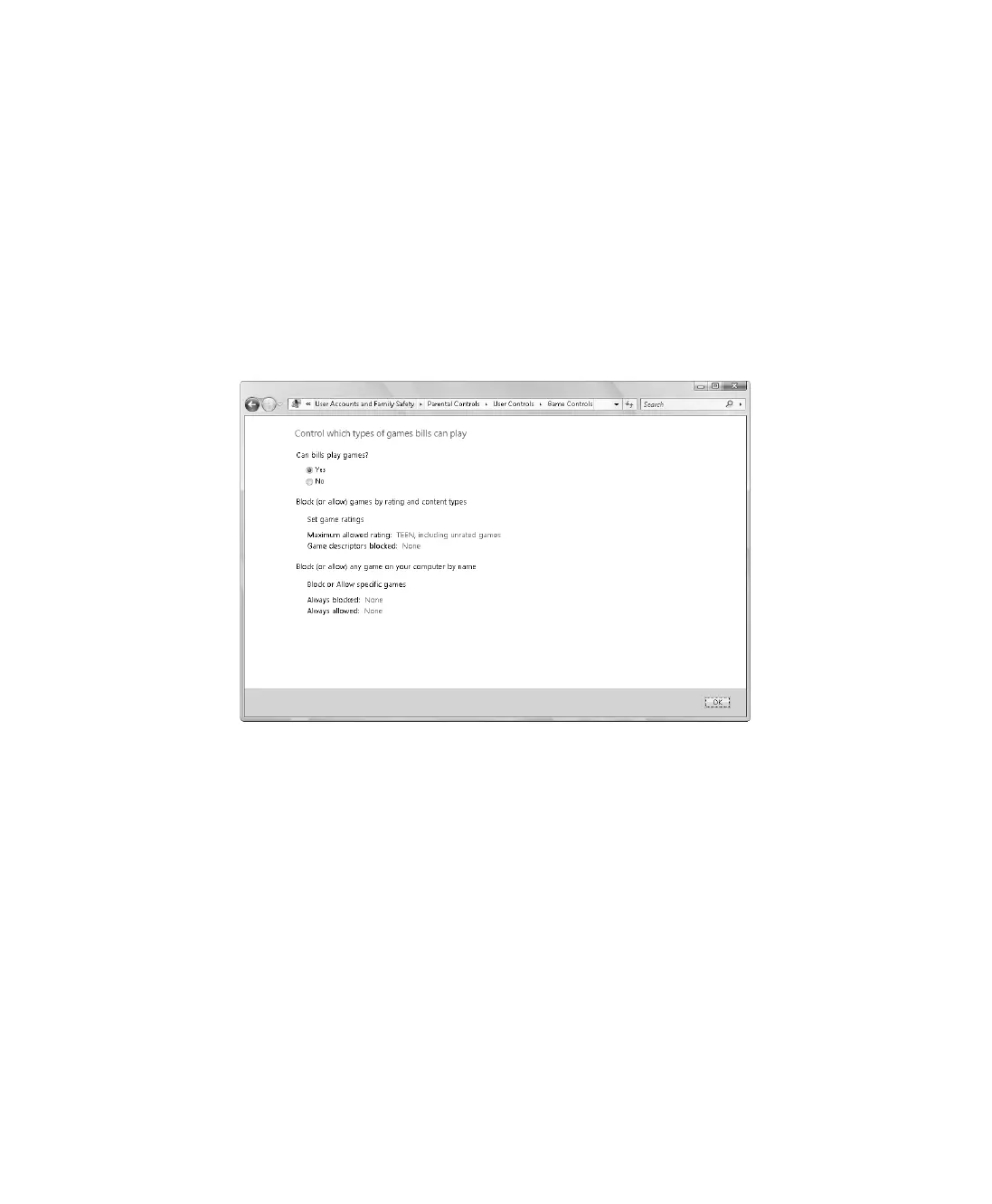
8. Game Controls determine the types of games that can be played. If you want to control
the types of games that can be played, click Games on the User Controls page. On the
Game Controls page, shown in Figure 9-10, you can specify which types of games the
user can play:
❑ Block all game play by setting Can <…> Play Games? to No.
❑ Block or allow games by rating and content types by clicking Set Game Ratings,
choosing which game ratings are okay for the user to play, and then clicking OK.
❑ Block or allow specific games by clicking Block Or Allow Specific Games, choosing
allowed or blocked games, and then clicking OK.
❑ Click OK when you have finished.
Figure 9-10 Setting game controls
9. Application Restrictions determine which programs can be run by the user. If you want
to control application usage, click Block Specific Programs on the User Controls page.
On the Application Restrictions page, shown in Figure 9-11, you can specify which types
of applications can be run:
❑ Allow all programs to be run by selecting <…> Can Use All Programs.
❑ Restrict all programs except those specifically allowed by selecting <…> Can Only
Use The Programs I Allow In This List.
❑ Set allowed programs using the options provided. If a program you want to allow
isn’t listed, click Browse, and then use the Open dialog box to select that program
for use.
❑ Click OK when you have finished.
C09622841.fm Page 145 Wednesday, May 17, 2006 9:26 AM


 To Next Page