Residue Build Up
Your thumbstick may be sticking or not rotating properly. Check out the Thumbstick
Replacement Guide so you can get to your thumbsticks and clean them or replace the thumb
stick covers.
Part: Thumbstick cover
Tools Required: TR8 Torx, Spudger
If this does not fix the problem, the thumbstick mechanism may be faulty meaning you should
replace the secondary board.
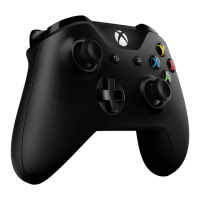
Part: Xbox One Controller (1537) Midframe Assembly and control board, Xbox One
Controller (1697) Midframe Assembly and control board
Tools: T6 Torx, TR8 Torx, Spudger, soldering station tweezers (recommended)
Broken Thumbsticks
It is possible that you have have been gaming a little too hard and one or both of your
thumbsticks are bent or broken. Look at our Thumbstick Replacement Guide to see how you can
get back to your hardcore gaming habits in no time.
Part: Thumbstick cover
Tools Required: TR8 Torx, Spudger
If cleaning or replacing the thumbstick covers does not fix the problem, the thumbstick
mechanism may be faulty meaning you should replace the main board.
Controller Won't Vibrate
When I am playing games, my controller refuses to vibrate.
Vibration Setting Not Enabled
Make sure your vibrations setting is enabled. This can be done in the settings of the game you
are playing.



 To Next Page