Removing a card (Macintosh)
Make sure that the "Access/Power" indicator is not flashing. The access indicator will
flash when data is being read or written on the card. Wait until the operations are com-
plete and the access indicator is no longer flashing before attempting to remove the card.
Removing a card during access operations will cause the data to be lost or corrupted.
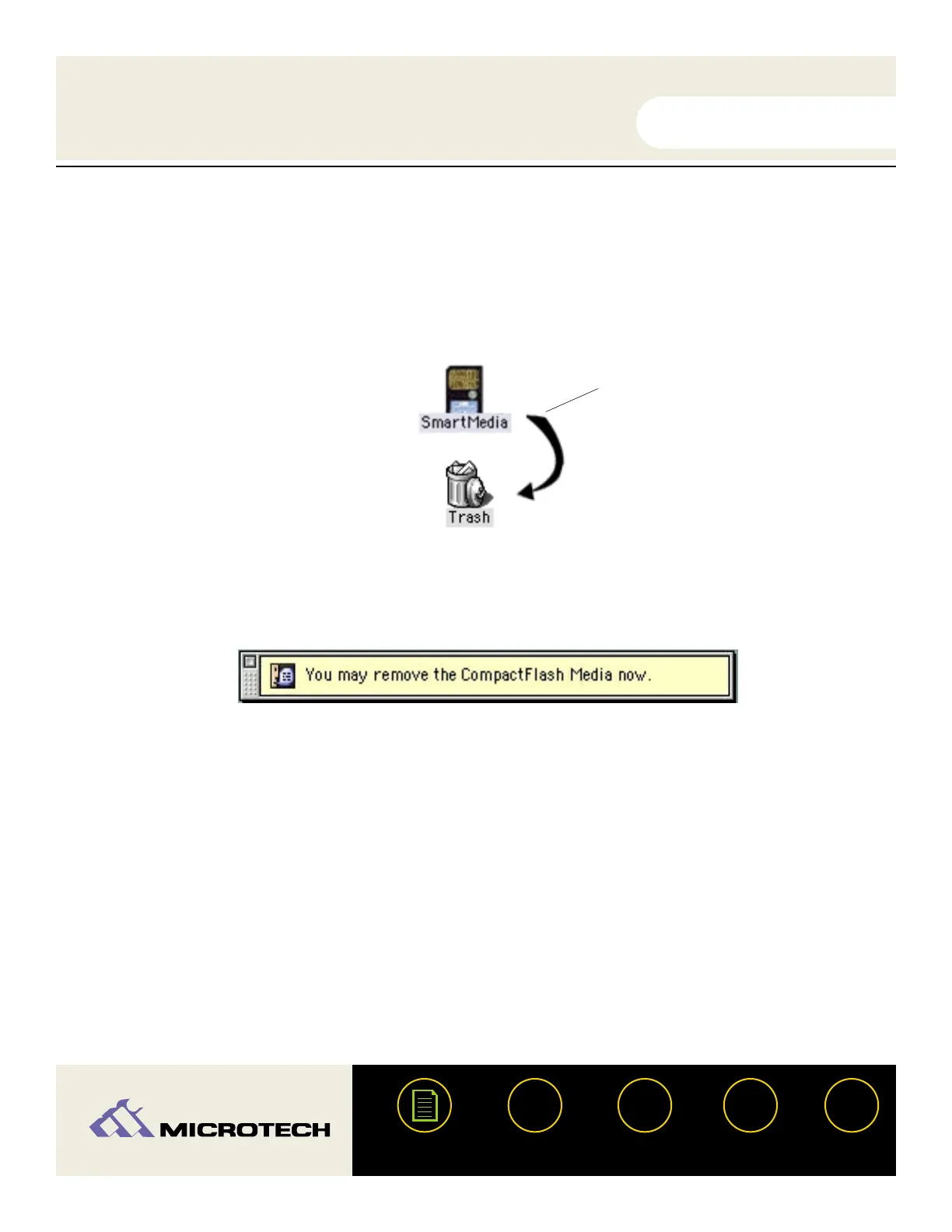
Drag the card icon and drop it onto the trash icon as shown above. The card icon will
disappear from the desktop. A dialog box similar to the one below will appear. It is now
safe to remove the card.
Removing a CompactFlash card:
To remove a CompactFlash card, press the eject button located to the right of the
CompactFlash slot - the card will eject slightly out of the slot. With your thumb and index
fingers, grasp the end of the card and remove the card from the slot.
Removing a SmartMedia card:
To remove a SmartMedia card gently push the card inward - the card will then extend out
of the slot. With your thumb and index fingers, grasp the end of the card and remove the
card from the slot. Note: The spring-loaded slot is similar in concept to a retractable ball
point pen - push in once to insert, push in again to eject.
USER'S
MANUAL
USER'S
MANUAL
USB CameraMate
?
HELP
CONTACT
NEXTBACK
CONTENTS
27
1.
2.
3a.
3b.
Drag the card icon to the trash.
The card icon will disappear and
a dialog box similar to the one
below will appear.


 To Next Page