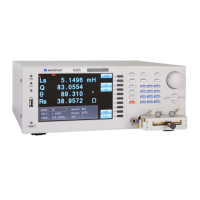
The first measurement term.
To select X, the Parallel/Series soft key must first be set to Series.
To select B, the Parallel/Series soft key must first be set to Parallel.
When either Z or Y are selected, the second measurement term is angle ( º ).
The Q D R G and Parallel/Series soft keys are not appropriate and are
therefore not shown.
The second measurement term.
To select G, the Parallel/Series soft key must first be set to Parallel.
Parallel or Series equivalent circuit. All first and second measurement
terms are shown above this soft key but only the appropriate measurement
terms can be set depending on whether Parallel or Series is selected. See
the narrative on C L X B Z Y and Q D R G (above) for details.
Toggles between Show Scale and Hide Scale. The selection either shows a
diagram of the equivalent circuit, i.e. Parallel or Series, or shows a bar
graph representation of either of the measurement terms (selectable by
setting the nominal and limits, see Abs % below). The bar graph scale can
either be used as a quick visual verification that the component is within the
limits set, or can be used for adjustment of variable components. When the
measurement falls within the centre band the meter reports ; when
the measurement falls above or below the centre band the meter reports
or .
Only available when the bar graph scale is displayed. Toggles between Abs
and %. When Abs is selected, absolute Hi and Lo limits (i.e. units of the
measured parameter) are displayed. When % is selected, a nominal value
together with Hi and Lo percentage limits are displayed.
The limits and nominal value (if applicable) must be set using the and
navigation keys to highlight each parameter and the data entry keypad to set
each value (the use of the data entry keypad is described in section 4.2.4).
When in % mode, the bar graph scale Hi and Lo limits can easily be set
equidistant about the nominal by setting either of the limits then
highlighting the other limit and pressing the keypad Enter key twice. This
mimics the setting of the other limit but with the opposite sign
Only available when the bar graph scale is displayed and % limits is
selected. If a standard component exists, it can be connected to the test
leads or fixture and measured by the meter. Pressing Save Nom enters the
most recent meter measurement of the component as the nominal test value
for comparing all subsequent components with.
Notes:
1) To change this function from the first to the second measured parameter
(or vice versa), first enter a dummy value with units via the keypad; e.g.
to change from L to R, enter [1] [units] [Ω] [Enter] then press the Save



 To Next Page